Forgot your password
Reset your password by email.
If you have forgotten your password, you can set a new one yourself. Paatya emails you a link, and the link lets you choose a new password. Your students reset their passwords in exactly the same way.
Before you start
- You need to be able to open the email account you sign in with.
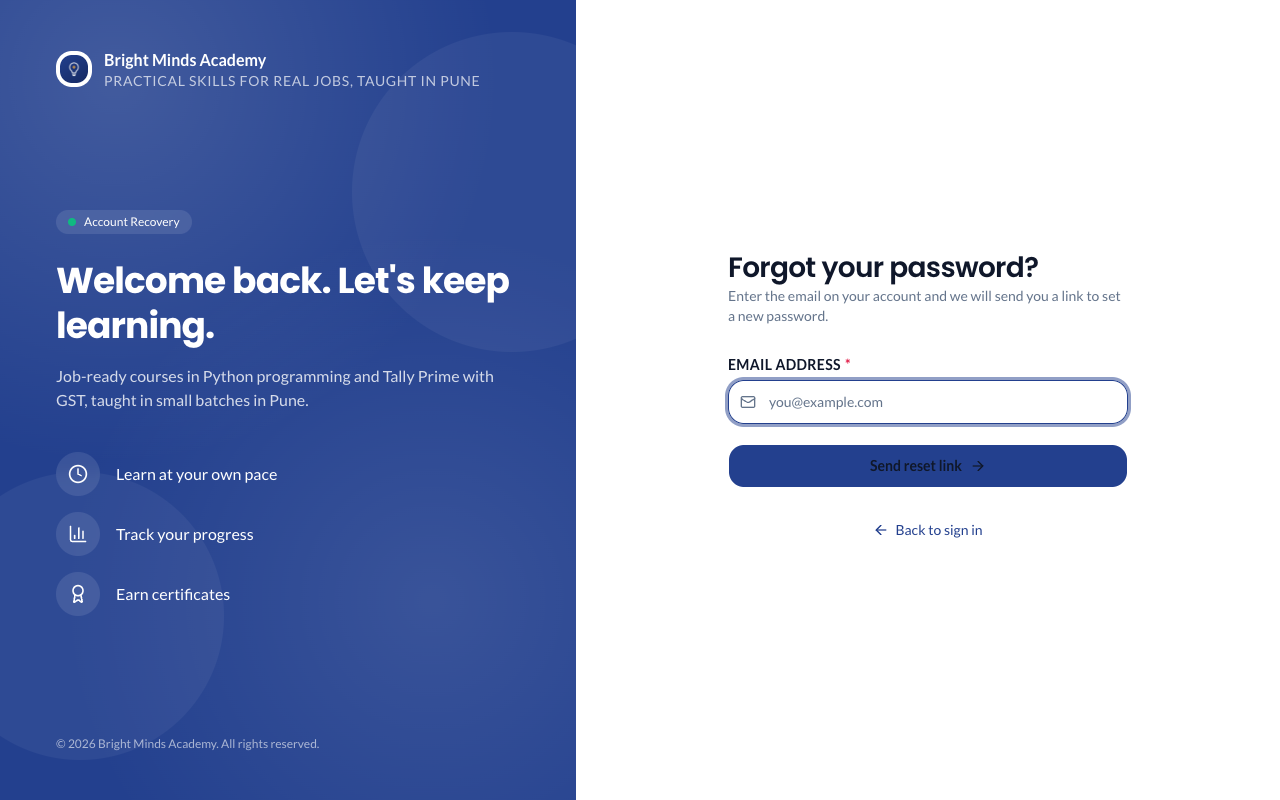
Ask for a reset link
- Open your academy's sign-in page, for example
https://bright-minds.paatya.net/login. - Click Forgot password?.
- Enter your Email Address.
- Click Send reset link.
You'll see Check your inbox. The link is on its way.
Choose a new password
- Open the email and click the link. It works for 60 minutes.
- On Choose a new password, type your new password twice. It needs 8 or more characters, an uppercase letter, a number and a special character. It also can't be built on a very common password or word, such as
Welcome@2026or your academy's name: Paatya says "That password is too easy to guess". A few unrelated words, or a phrase only you would think of, works well. - Click Reset Password.
What you'll see
Your password is changed. Sign in with the new one.
If something goes wrong
- No email arrived. Check your spam folder. Make sure you typed the email address you sign in with. Click try another address to send it again.
- You have never signed in. If your account has not been activated yet, Forgot password? sends you a fresh invitation link instead of a reset link. Open it and choose your password.
- "This link cannot be used". The link is more than 60 minutes old, or has already been used. Click Request a new reset link and use the newest email.
- "Passwords do not match". Type the same password in both boxes.
- "That password is too easy to guess". It's built on a very common password or word. Choose something less predictable, such as three or four unrelated words.
- "Sign-in is blocked for 30 minutes". There were 3 wrong passwords in a row. Wait 30 minutes, or ask an admin to unblock you if you're a student. See Sign in and sign out.
- You no longer have access to that email address. Email support@paatya.net with your academy's address.
Tip: If you know your password and just want a new one, you don't need this page. While signed in, click your name at the top right and choose Change password. See Change your password.