Sign in and sign out
Open your academy's admin screens.
You sign in to your own academy's address, not to paatya.net. Admins, instructors and students use the same sign-in page. Paatya knows who you are and takes admins and instructors to the admin screens.
Your sign-in address
Your academy's address was chosen at sign-up, for example bright-minds.paatya.net. Add /login to it:
https://bright-minds.paatya.net/login
Tip: Bookmark this page. If you forget your address, open paatya.net, type your academy's name in the Academy address box and click Go.
If your academy uses its own domain, such as learn.brightminds.com, you can sign in there too. See Web address and domain.
Sign in
- Open your academy's sign-in page.
- Enter your Email Address and Password.
- Click Sign In.
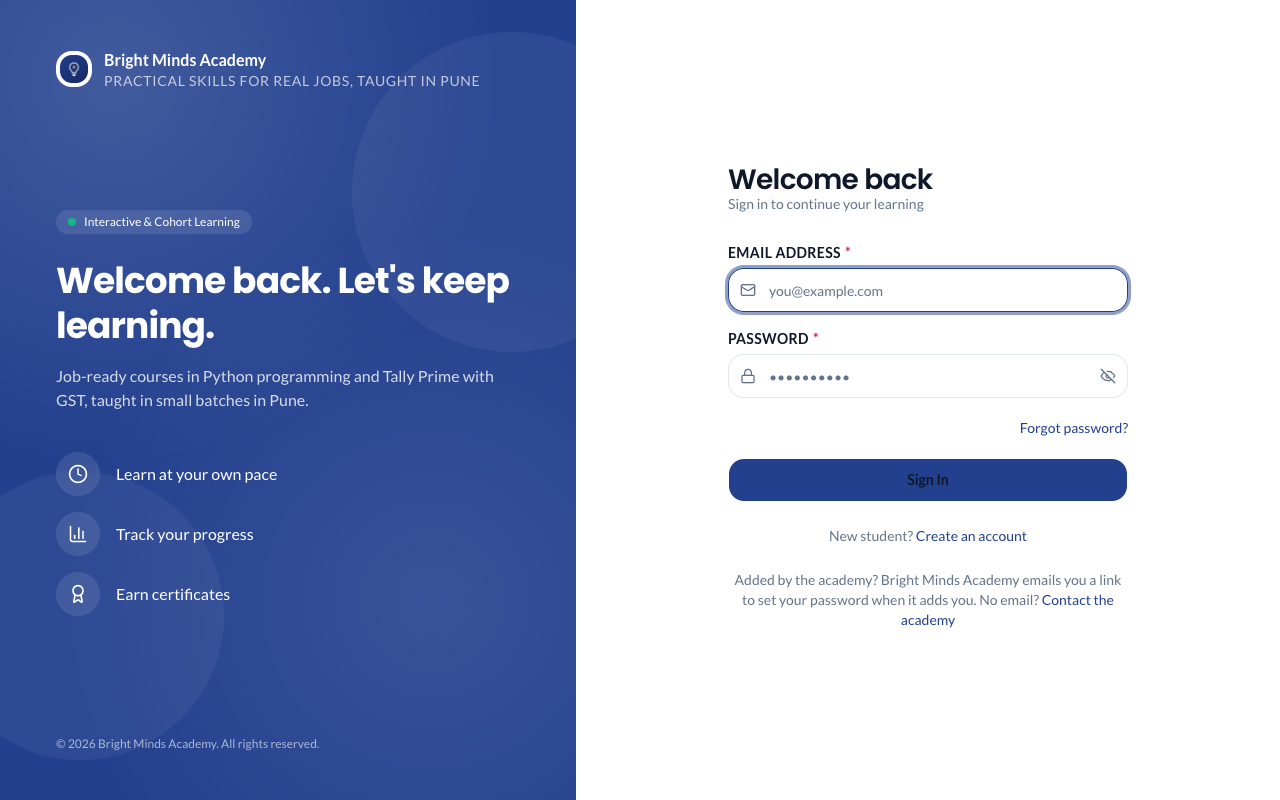
What you'll see
Your Dashboard. The menu on the left takes you to Courses, Students, Enrollments, Enquiries, Analytics, Payments, Usage & Billing, Refer & earn and Settings. On a phone, tap the menu button at the top to open it.
Sign out
- Click your name or picture in the top-right corner.
- Click Sign out.
Signing out also ends that session on Paatya's side, so nobody can carry on with it from a copy left in the browser. Always sign out on a shared or public computer.
If something goes wrong
- "Invalid email or password". Paatya shows this one message for every failed sign-in, to keep accounts safe. Check each of these:
- The email address and password are correct. Passwords are case-sensitive. If you have forgotten yours, click Forgot password?. See Forgot your password.
- You are on the right academy's address.
- You have activated your account. If you were invited as an admin, open the invitation email and click its link to set a password first.
- Your account is active. Another admin can see the reason under Settings → Activity, in the Sign-ins list (for example Deactivated or Not activated), and can click Reactivate under Settings → Admins.
- Too many incorrect password attempts. Sign-in is blocked for 30 minutes." After 3 wrong passwords in a row, sign-in to that account is blocked for 30 minutes, even with the right password. It lifts by itself. Students can ask an admin to unblock them sooner (see Find and manage students), and so can instructors (see Unblock an instructor); admins can ask Paatya support. Your open sessions are not signed out.
- You were signed out on its own. Either you signed in on another device, or nobody used the page for a while: admins and instructors are signed out after 1 hour without activity, and after 12 hours in all; students after 7 days without activity, and after 30 days in all. The sign-in page says which. See One device at a time.
- "No academy found" on paatya.net. Check the spelling of your academy's name or address. Your welcome email has the exact address.
Change your password
- Click your name at the top right. On a phone, students tap Account at the bottom.
- Click Change password.
- Type your Current password, then your New password twice. The checklist under it shows the rules a password must meet. It also can't be built on a very common password or word, such as
Welcome@2026or your academy's name: Paatya says "That password is too easy to guess". A few unrelated words, or a phrase only you would think of, works well. - Click Save password.
You stay signed in on this device. Anywhere else you were signed in is signed out.
Two-step sign-in (admins and instructors)
Every admin and instructor signs in with a second step: after your password, Paatya emails you a 6-digit code to enter. If you haven't set it up yet, Paatya sets it up with you the next time you sign in. See Two-step sign-in.