Add a video
Upload a lesson video and add chapters.
Most topics are built around a video lesson. This page shows you how to upload a video to a topic, add chapter markers, and decide whether students can skip ahead.
Before you start
- Your video must be an MP4 file, up to 512 MB and no larger than 1080p (1920×1080, or 1080×1920 if recorded upright). MP4 is the one format that plays on iPhone, Android and every browser; WebM and other formats are not accepted.
- Have the topic open in its editor. See Build the curriculum if you need to add one.
- Video storage and streaming use your academy's balance. See How pay-as-you-go works.
Tip: Most phones and screen-recording tools save MP4 files. If a video is bigger than 512 MB, split it into two topics or export it at a lower quality. 720p is the best choice for most lessons: it looks sharp on phones and laptops and costs your students less data to watch.
Upload a video
- Open the topic's editor and click the Video tab.
- Drag the video file onto the box, or click browse and choose it.
- Wait while it uploads. You'll see a progress bar and "Uploading… 45%". Keep the page open until it finishes.
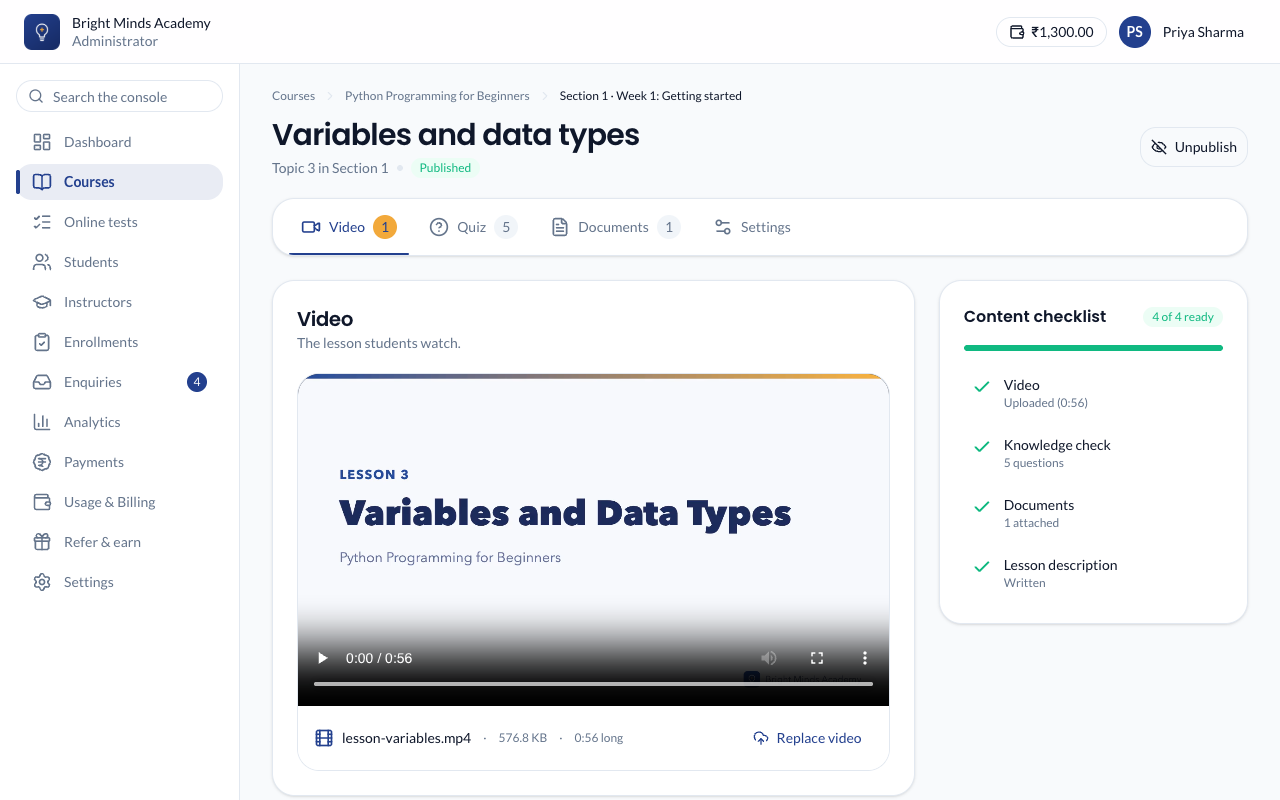
- Paatya reads the video's length from the file. Then the video appears with a player so you can check it.
To stop an upload part-way, click Cancel upload.
Let students skip ahead, or not
Under Video details, the Allow students to skip ahead switch controls how students watch:
- On: students can jump anywhere in the video.
- Off: a student can't jump past the furthest point they have watched. Use this when every minute matters.
Add chapter markers
Chapters let students jump straight to part of a lesson. They also show as marks along the video's progress bar.
- Under Chapters, click Add chapter marker.
- Type the time the chapter starts, such as
2:30. - Type the chapter's title, such as "Common mistakes".
- Repeat for each chapter. Chapters save by themselves and sort into time order.
To remove a chapter, click the bin icon next to it.
Replace a video
- Under the video, click Replace video.
- Choose the new file.
- If students have already started the topic, Paatya asks you to confirm. Click Replace and reset progress to go ahead, or Keep the current video.
Warning: Replacing a video deletes the old file. Every student who started the topic goes back to the beginning of it.
What you'll see
- On the Curriculum page, the topic shows a Video label and the video's length.
- Students watch the video in the lesson player. It remembers where each student stopped, so they can pick up from the same second next time.
If something goes wrong
- "… videos are not supported" or "Videos must be an MP4 file". Convert the video to MP4 (H.264), then upload it again. WebM is refused because iPhones and iPads cannot play it.
- "That video is … the limit is 512 MB". Split the video into shorter parts, or export it at a lower quality.
- "This video is … Videos can be at most 1080p". The video was recorded or exported at a higher resolution, such as 1440p or 4K. Export it again at 1080p or 720p, then upload it.
- "The upload did not finish." Check your internet connection and upload the video again.
- The length shows as "Unknown". The file doesn't say how long it is. The video still plays, but chapter times aren't checked against its length.
Next step
Add a quiz to check what students have learned.