How pay-as-you-go works
What you are charged for, and what is free.
Paatya has no subscription and no monthly fee. You keep a prepaid balance in your academy, and what your academy uses is taken from it. An academy nobody uses this month costs nothing this month.
What you pay for
Only three things are charged:
| Resource | What it means |
|---|---|
| Active learners | Each student who is active in a calendar month is charged once for that month. See Who counts as an active learner. |
| Video storage | The lesson videos you keep in your academy, charged for each GB stored per month. |
| Video delivery | The video your students watch, charged for each GB streamed. |
Who counts as an active learner
Signing in alone doesn't make a student active. A student counts as an active learner in a month, and is charged once for that month, when they:
- watch a course video
- take at least one quiz
- take at least one online test
- download any file from a course
A student who only signs in and looks around costs nothing. Admins are never charged.
Current rates are on the pricing page.
One optional extra is charged the same way. An academy on its own domain can leave "Powered by paatya.net" off its website for ₹50 a month. That fee is charged on the 1st of each month while the option is on. See Header & footer.
Your balance is not used for course sales. If you sell courses online, students' payments go to your bank account through Razorpay. The one exception is a refund: Razorpay keeps its own charges on a refunded payment, and whatever your share of the sale can't cover is taken from your balance as an adjustment. See Refund a student.
What is free
- Courses, and as many of them as you like.
- Registered students who aren't active that month.
- Admins. You can invite as many as you need, and they are never charged.
- Email notifications to your students.
- Documents, quizzes, certificates and your public page.
There is no free allowance, so the rates apply from the first learner and the first gigabyte.
How the balance works
- You add balance. You pay through Razorpay and get an invoice. Where Paatya charges GST, it is added on top and the invoice is a GST tax invoice.
- As your academy is used, charges are taken from the balance throughout the day.
- You can see what you've used, and what's left, under Usage & Billing.
- Before the balance runs out, you get warning emails, so you can top up in time.
The smallest recharge is ₹1,000. Your first recharge earns bonus credit. The exact bonus, and the most it can be, is shown on the Recharge page before you pay.
Welcome credit
A new academy starts with ₹100 of free welcome credit, so you can create courses, add students and enroll them before you recharge. It shows under Usage & Billing → Transactions as Welcome credit.
Welcome credit and referral rewards are promotional credit:
- they are used before the credit you paid for
- they can't be refunded
- they don't use up your first-recharge bonus, which you still get on your first payment
Before your academy has balance
Once the welcome credit is used up, and until you first recharge, there is no grace period: students can't watch videos or start learning, and you can't add courses, students or enrollments. You can still:
- sign in and look around every screen
- set your logo, colours and fonts
- write your public landing page
- invite other admins
Creating courses, adding students and enrolling them open up again as soon as you add balance.
The Usage & Billing pages
Click Usage & Billing in the left menu. The main tabs are:
| Tab | What it's for |
|---|---|
| Overview | Your balance, this month's spend by resource, and credits added this month. |
| Usage | Spend by day and by resource, for any period. |
| Transactions | Every credit and charge on your balance. |
| Statements | One statement for each month. |
| Forecast | How long your balance will last at your recent rate of use. |
| Recharge | Add balance. |
| Spending limits | Daily and monthly caps. |
| Notifications | Who gets billing emails, and when. |
| Payments & invoices | Your payments, tax invoices and credit notes. |
| Billing details | The name, GSTIN and address printed on your invoices. |
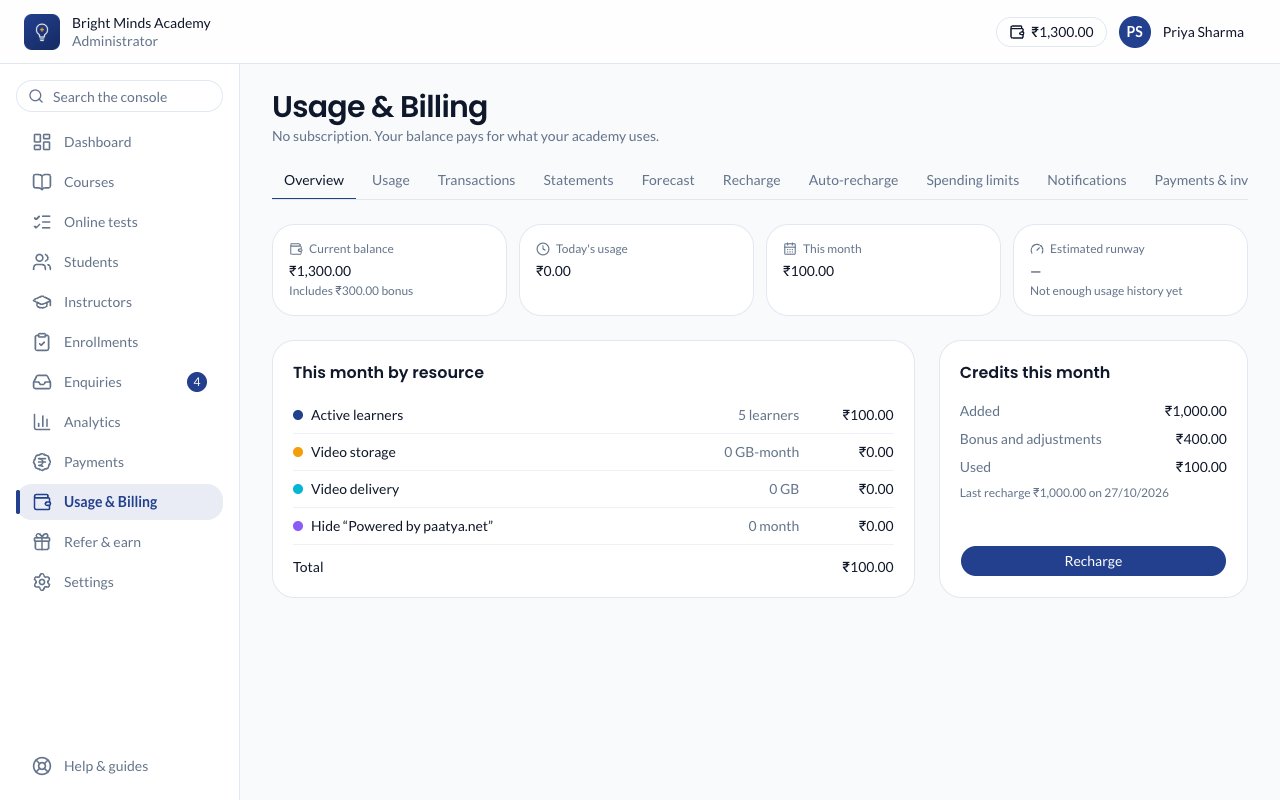
Your balance is also shown at the top of every admin screen. Click it to open Usage & Billing.