Add a quiz
Questions, passing score, attempts and time limit.
A quiz at the end of a topic checks what a student has understood. This page shows you how to add a quiz to a topic, write questions, and set the passing score, attempts and time limit. The tests in an online test are built the same way.
Before you start
- Open the topic's editor. See Build the curriculum.
- Each topic can have one quiz.
Note: When a topic has a quiz, students must pass it to finish the topic. Keep that in mind when you set the passing score.
Add a quiz
- In the topic's editor, click the Quiz tab.
- Click Add a quiz.
Write questions
- Click Add question and choose a type:
- Multiple choice: one right answer.
- True / false: one right answer.
- Multiple selection: one or more right answers.
- Type the question in the box that says "What are you asking?".
- Type each answer option. Click Add option for more, up to 10.
- Mark the right answer by clicking the circle or tick box next to it. For Multiple selection, mark every right answer.
- Set the question's marks. Harder questions can be worth more. The total is shown at the top.
- Optional: click Add picture under the question to show a diagram or graph with it. To use a picture as an answer, click the picture icon beside that option. Pictures are JPG or PNG, up to 2 MB. A question or answer can be a picture alone.
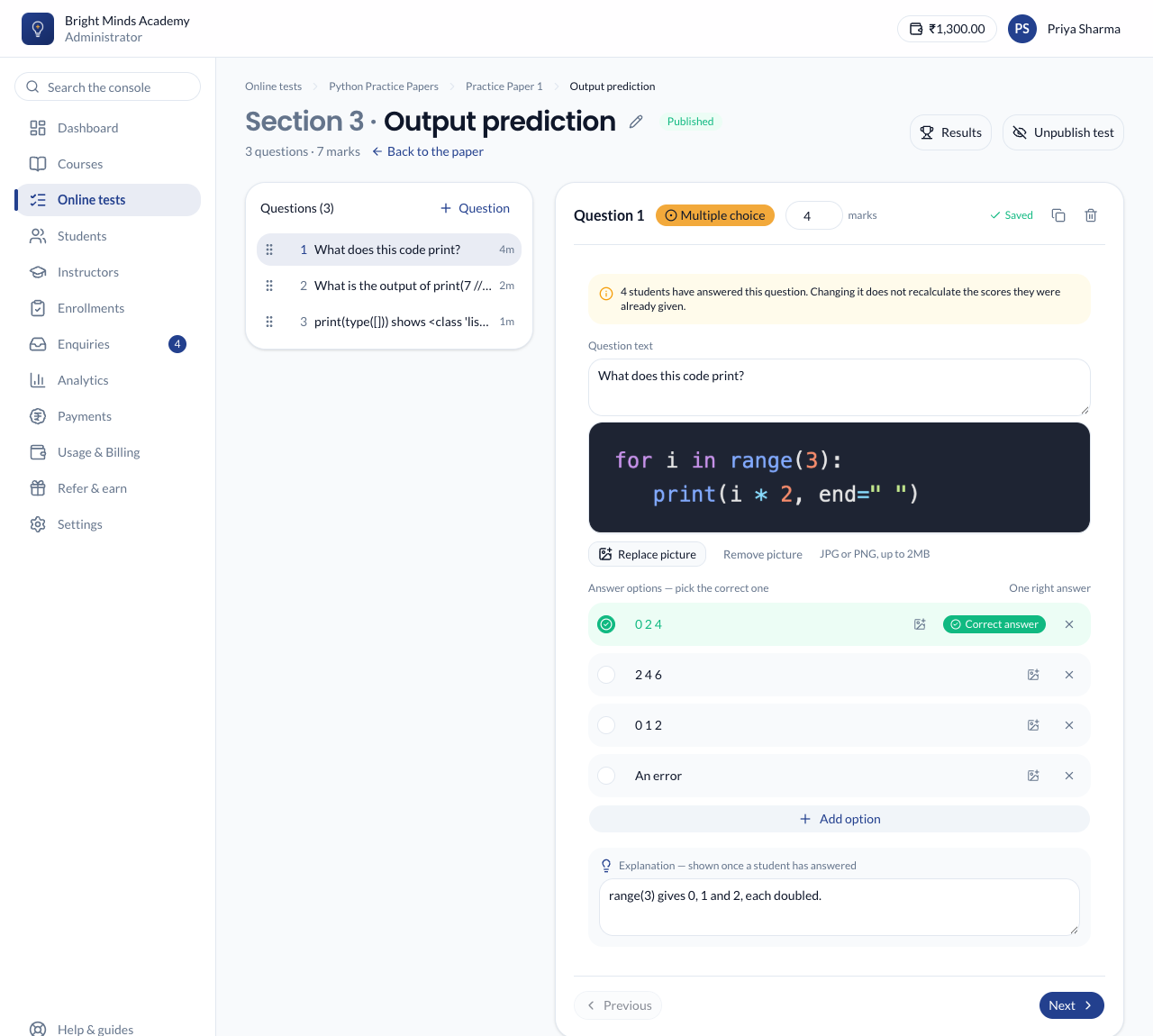 7. Optional: write an Explanation. Students see it once they have answered.
Repeat for each question. The quiz saves by itself as you type. You'll see "Saved" at the top of the page.
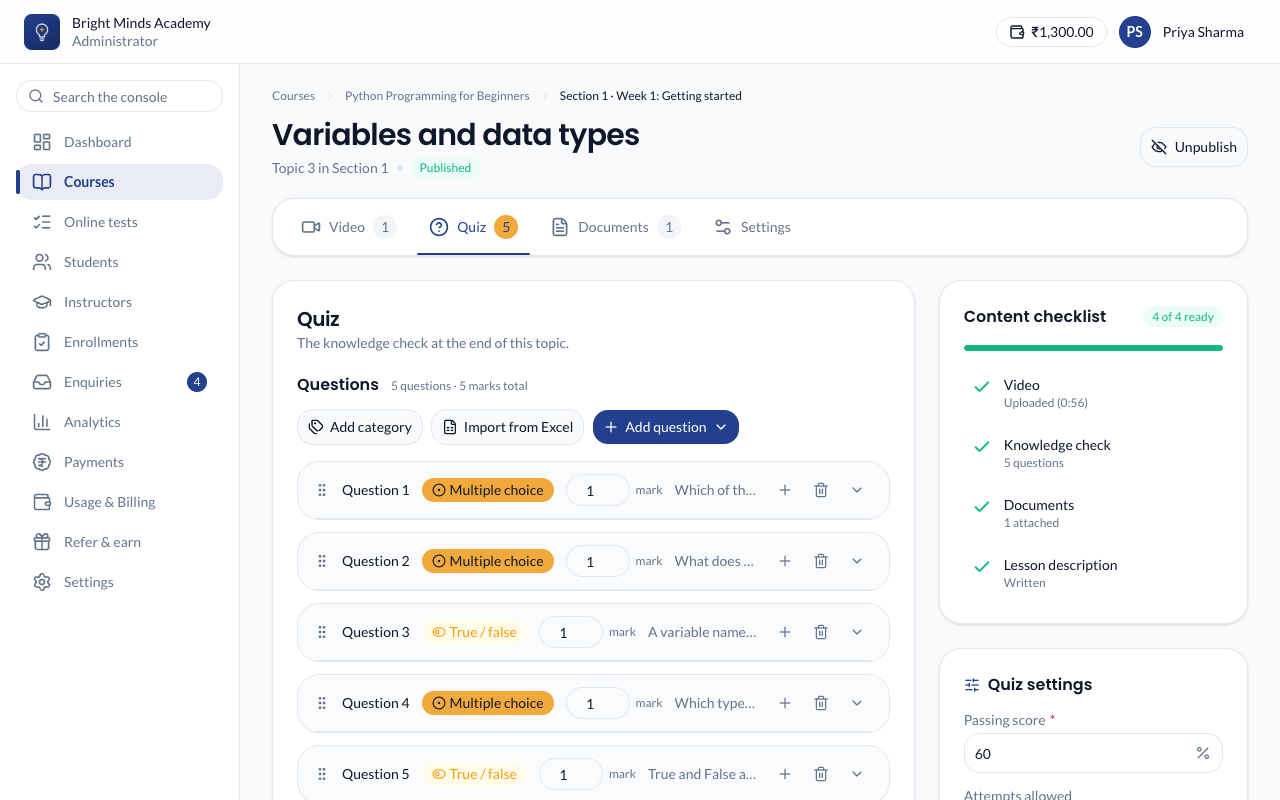
To copy a question, click its copy icon. To change the order, drag it by its grip. To remove a question, click its bin icon.
To add many questions at once, click Import from Excel. See Create questions from Excel.
Split the quiz into categories
For a paper with parts, such as Quantitative Aptitude, English and Reasoning:
- Click Add category and type its name. The questions you already have go into the first category.
- Add the other categories. Use the arrows to put them in the order students should see them.
- Open each question and choose its Category. New questions go into the last category.
- To give every question in a category the same marks, type the marks beside it and click Set for all.
Students get the categories as tabs while taking the quiz, and their marks for each one in the result. If Shuffle questions is on, questions are shuffled within each category and the categories stay in order. Deleting a category asks which category its questions move to.
Write the instructions
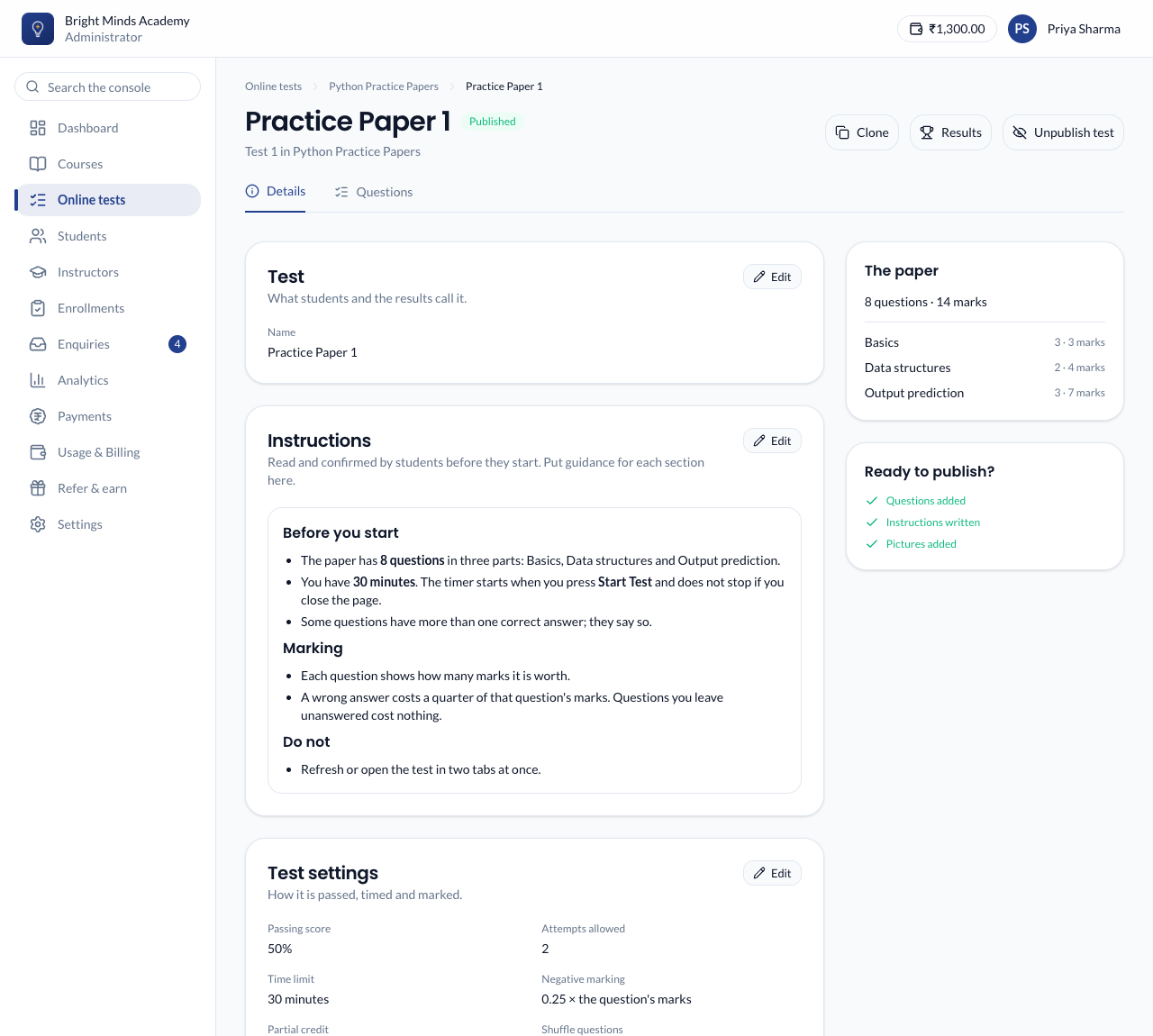
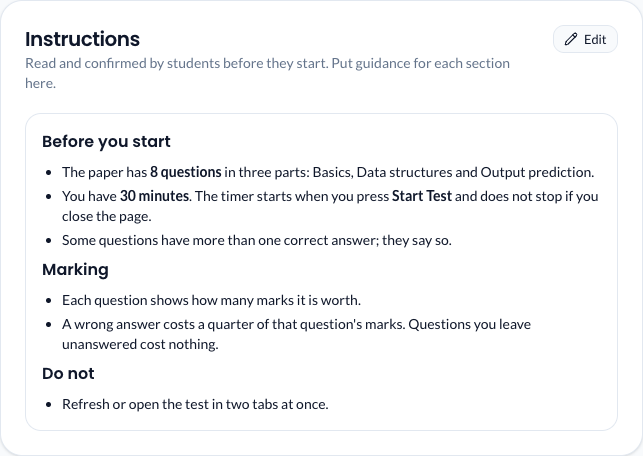
Under the questions, the Instructions box holds what students read before they start, such as the exam's rules. Click Use a template for a starting point, and Preview to see it as students will. You can use ## for headings, - for lists and **bold**.
When a quiz has instructions or negative marking, students must tick I have read and understood the instructions before they can start.
Quiz settings
| Setting | What it does | Starts at |
|---|---|---|
| Passing score | The percentage a student needs to pass. | 70% |
| Attempts allowed | How many tries a student gets: 1, 2, 3, 5, 10, or No limit. | 3 attempts |
| Time limit | Minutes allowed, from 1 to 480. Tick No time limit for none. When time runs out, the answers are submitted. | No time limit |
| Negative marking | A share of a question's marks taken off for a wrong answer, from 0 to 1. With 0.25, a wrong 1-mark question loses 0.25 and a wrong 4-mark question loses 1. Questions left unanswered lose nothing. Leave it empty for none. | Off |
| Partial credit | A multiple-selection question can score part marks. Wrong picks still take marks away. | Off |
| Shuffle questions | Each student gets the questions in a different order. | On |
| Show correct answers | After finishing, students see the right answers and your explanations. | On |
| Show score immediately | Students see their score as soon as they submit. | On |
A student's best score is the one that counts.
Publish the topic
When the questions are ready, click Publish topic at the top of the editor. Students on the course can now take the quiz.
What you'll see
- On the Curriculum page, the topic shows a Quiz label.
- Quiz results also show up in Course health, and for each student on their progress page.
If something goes wrong
- "Mark at least one answer correct." or "Mark exactly one answer correct." Tick the right answer, or answers, for that question.
- "This is the only question". A published topic's quiz can't be left empty. Add the new question first and then remove the old one, or unpublish the topic.
- "The quiz did not save." Check your internet connection, then make the change again.
- "Choose a category for this question." Once a quiz has categories, every question needs one. Open the question and pick its Category.
- "Pictures must be a JPG or PNG." / "Pictures must be 2MB or smaller." Save the picture as a JPG or PNG, or make it smaller, and add it again.
- A student says they're stuck. If they have used all their attempts, they see "You have used all your attempts at this quiz". Raise Attempts allowed to give them another try.
Next step
Documents and links: add notes and further reading.