Create questions from Excel
Write a whole quiz or test in the Excel template and upload it.
Instead of typing questions in one at a time, you can write a whole quiz or test in an Excel sheet and upload it. This works for quizzes in courses and for tests in online tests.
Download the template
- Open the quiz or test.
- Click Import from Excel.
- Click Download template. You get an Excel file with three sheets: Questions, Settings and How to fill.
Fill in the Questions sheet
One row is one question. Keep the first row (the headings) as it is.
| Column | What to write |
|---|---|
| Category | Optional, such as Reasoning or English. Fill it in on every row or on none. |
| Type | Single answer (one right answer), Multiple answers (one or more), or True / False. |
| Question | The question. |
| Option A to Option J | The answers to choose from, from A onwards with no gaps, at least two. Leave them empty for True / False. |
| Correct | The letter of the right answer, such as B. For Multiple answers, letters with commas, such as A,C. For True / False, write True or False. |
| Marks | What the question is worth, a whole number from 1 to 100. Empty means 1. |
| Explanation | Optional. Students see it after they submit, if the quiz shows answers. |
| Needs image | Y if the question needs a picture, such as a diagram. |
The Settings sheet is optional. Fill in a test title, Negative marking (such as 0.25) or Instructions to change them. Leave a value empty to keep what the quiz already has.
Tip: Write Single answer or Multiple answers, not "Multiple choice". "Multiple choice" could mean either, so the upload asks you to choose.
Upload the sheet
- Click Import from Excel again.
- If the quiz already has questions, choose Add the file's questions after them or Replace them with the file's questions. You can only replace them before any student has taken the quiz.
- Click Choose file and pick your sheet. A preview lists every row.
- If the preview is green, click Import.
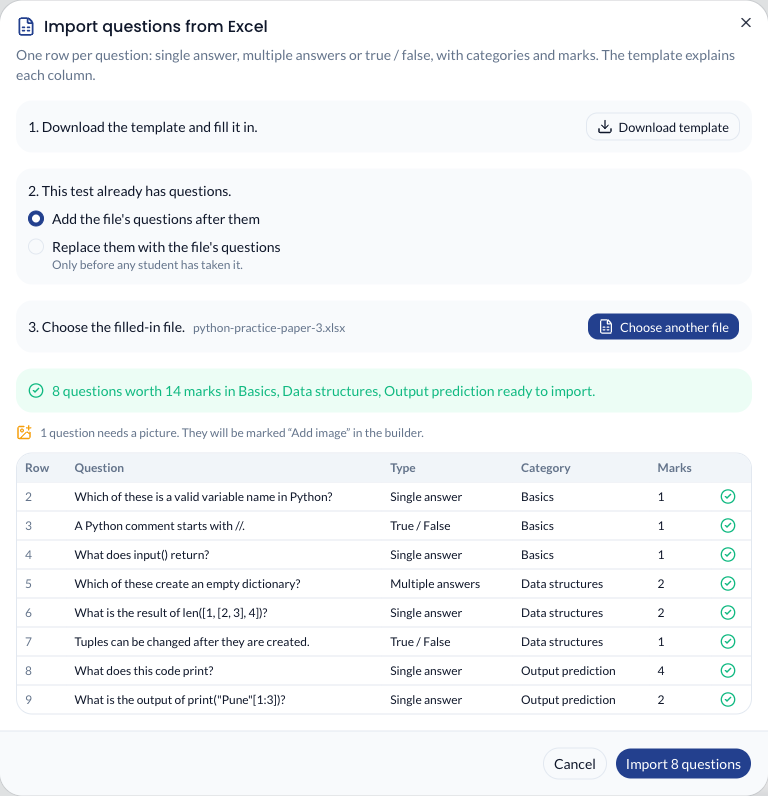
If any row has a problem, nothing is saved. The preview lists each problem with its row number, such as "Row 14: Correct says E, but there are only 4 options". Fix those rows in your sheet and choose the file again.
Add the pictures
The sheet holds text only. Questions with Y under Needs image show an orange Add image label in the quiz. Open each one, click Add picture, and choose a JPG or PNG up to 2 MB. The label goes once the picture is added.