Create an online test
Add tests, order them, give some away as free samples, and publish.
This page shows you how to create an online test, add its tests, put them in order, give some away as free samples, and publish.
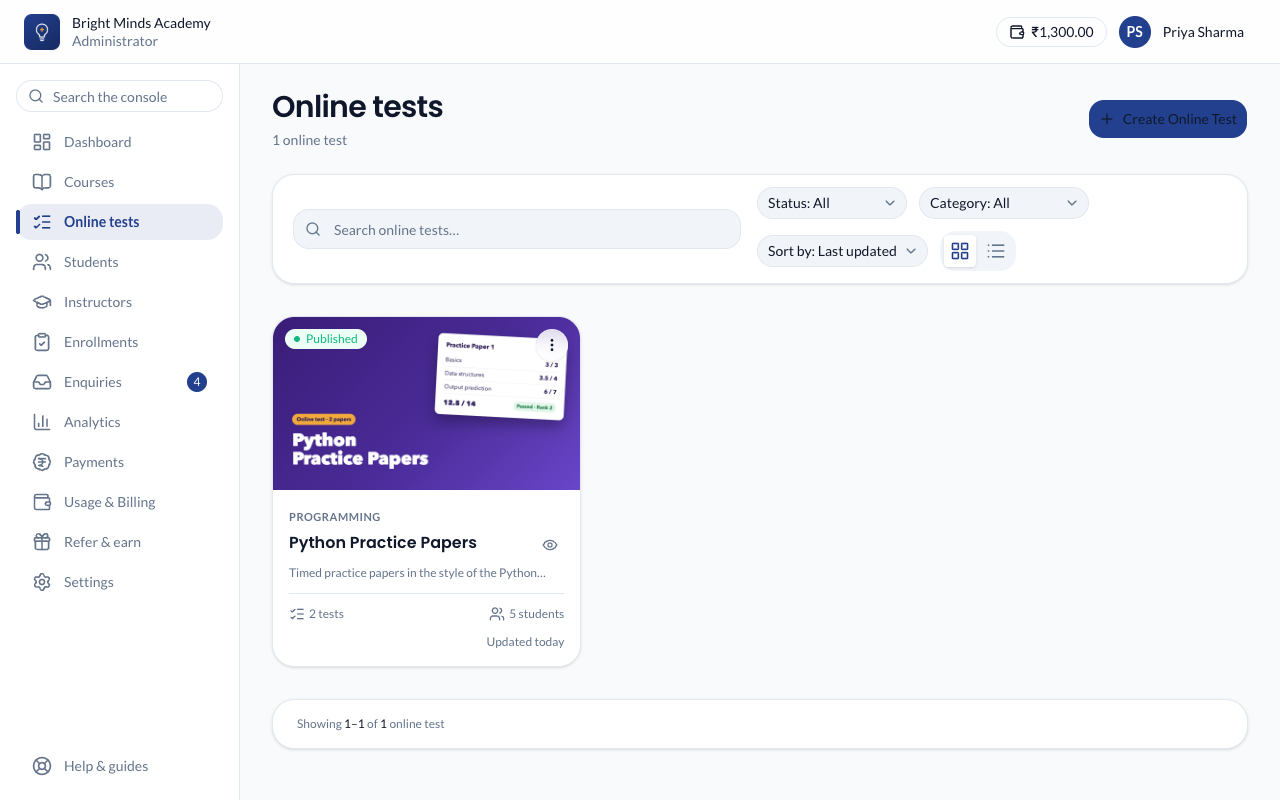
Create the online test
- In the menu on the left, click Online tests.
- Click Create Online Test.
- Type a title, such as DSC Previous Papers. Add a subtitle, description, category and cover image if you like. These are the same fields as for a course.
- Set Price if you sell it, or turn on The whole online test is free.
- Click Save & Continue. The Tests page opens.
Add a test
-
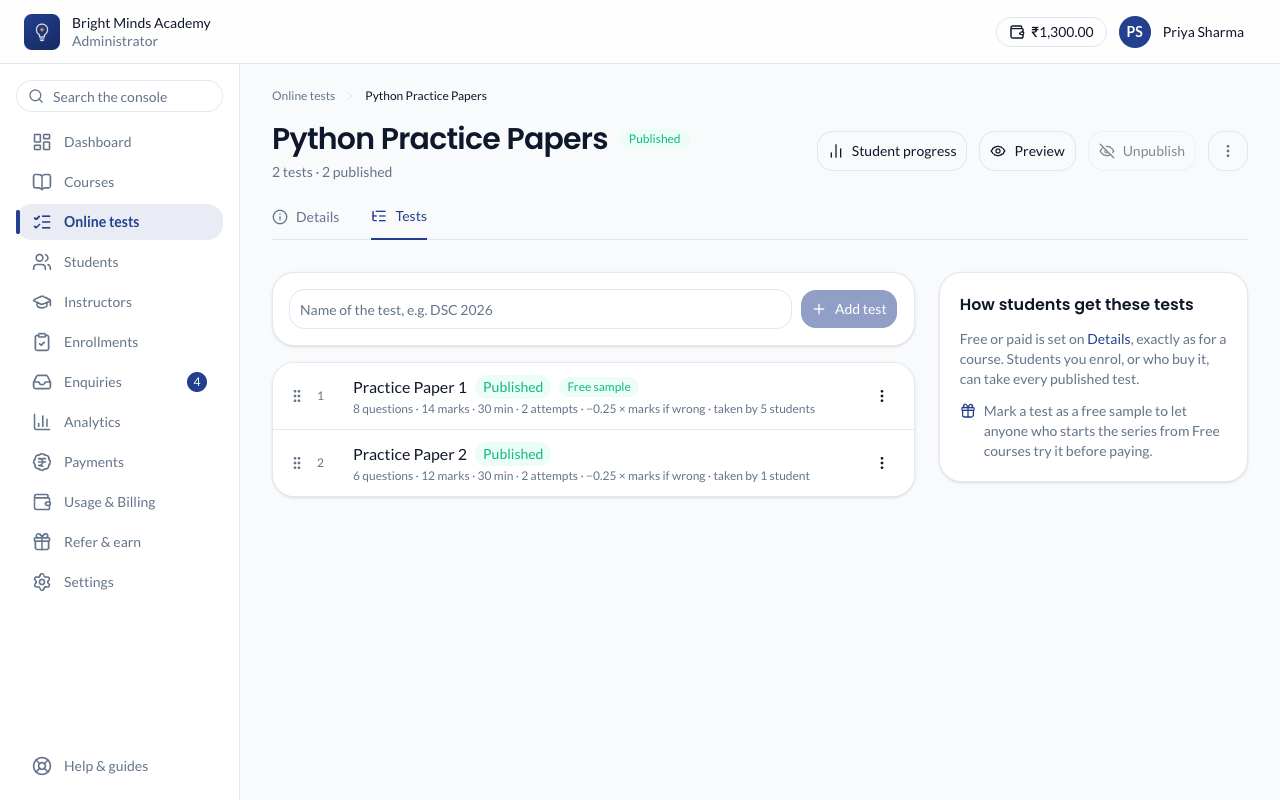
On the Tests page, type the test's name in the box at the top, such as DSC 2026.
-
Click Add test. The test opens on its Questions tab.
-
If the paper has parts, such as Quantitative Aptitude, English and Reasoning, click Add section for each and name it. Otherwise skip sections and click + Question. You can also click Import from Excel to add them all from a sheet.
-
Click a section's name, or + Question, to open the question editor: the questions on the left, one question on the right. A question saves by itself once its text and answers are written. Next moves to the following question, and Add another starts a new one after the last.
To change the order, drag a question or a whole section by its handle (⠿) on the Questions tab, or a question in the editor's left-hand list. Drop a question on another section, even a closed one, to move it there. The ⋮ menus also have Move up, Move down and Move to section.
-
On the Details tab, check the Test settings and the Instructions with each card's Edit. A new test starts with 1 attempt, and its instructions start from a template. Put any guidance for each section in the instructions.
-
Click Publish test at the top.
Note: A test with no questions can't be published. You'll see "Add at least one question before publishing this test."
Repeat for each paper. To start the next paper from one you've already written, use Clone (below).
Manage the tests
On the Tests page, each test shows how many questions and marks it has, its time limit and attempts, and how many students have taken it. Click a test's ⋮ menu to:
- Edit questions: open the test.
- Results: see how everybody did. See Test results.
- Publish or Unpublish: an unpublished test is hidden from students. Their results are kept.
- Make it a free sample: students who start the online test for free can take this test.
- Clone: asks for a name ("… (copy)" is suggested), then makes a copy with all its questions, pictures and settings, as a draft at the end of the list. Nobody's results are copied. You can also click Clone at the top of a test.
- Delete: removes the test and its questions, and any results students have for it. To hide a test and keep its results, unpublish it instead.
To change the order students see the tests in, drag a test by its grip.
A test's own Settings tab has two switches:
- Required for completion: a student must pass this test before the online test counts as complete and earns its certificate. On at first.
- Free sample: the same as Make it a free sample in the menu.
Publish the online test
When at least one test is published, click Publish online test at the top of the Tests page. Students you enroll can now take its published tests. It appears on your website's Online tests page if Show on your website is on.
Clone the whole online test
To start a new online test from this one, such as next year's set of papers, choose Clone from its ⋮ menu on the Online tests page, or from the ⋮ menu at the top of its Tests page. Type a name and click Clone. The clone has every test with its questions, plus the same details and price. It starts as a Draft, and each test inside keeps its own status. Students and their results stay with the original.
If something goes wrong
- "Publish at least one test first." Publish a test before publishing the online test.
- A student says a test is locked. They started the online test for free and the test isn't a free sample. Enroll them, or mark that test as a free sample.
Related
- How online tests work
- Add a quiz: everything a test's questions and settings can do.