Create your academy
Sign up at paatya.net and confirm your email.
Creating an academy takes a couple of minutes. You fill in one form, confirm your email with a code, and your academy is live straight away. There is no approval step and nothing to install.
Before you start
- An email address you can open right now. You will need to read a code from it.
- Your mobile number.
- A name for your academy, such as "Bright Minds Academy".
Note: One email address can own one academy. If you already have an academy, sign in to it instead.
Fill in the form
- Go to paatya.net/signup, or click Start Your Academy on the Paatya website.
- In Academy name, type your academy's name.
- Check Your academy's address. Paatya fills it in from the name, for example
bright-minds.paatya.net. You can change it. Use 3 to 63 lower-case letters, digits and dashes.- If you see "
bright-mindsis available", you're fine. - If the address is taken, click one of the suggestions next to Try:, or type a different one.
- If you see "
- Enter Your name, Work email and Mobile, and choose your Country.
- Choose a Password. It needs 8 or more characters, an uppercase letter, a number and a special character. Each rule ticks green as you meet it. It also can't be built on a very common password or word, such as
Welcome@2026or your academy's name: Paatya says "That password is too easy to guess". A few unrelated words, or a phrase only you would think of, works well. - Tick I agree to the Terms of Service and the Privacy Policy.
- Complete the security check above the button, if one is shown. Usually it ticks itself; sometimes it asks you to click a box.
- Click Create my academy.
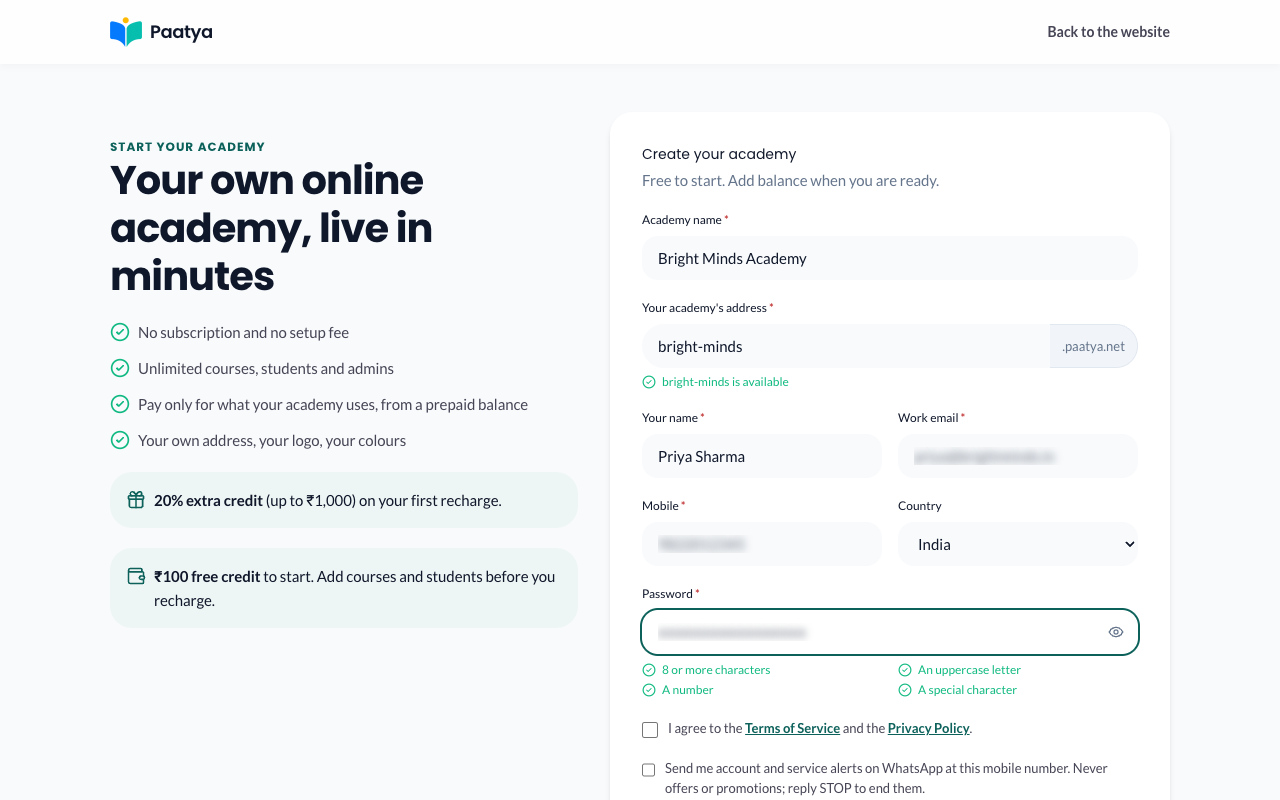
Tip: Choose the address carefully. It appears in every link you send your students, and you cannot change it yourself later.
Confirm your email
- Open your email. Look for a message from Paatya with a 6-digit code. If that email address already has an academy, you get an email saying so, with a link to sign in to it, instead of a code.
- Type the code into the Code box.
- Click Verify and create academy.
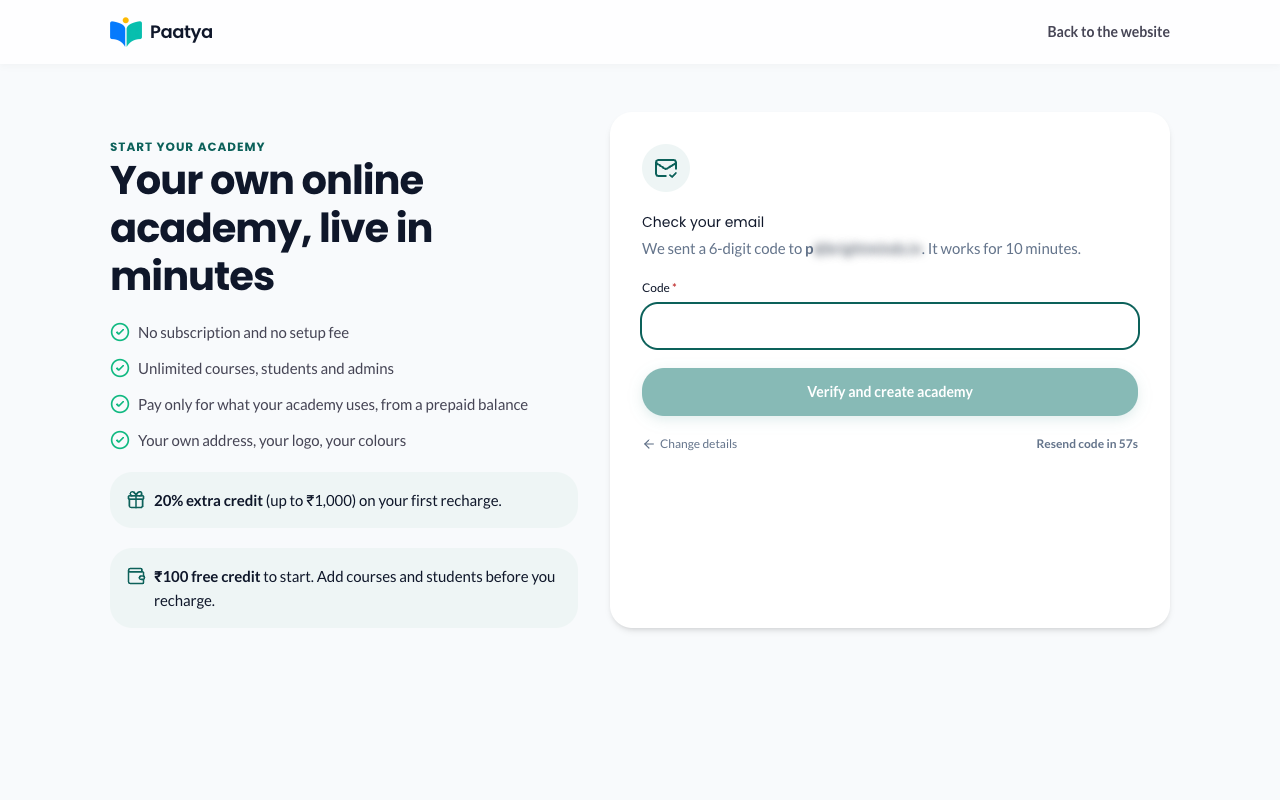
The code works for 10 minutes. If it doesn't arrive, wait for the timer, then click Resend code. To fix a typo in your details, click Change details.
What you'll see
"Your academy is ready", and then Paatya takes you to your academy, already signed in. First, Paatya asks you to set up two-step sign-in, which every admin needs: click Set it up, type the 6-digit code Paatya emails you, and save your backup codes. The setup wizard then opens so you can describe your academy and add your logo.
Note: If the Paatya team created your academy for you, you get an email instead, with a link to set your password. Open it, choose a password, accept the Terms and click Activate Account. The link works for 7 days. If it has expired, go to your academy's sign-in page and click Forgot password? for a new one.
You also get a welcome email with your academy's address. Keep it: that address, followed by /login, is where you sign in from now on.
If something goes wrong
- "That address is already taken". Somebody else has it. Pick a suggestion, or add a word such as your city.
- "That looks like a temporary email address". Use an address you will still read in a month, such as your work or Gmail address.
- You got "You already have an academy" instead of a code. That email address already owns an academy. Use the link in the email to sign in to it. The sign-up page doesn't say this on screen, so it never tells anyone else who has an academy.
- "An academy is already registered with this mobile number" after you entered the code. Each mobile number can belong to one academy. If it's yours, sign in to that academy. If not, click Change details and use a different number.
- "Please confirm you are not a robot". The security check wasn't completed, or it expired. Tick it again, then click Create my academy.
- "That password is too easy to guess". It's built on a very common password or word. Choose something less predictable.
- The code didn't arrive. Check your spam folder. Wait for the timer, then click Resend code.
- "The code has expired". Click Resend code and use the new code.
- "Too many wrong codes". Click Start again and fill in the form once more.
- "Signups are paused". New sign-ups are switched off for now. Use the Request a demo form on the Paatya website and we will set you up.