Faculty
Introduce your trainers on your website and courses.
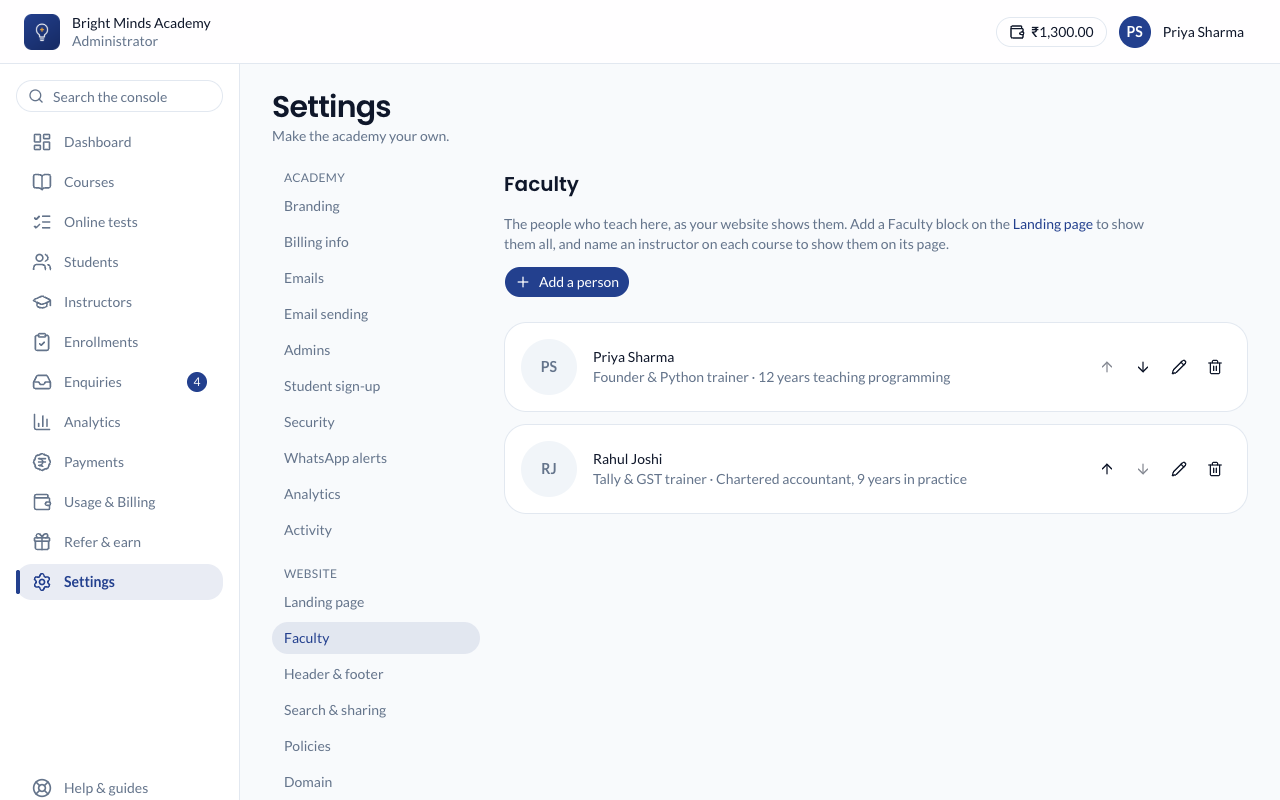
Many students choose a course because of who teaches it. Under Settings → Faculty you introduce the people who teach at your academy. Each person can appear on your landing page and on the page of every course they teach.
A faculty profile is public information you type for your website. It is not an account: nobody signs in with it, and no one's email or phone number is shown.
Open Faculty
- In the left menu, click Settings.
- In the settings menu, under Website, click Faculty.
Add a person
- Click Add a person.
- To add a photo, click Add a photo and choose a PNG or JPG, up to 2 MB. A square portrait works best. Without a photo, the person's initials are shown.
- Fill in their details. Only Name is required.
- Role: for example "Founder & Python trainer".
- Experience: in your own words, for example "12 years teaching programming".
- About them: a few sentences, up to 600 characters.
- LinkedIn, YouTube, Instagram and Website: links to their profiles. Each must be a link to that site.
- Click Save. You'll see "[name] added".
You can list up to 24 people.
Change the order
Use the up and down arrows next to a person. Your landing page and the course form's instructor list follow this order.
Edit or remove someone
- To edit, click the pencil, change the details and click Save.
- To remove, click the bin, then Remove. Click Keep if you change your mind. Courses they taught keep running and no longer name an instructor.
Show your faculty on your website
- On your landing page: add a Faculty block under Settings → Landing page, then publish. It shows everyone, in the order set here. See Your landing page.
- On a course's page: open the course, and under Public website choose the Instructor. The course's public page then shows a Your instructor card. See Create a course.
Changes to a profile show everywhere at once. You don't need to publish your landing page again.
If something goes wrong
- "This should be a link to linkedin.com". A profile link points somewhere else. Paste the link from that site, for example
linkedin.com/in/yourname. - "An academy can list at most 24 people". Remove someone before adding another.
- The Faculty block isn't on my page. Check the block is on your landing page, isn't hidden, and that you published after adding it.