Show course details
Let visitors read each course's curriculum and meet its instructor.
You can let visitors open any of your published courses and read what's in it: the sections, the topics, how long it runs and who teaches it. Many visitors decide to join once they see the syllabus. This page shows you how to turn that on, and what visitors see.
Note: This setting is off for every new academy. While it's off, your website lists your courses and nothing more.
Turn on course details
- Go to Settings → Landing page.
- Turn on Show course details.
- Click Save draft. This setting takes effect straight away; you don't need to publish.
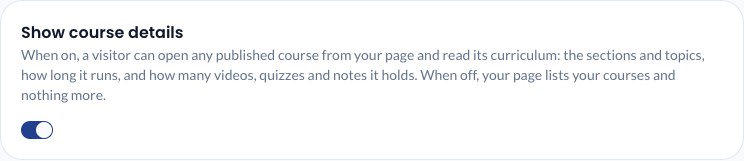
The setting works on both the starter page and your own page, and in your full course list. See What visitors see.
What visitors see
Each course card on your website now opens the course's own page, with a View course link. The page shows:
- the course's category, title, subtitle, level and language, and how many sections, topics and quizzes it has
- About this course: your course description
- What you will learn: your learning outcomes
- Curriculum: every section and its published topics, with each topic's title, description and length, and labels such as Video or Quiz
- This course includes: the number of sections, topics, videos, quizzes and notes, and the total length
- Your instructor: a card for the course's instructor, if you named one
- Topics covered: your course tags
- an Ask about this course button, which opens your enquiry form with this course already chosen
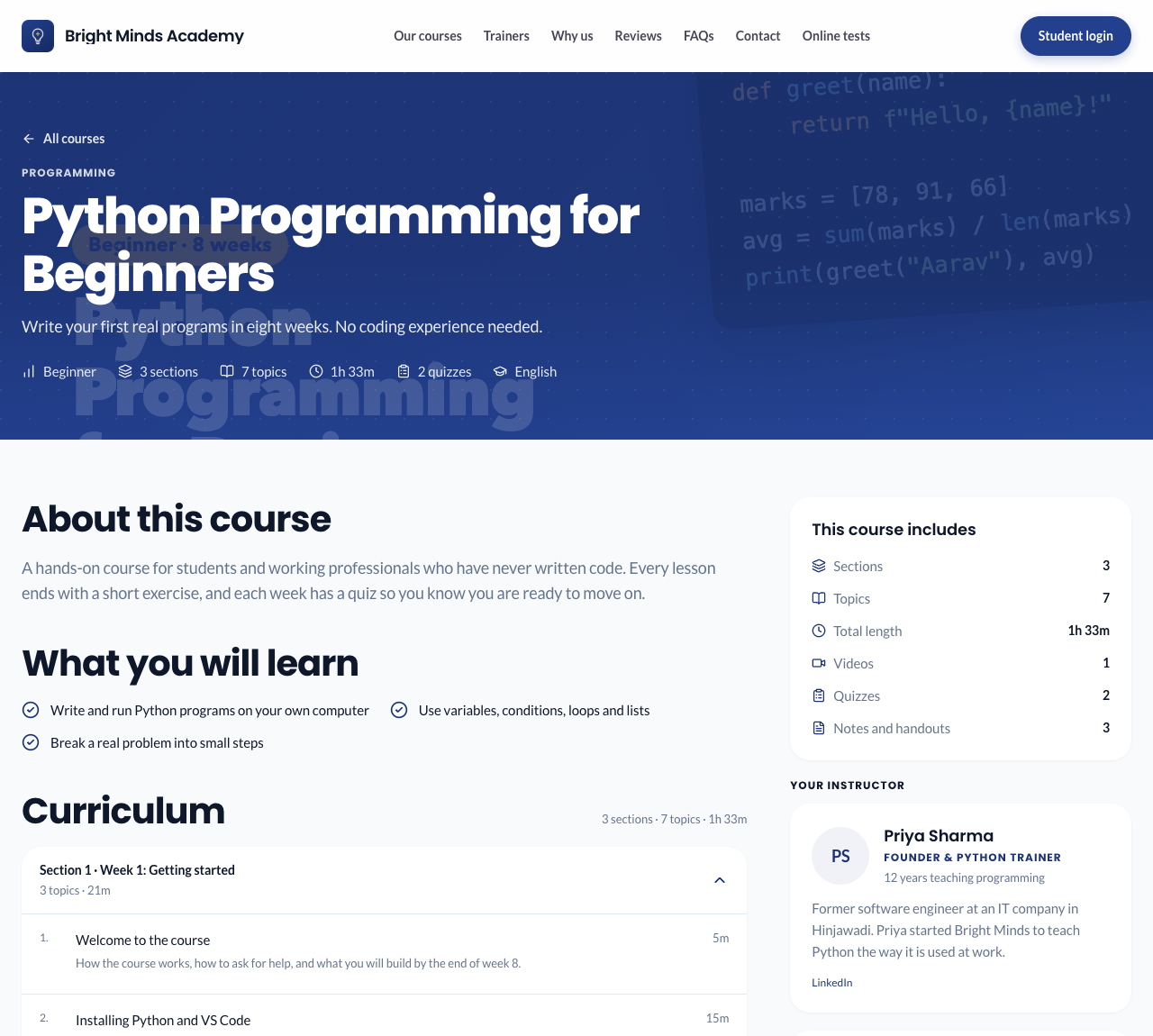
Visitors only see what's in the course, never the content itself. They can't play a video, open a document or take a quiz.
Tip: The course page shows your course description, learning outcomes, tags and topic descriptions, so fill them in well. See Create a course.
Keep one course's syllabus private
To show a course's page but not its list of sections and topics, open the course and turn off Show the curriculum under Public website. Its page then shows the description, the learning outcomes and the totals, but no Curriculum.
Name the instructor
Open the course and, under Public website, choose the Instructor from your faculty. See Faculty.
Which courses have a details page
A course's details page opens only when all of these are true:
- Show course details is on.
- The course is Published.
- Show on your website is on for the course.
Otherwise the visitor sees "This course is not available", with a link to get in touch.
Note: Draft topics never appear in the curriculum on a course page. Visitors see only what your students see.
Turn it off
Turn off Show course details and click Save draft. Course cards stop opening course pages and offer Ask about this course instead. Any course page someone saved now shows "This course is not available".