Header and footer
The sign-in button, social links and your footer.
The header runs across the top of every page of your public website, and the footer across the bottom. Under Settings → Header & footer you choose what the sign-in button says, add your social links, and write your footer.
Open Header & footer
- In the left menu, click Settings.
- In the settings menu, under Website, click Header & footer.
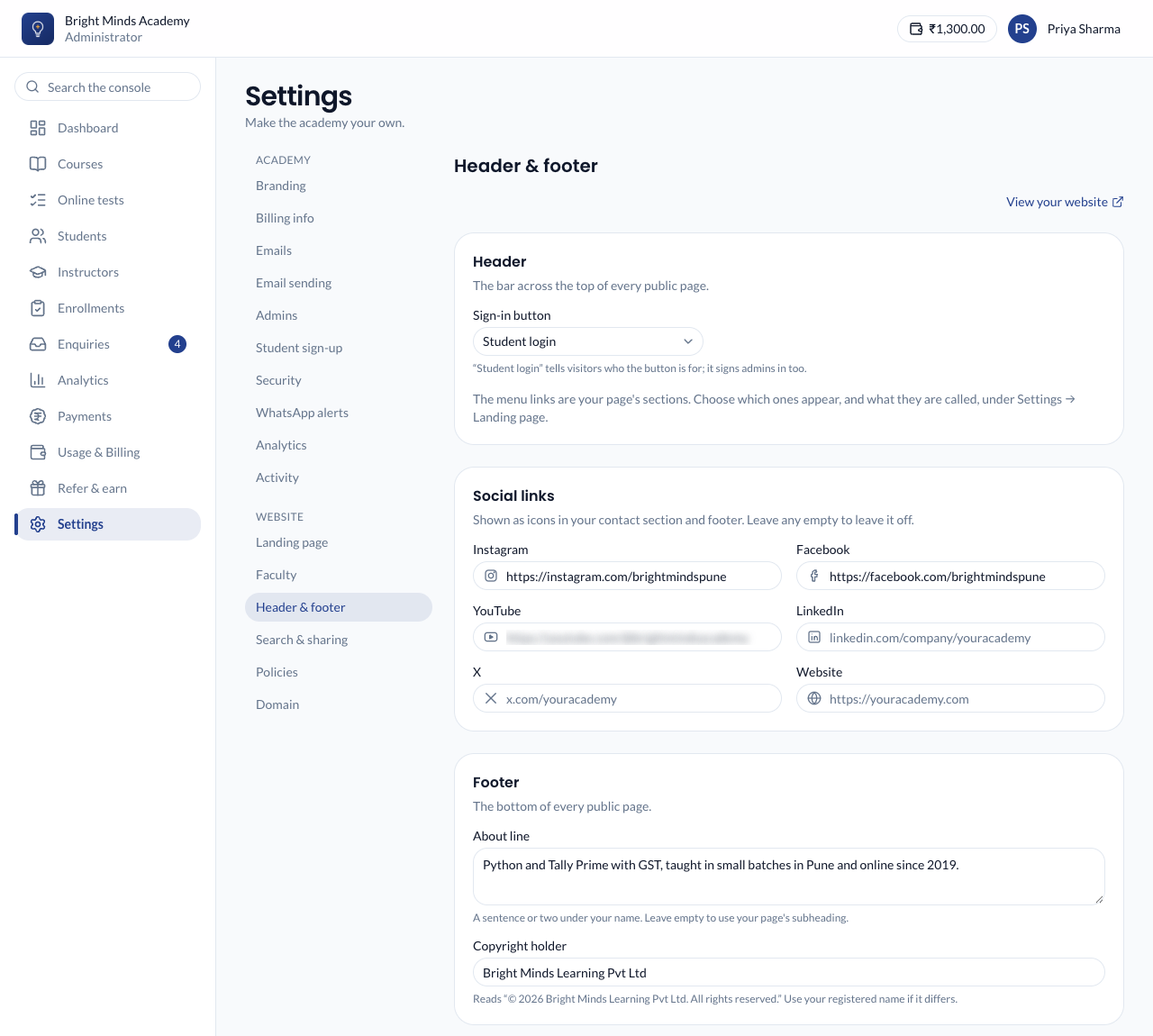
The sign-in button
Choose what the button at the top right of your website says: Sign in, Login or Student login. Student login tells visitors who the button is for. It signs your admins in too.
The other links in the header are your landing page's sections. You choose which ones appear, and what they are called, in the page builder. See Your landing page.
Social links
Add links to your Instagram, Facebook, YouTube, LinkedIn and X pages, and to another Website of yours. Leave any empty to leave it off.
- You can paste a link with or without
https://. For exampleinstagram.com/brightmindspuneis saved ashttps://instagram.com/brightmindspune. - Each link must go to the site it's named after. An Instagram link must be on instagram.com.
Your links appear as icons in your footer, and as buttons in your Contact and enquiries section.
The footer
- About line: a sentence or two under your name, for example what you teach and since when. Leave it empty to use your landing page's subheading.
- Copyright holder: the name after the ©, for example your registered company name. Leave it empty to use your academy's name.
The footer also lists, automatically:
- Explore: the sections linked from your menu.
- Contact: your email, phone and WhatsApp, from your contact section.
- Legal: the policies you have switched on. See Policies.
"Powered by paatya.net" appears at the very bottom. You can leave it off if your website is on your own domain, which you set up under Settings → Domain (see Your web address):
- Under "Powered by paatya.net" on this page, switch on Leave it off.
- Confirm the charge. This month's ₹50 is taken from your balance straight away, and the line disappears.
- After that, ₹50 is charged on the 1st of every month while it stays on. It appears as its own line under Usage & Billing.
You can switch it off at any time and the line comes back at once. Nothing is refunded for the rest of the month, but switching it back on in the same month costs nothing.
If your balance can't cover the fee on the 1st, or your domain is no longer live, nothing is charged, the line comes back and we email you. Switch it on again once you've recharged.
Save
Click Save. You'll see "Saved. Your website shows the change now." There is nothing to publish: header and footer changes go live straight away. Click View your website to check.
If something goes wrong
- "This should be a link to facebook.com". The link goes to a different site. Copy the address from your page on that site.
- "Enter a full web address". The link isn't a web address. Paste the whole address, such as
youtube.com/@yourchannel.