Website analytics
Visitors to your public pages.
Website analytics shows how many people visit your academy's public pages, such as your landing page, course pages and sign-in page, and where they come from. The figures come from Google Analytics.
Open website analytics
- In the left menu, click Analytics.
- Click the Website tab.
- Pick the dates at the top, as on the Learning tab.
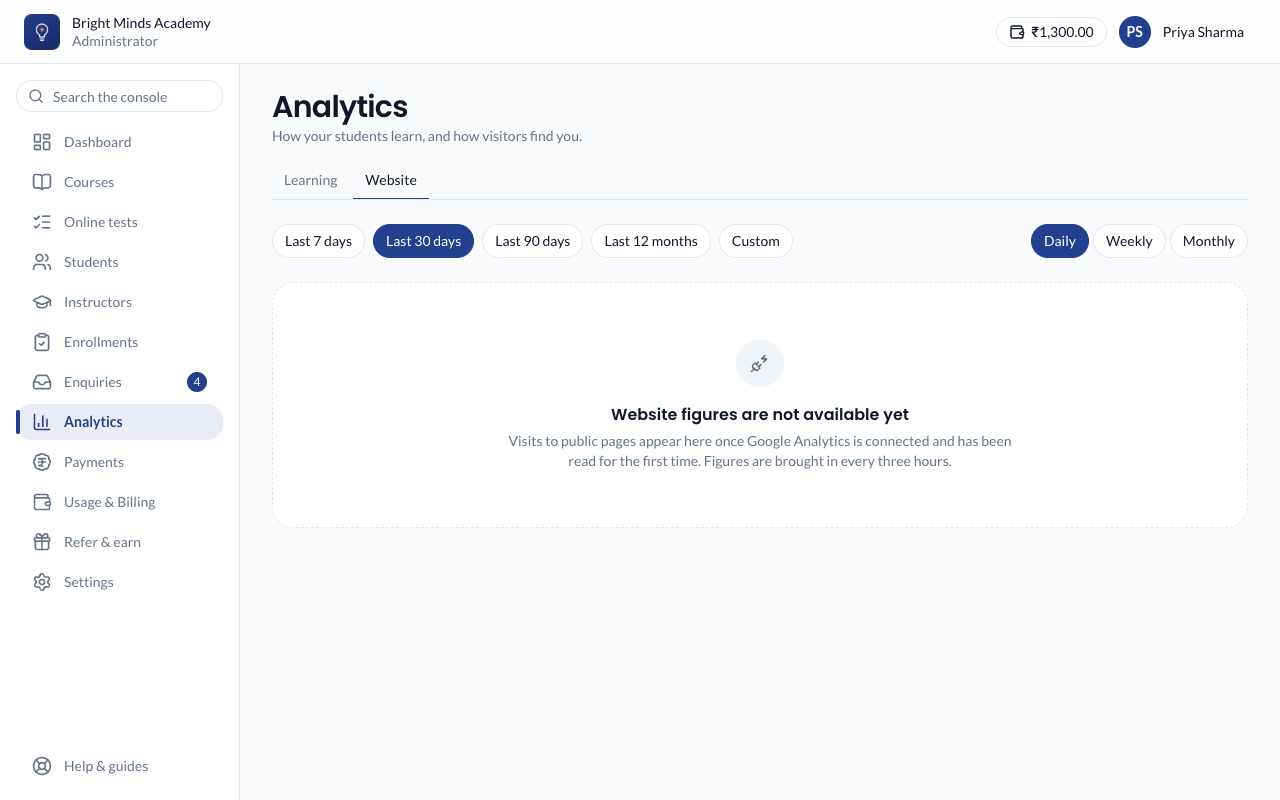
"Website figures are not available yet"
You may see this message instead of figures. It means website measurement hasn't been connected for Paatya yet, or its first figures haven't arrived. There is nothing for you to fix. Figures are brought in every three hours once measurement is running.
The figures
| Figure | What it means |
|---|---|
| Visitors | People who visited your public pages. |
| New visitors | Visitors who came for the first time. |
| Sessions | Separate visits. One person visiting twice is two sessions. |
| Page views | Pages opened. |
| Engagement rate | The share of sessions where the visitor actually engaged, rather than leaving straight away. |
| Time per session | How long a visit lasts on average. |
Under the figures, a line says how recent they are, for example "Figures through 22 Sep 2026". Website figures are estimates from Google, not exact counts.
Note: When your dates aren't exactly one day, one week or one calendar month, Visitors is each day's visitors added together. Someone who visits on three days counts three times.
Below that are a trend chart and four tables: Top pages, Traffic sources, Countries and Devices.
Only your public pages are measured. What your students and admins do after signing in is never sent to Google. Your Learning analytics covers that.
Switch website measurement on or off
- Go to Settings → Analytics.
- Under Website visits, use the switch Measure visits to your public pages.
- Click Save.
Visitors are asked for their consent first, and nothing is stored in their browser unless they agree. The consent banner links to your Cookie Policy, or to your Privacy Policy if you have switched the Cookie Policy off. If you switch measurement off, the Website tab says "Website measurement is switched off".
Use your own Google Analytics (optional)
If your institute already has a Google Analytics 4 account, you can send visits to your public pages there too, and see them in Google's own reports.
- In Google Analytics, go to Admin → Data streams and open your web stream. Copy the Measurement ID. It starts with
G-. - In Paatya, go to Settings → Analytics.
- Under Your own Google Analytics (optional), paste it into Measurement ID.
- Click Save.
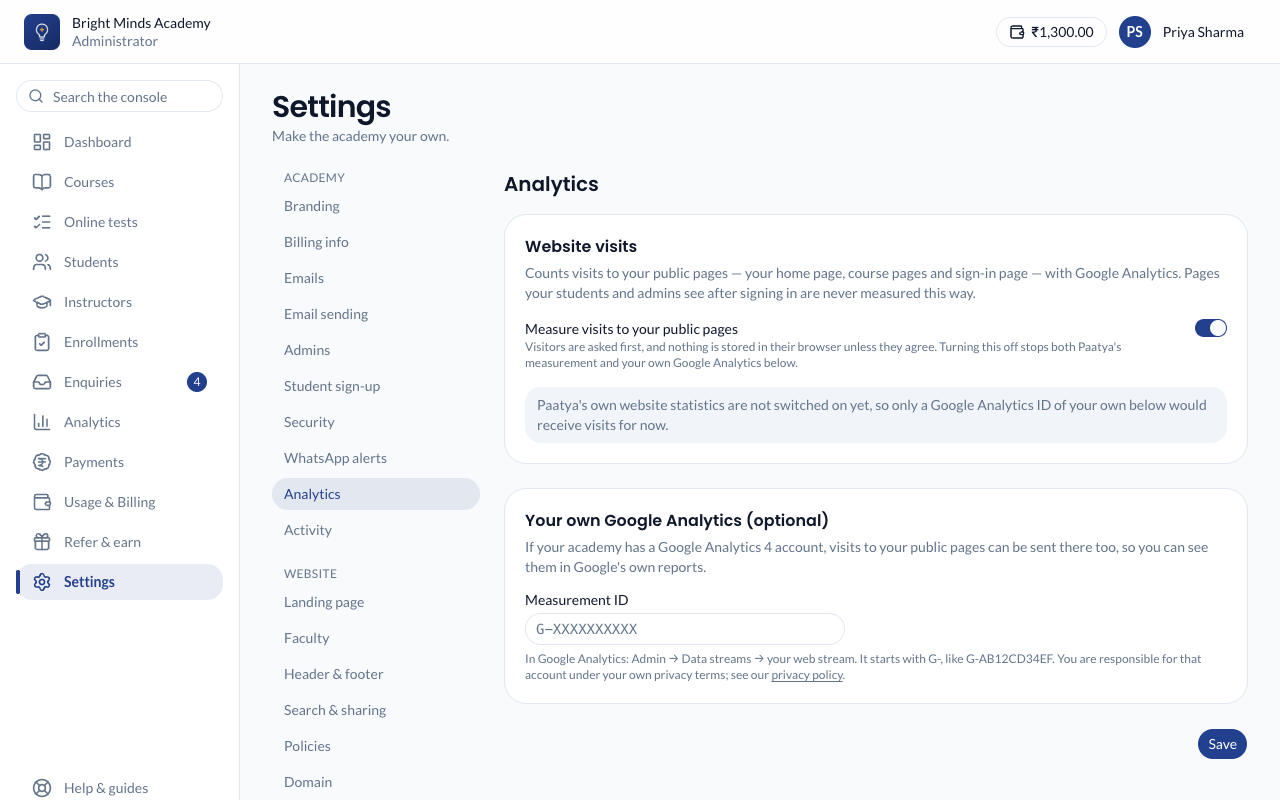
Note: Your own Google Analytics account is covered by your own privacy terms. Switching off Measure visits to your public pages also stops sending visits to your own ID.