What visitors see
Your academy's public website and course list, before anyone signs in.
Every academy has a public website at its own address, such as yourname.paatya.net. Anyone can open it without signing in. It tells visitors about your academy, shows your courses and your trainers, and lets them send you a question. This page explains what visitors see and what decides it.
Your academy's two homepages
There are two versions of your homepage. Visitors always see one of them, never a sign-in form.
| Version | When visitors see it |
|---|---|
| The starter page | Until you publish your own page. Paatya builds it for you. |
| Your own page | Once you build it and click Publish in Settings → Landing page. |
To build your own page, see Your landing page.
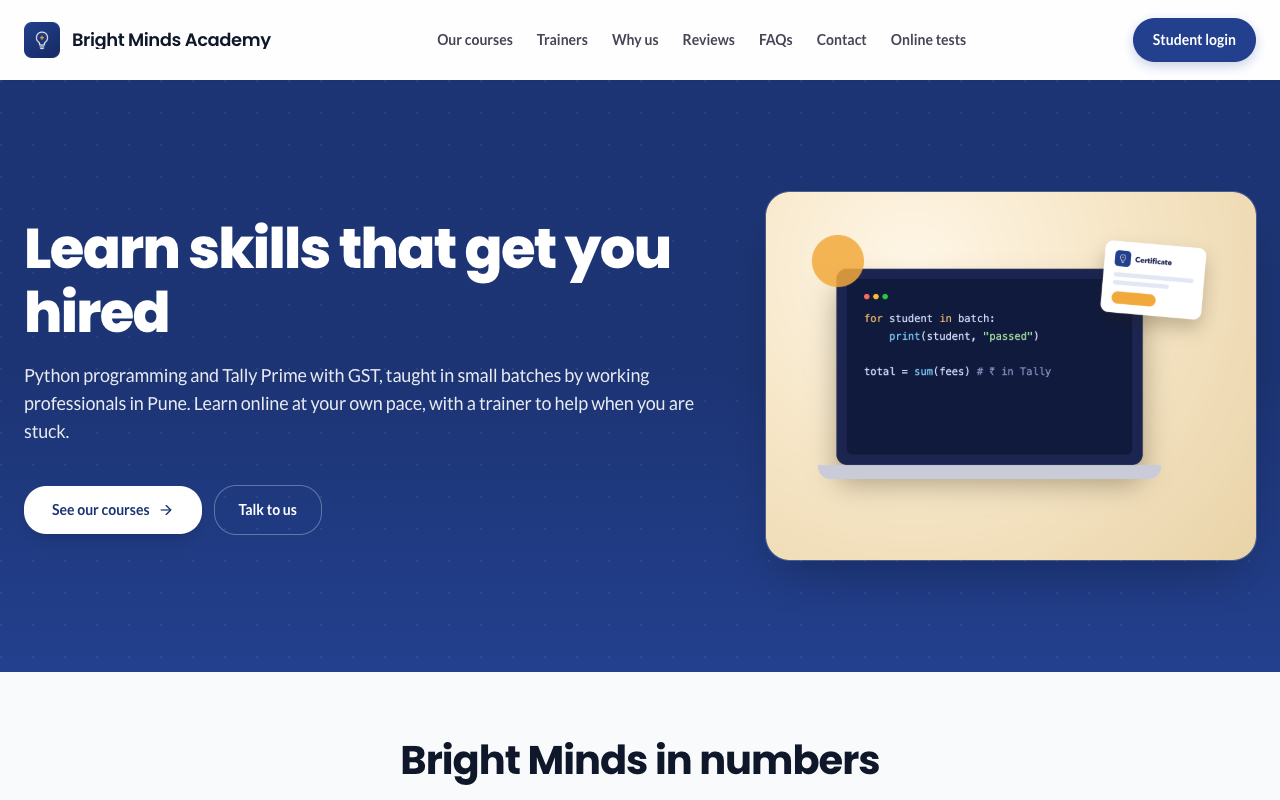
What's on the starter page
Paatya builds the starter page from your academy's details:
- Hero: your academy's name and tagline, with an Explore courses button.
- Why learn with us: three short points about learning on your academy.
- Our courses: up to 12 of your published courses, newest first.
- Our online tests: up to 12 of your published online tests, newest first, if you have any. You can turn this off; see below.
- Get in touch: your support email and an enquiry form.
- FAQs: common questions from new students, such as how to join a course.
Your logo, colours and fonts from Branding are used throughout, and so are your header and footer.
The header and footer
Every page of your website has the same header and footer:
- Header: your logo and name, links to your page's sections, and the sign-in button. You choose which sections are linked, and their names, in the page builder. The button reads Sign in, Login or Student login, as you choose under Header and footer.
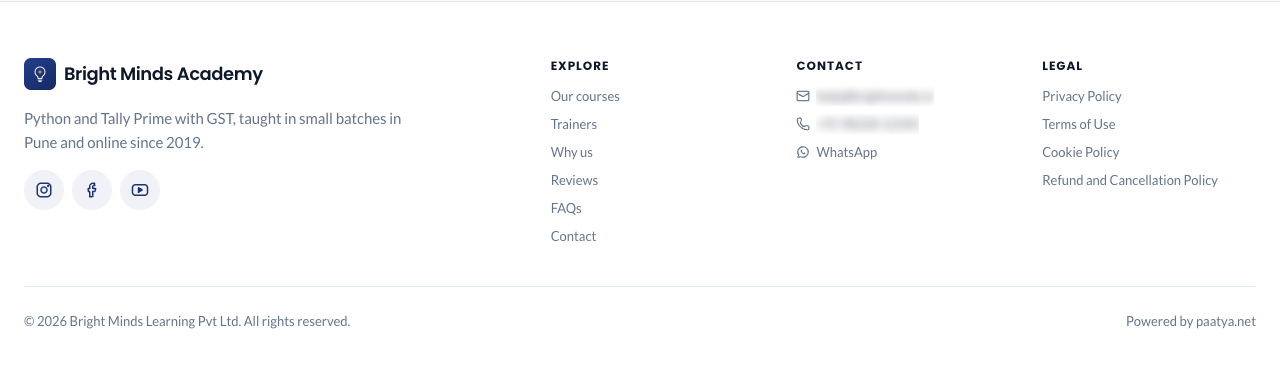
- Footer: a line about your academy, your social links, and columns for Explore, Contact and Legal. The Legal column lists the policies you have switched on.
Which courses appear
A course appears on your website only when it is Published and Show on your website is on for it. That switch is on for every course at first. Turn it off for a course only some students should know about, such as a batch run for one company. See Create a course.
- On the starter page, your newest 12 such courses appear by themselves, with your online tests in a section of their own.
- On your own page, the courses you pick in a Courses block appear. You can pick up to 12 per block.
- Your full course list, at your address followed by
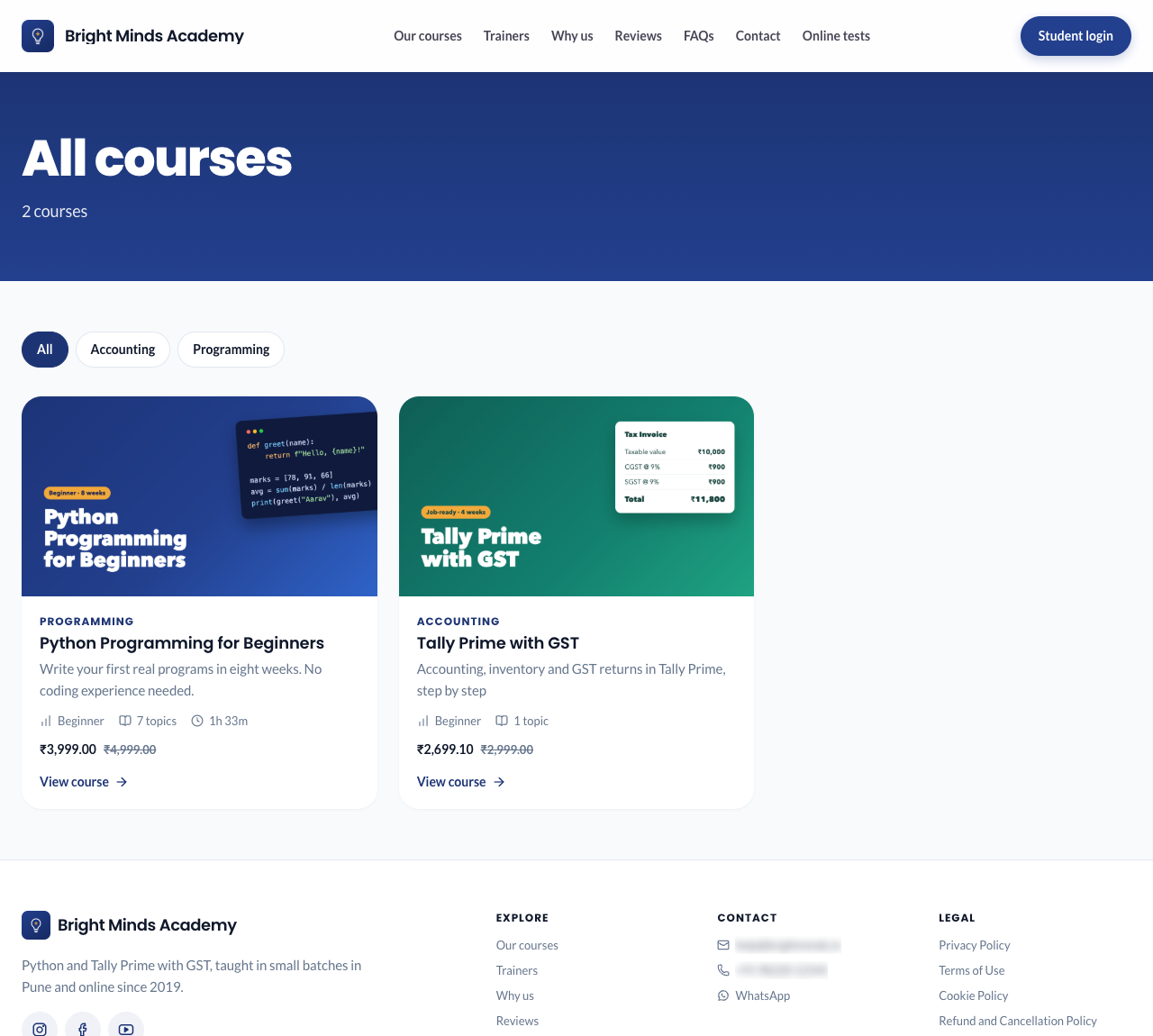
/courses, shows all of them, newest first. Visitors can filter it by category when your courses have more than one. When your homepage doesn't show every course, the header and footer link to it as All courses, with a See all courses button under your courses.
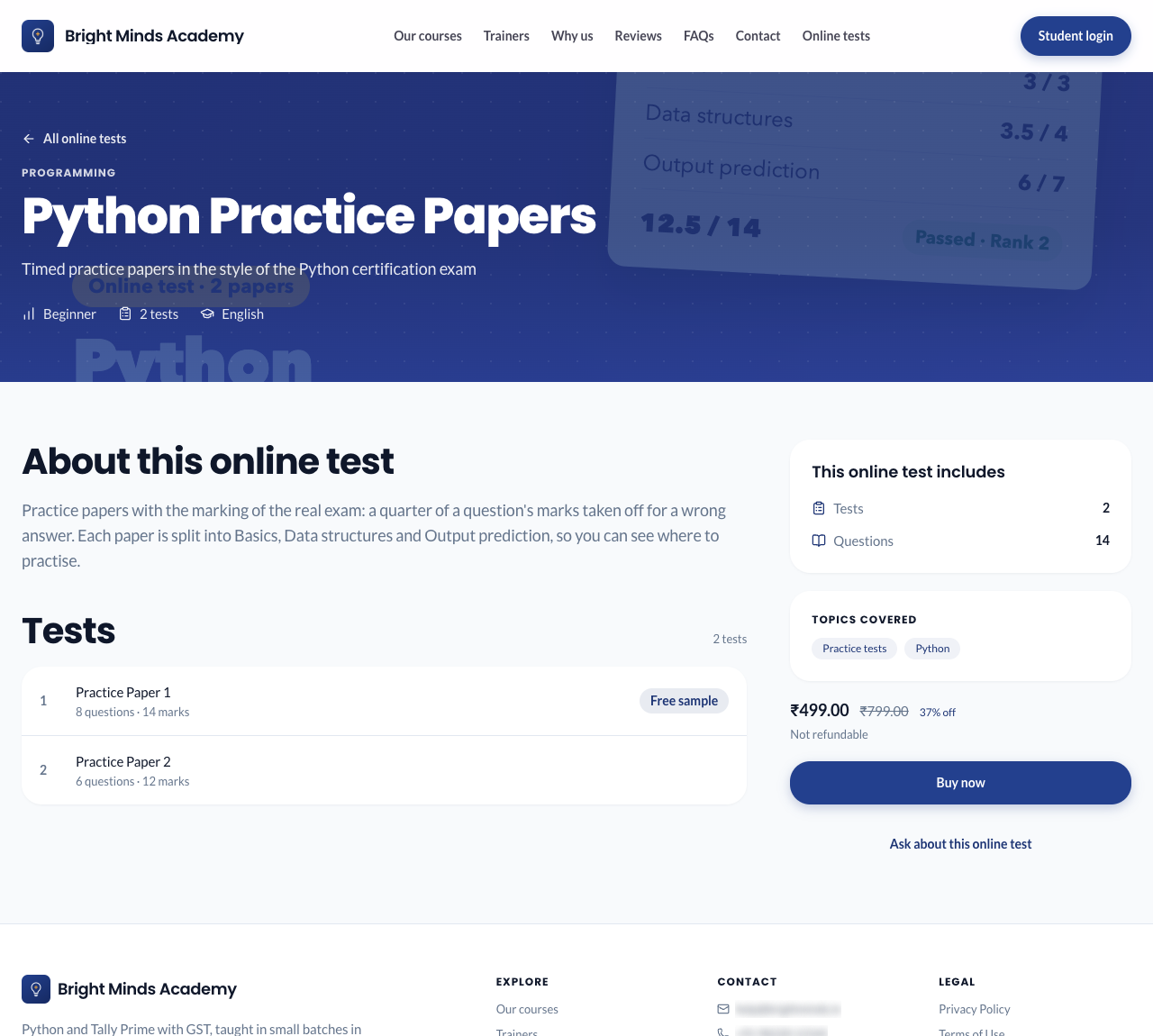
Online tests have a list of their own, at your address followed by /online-tests, linked from the header as Online tests once you've published one. An online test's page lists its tests, with how many questions each has and which are Free samples. Your course list shows courses only.
You choose where else online tests appear, under Online tests in Settings → Landing page. See Show online tests on your homepage and header.
Each course shows as a card with its cover image, title and subtitle. It can also show the course's category, level, number of topics and total length. You choose which under Course cards in the page builder.
- If Show course details is on, a card opens the course's own page.
- If it's off, a card has an Ask about this course link that opens your enquiry form with the course already chosen.
What visitors can and can't do
Visitors can:
- read about your academy and your trainers
- see your published courses, and your full course list
- read a course's curriculum, if you turn on Show course details
- send you a question with the enquiry form. See Enquiries.
- message you on WhatsApp, or open your address in Google Maps, if your contact section has them
- read your policies
- click the sign-in button, at the top of every page, if they already have an account
Visitors can't:
- watch videos, open documents or take quizzes. Only enrolled students can.
- join a course on their own, unless you let them. You add students and enroll them yourself. See Add a student. If you turn on student sign-up, visitors can create an account from your sign-in page and then start your free courses.
If your academy sells courses online, your course cards and course pages also show each paid course's price, whether it can be refunded, and a Buy now button. While you take payment offline, which is how every academy starts, no prices are shown.
See your website as a visitor does
Go to Settings → Landing page and click View. Your homepage opens in a new tab, exactly as a visitor sees it, even though you are signed in. If you have unpublished changes, the button says Preview and shows them instead.
Note: If you simply type your academy's address while signed in, it takes you to your admin screens. Use View, or open the address in a private or incognito window.
Related
- Your landing page: build your own page.
- Header and footer
- Search and sharing: how your website looks on Google and WhatsApp.
- Show course details