Policies
Your privacy, terms, cookie and refund policies.
Your public website collects visitors' details through the enquiry form, and your students' learning records are kept on Paatya. Your policies tell people how you handle that, and on what terms they learn with you. Under Settings → Policies you choose which policies your website shows and what they say.
Your policies and Paatya's
There are two sets of documents, and they are separate:
| Where | Who they are from | |
|---|---|---|
| Your policies | Your website, at addresses such as /policies/privacy |
Your academy, to your visitors and students |
| Paatya's Terms of Service and Privacy Policy | /terms and /privacy |
Paatya, about the platform. Students accept them when they set their password. |
This page is about your own policies. You can't change Paatya's.
Open Policies
- In the left menu, click Settings.
- In the settings menu, under Website, click Policies.
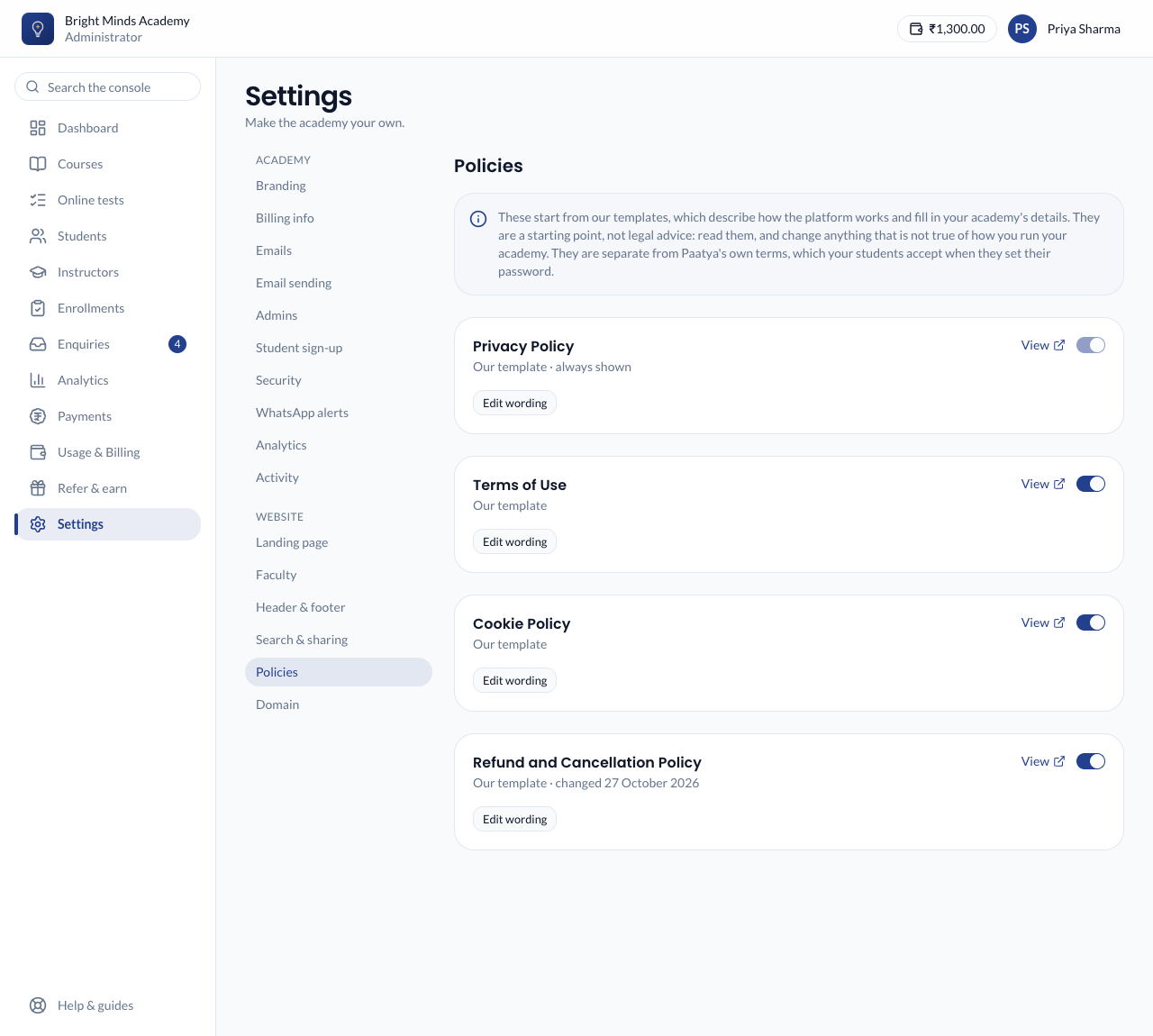
The four policies
| Policy | At first | Can you switch it off? |
|---|---|---|
| Privacy Policy | On | No. Every academy collects enquiries, so every academy needs one. |
| Terms of Use | On | Yes |
| Cookie Policy | On | Yes |
| Refund and Cancellation Policy | Off | Yes. Switch it on if you take fees you might refund. |
Use the switch on a policy to turn it on or off. It takes effect at once, and the policy appears in, or leaves, the Legal column of your footer. Click View to read a policy as visitors do.
Our templates
Every policy starts as a template written by Paatya. It describes how the platform works, and fills in your academy's details when a visitor reads it:
| Blank | Filled in with |
|---|---|
| `` | Your academy's name |
| `` | Your copyright holder, from Header and footer, or else your academy's name |
support@paatya.net |
Your support email, from Branding |
| `` | Your contact number, from the setup wizard |
| `` | Your website's address |
Because the details are filled in each time, renaming your academy or changing your support email updates every policy by itself.
Note: The templates are a starting point, not legal advice. Read them, and change anything that isn't true of how you run your academy. What a policy must say depends on where you are and what you do.
If your academy has no support email yet, a yellow notice at the top says so. The policies then point visitors to your contact form instead. Add a support email to fix it.
Write your own wording
- On a policy, click Edit wording.
- Change the text. You can use:
##at the start of a line for a heading-at the start of a line for a list item**bold**for bold text[text](https://…)for a link- any of the blanks above
- Click Preview to see it formatted. The blanks show unfilled in the preview.
- Click Save. The policy now says Your own wording, and its public page shows "Last updated" with the date.
To go back, click Use our template. Your own wording is discarded.
If something goes wrong
- "These are not details we can fill in: {{…}}". The text uses a blank Paatya doesn't have. Use one of the five blanks above, or type the detail in.
- "Your website needs a privacy policy, so it cannot be switched off". The Privacy Policy is always shown. Edit its wording instead.
- A visitor sees "This page is not available". That policy is switched off.
Related
- Header and footer
- Website analytics: the cookie banner links to your Cookie Policy.