Limits and alerts
Spending limits and low-balance emails.
Spending limits stop usage from running away, and billing notifications tell you in good time when your balance is getting low. Both are optional, and you can change them at any time.
Set a spending limit
You can set a daily limit, a monthly limit, or both.
- Go to Usage & Billing → Spending limits.
- On the Daily limit or Monthly limit card, turn the switch on.
- Enter the Limit (₹).
- Choose what happens at the limit:
- Alert only: you get emails as usage approaches and reaches the limit. Nothing stops.
- Alert and pause: at the limit, videos and new learners are paused until the limit resets or you raise it.
- In Warn at (% of the limit), enter when to warn you, for example
80, 90, 100. - Click Save limits.
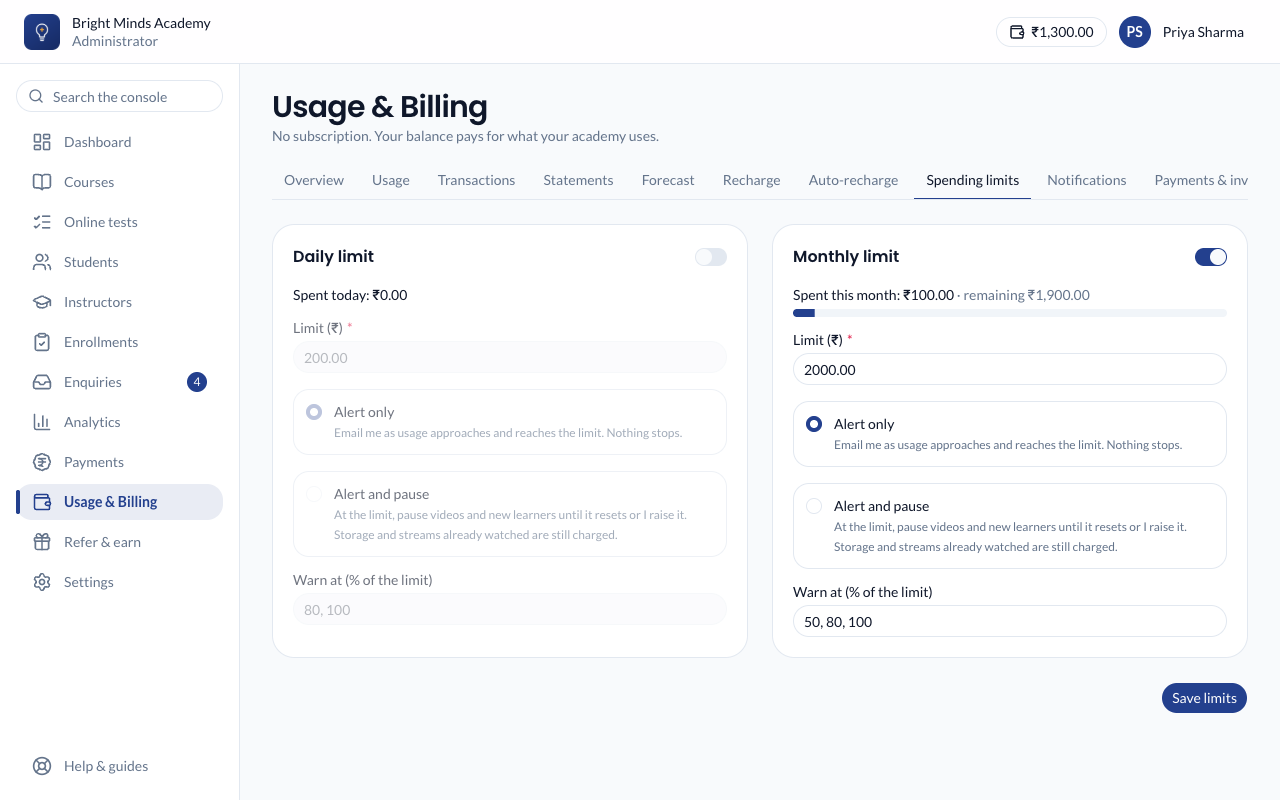
Each card shows how much of the limit has been used today or this month. A daily limit resets each day, and a monthly limit each calendar month.
Warning: With Alert and pause, students can't play videos once the limit is reached, and students who haven't been active yet that month can't start. Choose a limit comfortably above your normal use.
When a limit is reached
- With Alert and pause, the card says "Reached: videos and new learners are paused."
- You get an email saying the limit was reached.
- Storage, and video already streamed, are still charged.
- To resume straight away, raise or switch off the limit and click Save limits.
Choose your billing emails
- Go to Usage & Billing → Notifications.
- Make sure the Email switch is on.
- In Send billing emails to, enter the addresses to email, one per line, up to ten. Leave it empty to email every admin.
- Set your warnings:
- Warn when this much of the last recharge is used (%): for example
50, 80. - Critical when the balance falls below (₹): an amount that means "top up now".
- Warn when this much of the last recharge is used (%): for example
- Choose the regular emails you want:
- Daily usage summary: each morning, yesterday's spend and your balance.
- Monthly statement: on the 1st, last month's usage and closing balance.
- Click Save.
The Recent alerts list on the same page shows the alerts sent lately, and to whom.
Tip: Add the email address of whoever pays your bills, such as your accountant, so warnings reach the person who can act on them.