WhatsApp alerts
Balance, recharge and daily-summary alerts on your WhatsApp.
WhatsApp alerts send you Paatya's most important account messages on WhatsApp, as well as by email: when your balance runs low, when a recharge goes through or fails, and a short daily summary of what happened in your academy.
They're for admins. Each admin turns them on for their own number, and nobody can turn them on or off for someone else. Students never get WhatsApp alerts from Paatya.
Note: If Settings → WhatsApp alerts says WhatsApp alerts are not switched on for Paatya yet, you can still add your number now. Your alerts start as soon as Paatya switches them on, with nothing more to do.
What you'll get
- Balance: when your academy has used most of its last recharge, when the balance is critically low, and when credit runs out.
- Recharges: when a recharge succeeds, with your new balance, or fails, with the reason.
- Account notices: important updates about your academy, such as your payout account for course payments, or your academy being inactive.
- Daily summary: at 9 am, the previous day's new students (and how many signed up themselves), enrollments and course sales. It's sent only on days when something new happened.
Every alert starts with your first name and your academy's name. Alerts carry counts and amounts only, never a student's name or contact details. They are account and service messages only: never offers or promotions.
Emails don't change. You keep getting every email you get today, whether WhatsApp alerts are on or off. The daily summary is the only alert that comes on WhatsApp alone.
Turn them on
- Go to Settings → WhatsApp alerts.
- Under WhatsApp number, check the number. Paatya fills in the mobile number from your account, if it has one. A 10-digit Indian mobile number is enough; for another country, start with + and the country code.
- Tick I agree to receive account and service alerts from Paatya on WhatsApp at this number.
- Click the button under the form:
- If it reads Send code, Paatya sends a 6-digit code to that number on WhatsApp. Type it under Code and click Turn on. The code works for 10 minutes.
- If it reads Turn on, no code is needed, and alerts are on straight away. Check the number carefully first, because alerts go straight to it.
The card now reads WhatsApp alerts are on, with the number they go to.
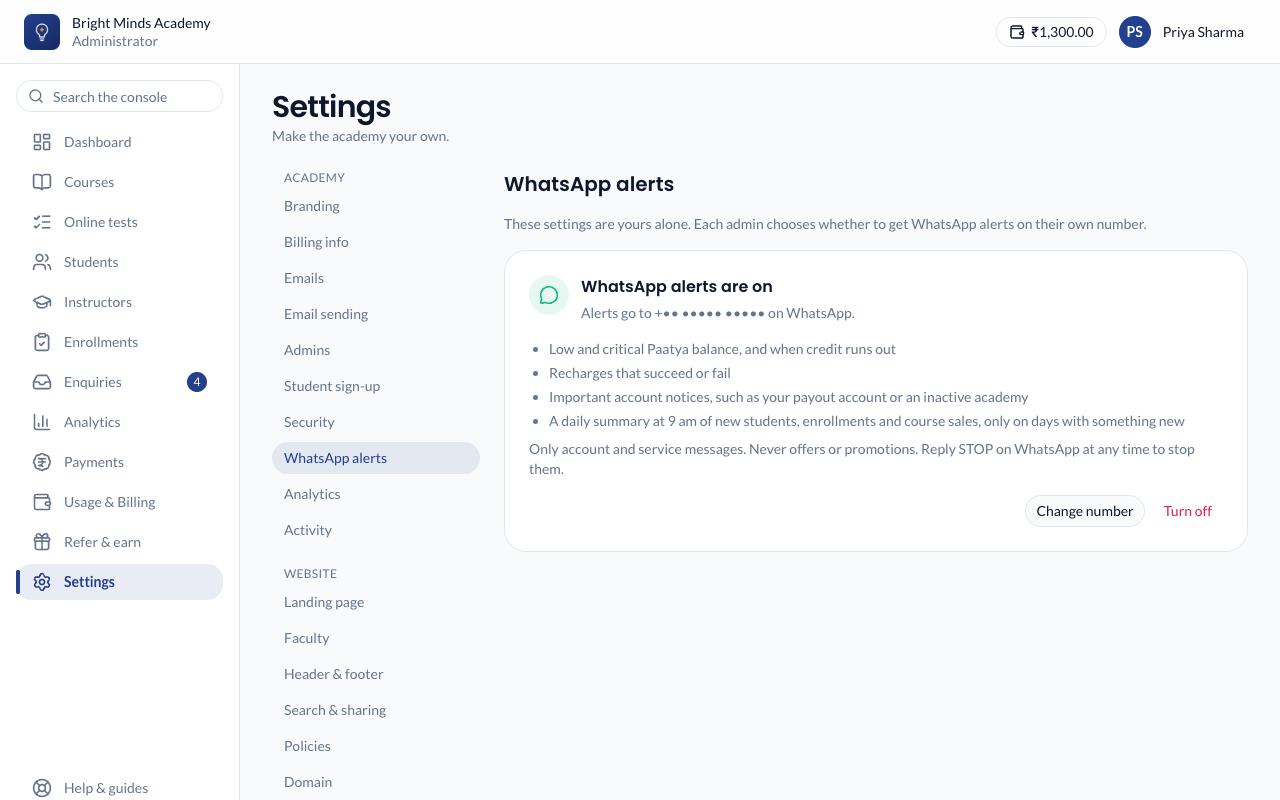
If the code didn't arrive, click Send a new code. You can ask for one code a minute and five a day. To fix a mistyped number, click Use a different number.
Change your number
- Go to Settings → WhatsApp alerts and click Change number.
- Type the new number, tick the box again, and click Send code or Turn on, as above.
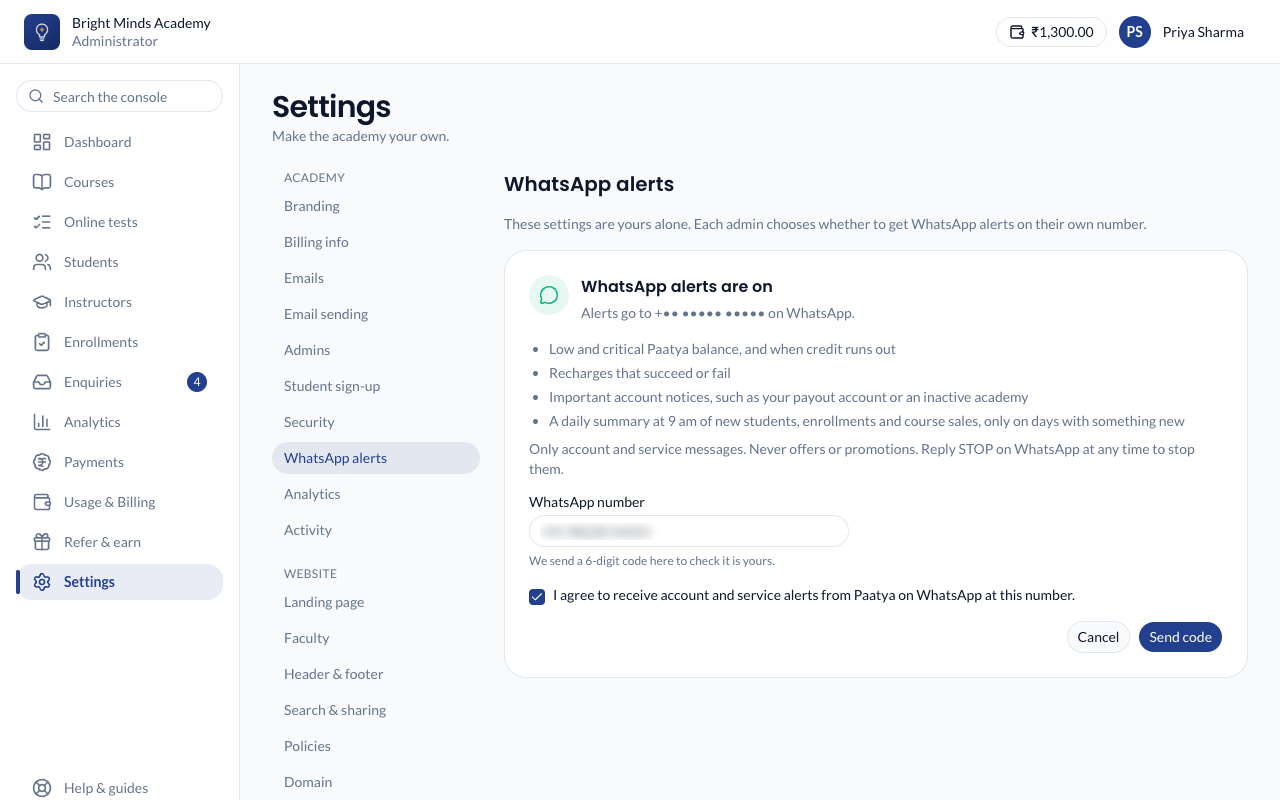
Once you click Send code, alerts stop until you type the code sent to the new number. To keep your old number instead, click Cancel before sending.
Turn them off
Either:
- go to Settings → WhatsApp alerts and click Turn off, or
- reply STOP to any Paatya alert on WhatsApp.
Alerts stop straight away. A STOP reply switches alerts off for every Paatya account that uses that number. To get them again, turn them on in Settings → WhatsApp alerts.
If something goes wrong
- "Enter a mobile number that is on WhatsApp, such as +91 98765 43210." Check the number. For a number outside India, start with + and the country code.
- "Tick the box to agree to receive WhatsApp alerts." Tick the agreement box under the number.
- "Please wait a minute before asking for another code." Wait a minute, then click Send a new code.
- "Too many codes today. Please try again tomorrow." You've asked for five codes today. Try again tomorrow.
- "That code is not right." Check the latest WhatsApp message from Paatya and type its code. Only the newest code works.
- "That code has expired. Ask for a new one." or "Too many wrong codes. Ask for a new one." Click Send a new code.
- "WhatsApp alerts are already on for this number." Nothing to do: alerts already go to that number.
- The code or alerts don't arrive. Make sure the number is on WhatsApp and has internet, and that you haven't blocked Paatya's WhatsApp number. Alerts are retried for about an hour and a half if WhatsApp can't deliver them; balance and recharge news still reaches you by email.
- The card says "Test mode". Paatya hasn't started sending WhatsApp messages yet. Your number is saved, and alerts start once Paatya goes live.
Related
- Limits and alerts: the balance alerts, also sent by email.
- Add balance
- Two-step sign-in