Invite an instructor
Invite, edit, unblock, deactivate, and change an admin into an instructor.
Invite each teacher as their own instructor. They sign in at your academy's address, like your admins and students.
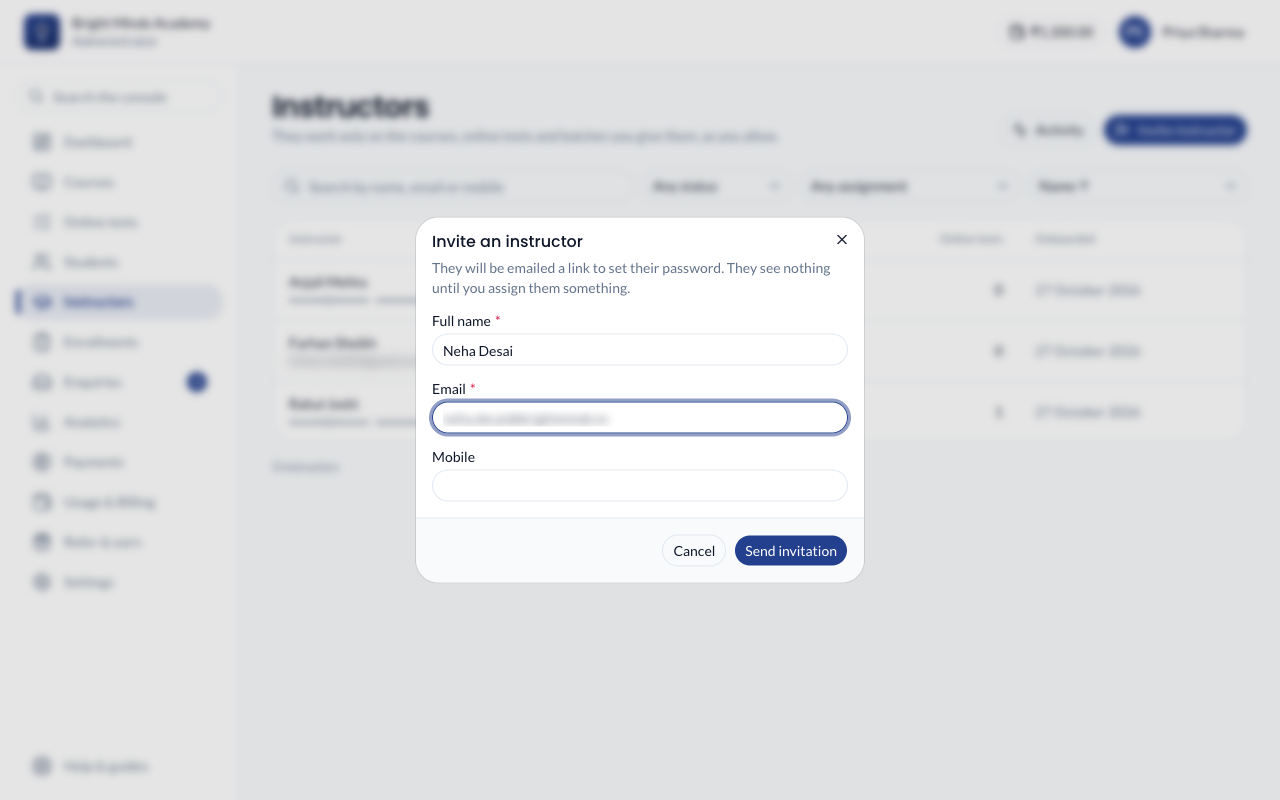
Invite an instructor
- In the left menu, click Instructors.
- Click Invite instructor.
- Enter their Full name and Email. Mobile is optional.
- Click Send invitation.
You go straight to their page, where you can give them something to work on. They see nothing until you do.
The instructor gets an email with a link. They click it, choose a password on the Set your password page and click Activate Account. Like admins, instructors sign in with two-step sign-in.
Note: An email address can belong to only one account in your academy. If somebody is already an admin or a student with that address, use a different address, or change an admin into an instructor.
Find an instructor
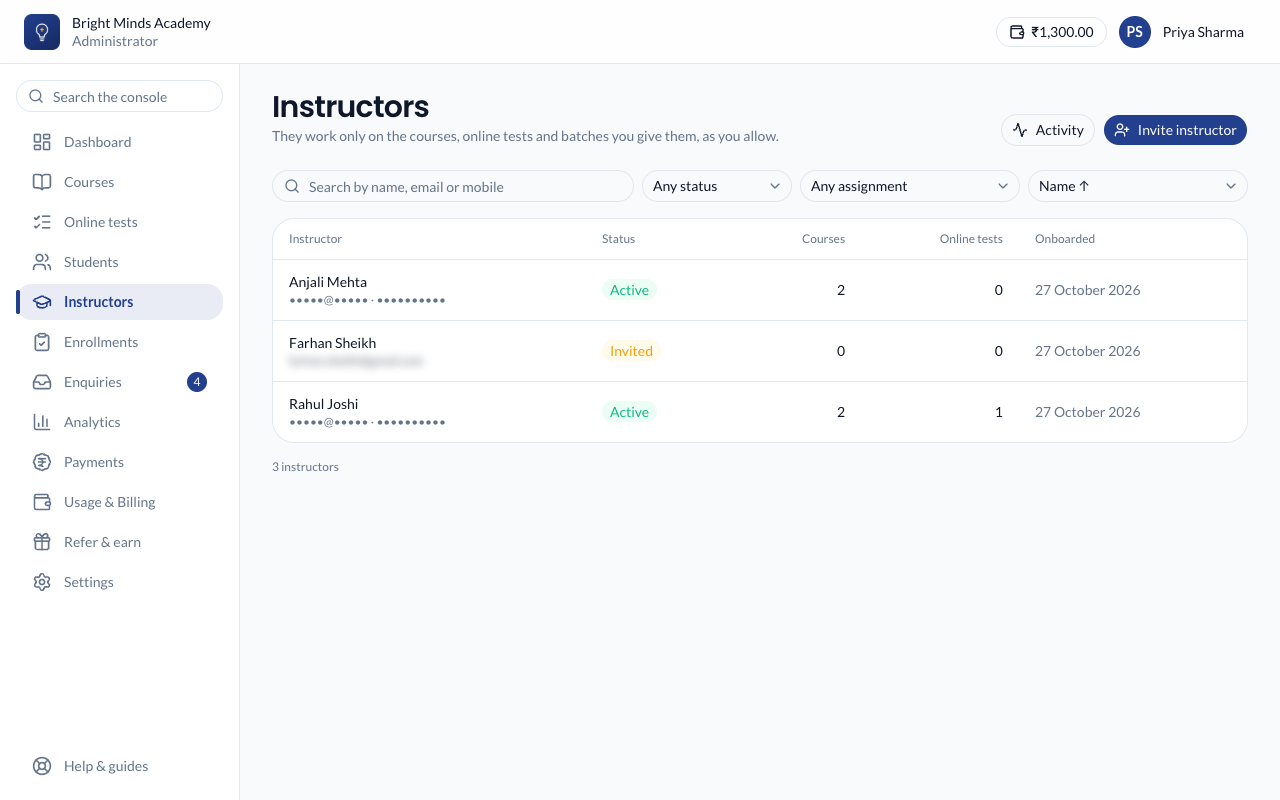
The Instructors page lists everyone you've invited, with their status and how many courses, online tests and batches each one has.
- Search by name, email or mobile.
- Filter by status (Active, Invited, Inactive), by a course, online test or batch, or by Nothing assigned.
- Sort by name, onboarding date, or the number of courses, online tests or batches.
Click an instructor to open their page.
Change an instructor's details
On their page, click Edit, change their Full name, Email or Mobile, and click Save.
Their email is how they sign in, so a new one must not be used by anyone else in your academy. Changing it signs them out everywhere; from then on they sign in with the new address. Links already mailed to the old address, such as a password reset, stop working. If they haven't set a password yet, a fresh invitation goes to the new address.
Under Shown on the website as, you can link them to one of your Faculty profiles. This doesn't change your website or certificates.
Resend the invitation
If they haven't set a password yet, click Resend invitation on their page.
Unblock an instructor
After 3 wrong passwords in a row, sign-in is blocked for 30 minutes. Their page shows Blocked after 3 incorrect passwords. Click Unblock to let them sign in straight away.
Deactivate or reactivate an instructor
- On their page, click Deactivate.
- Confirm by clicking Deactivate again.
They are signed out straight away, even mid-task, and can't sign in. What you assigned them is kept: click Reactivate and they have the same courses and switches as before. Nothing they made is removed.
Change an admin into an instructor
- Go to Settings → Admins.
- Click Make instructor next to their name, and confirm.
They are signed out. When they sign in again, they are an instructor with nothing assigned. You can't change yourself, the academy's owner, or your last active admin.
To go the other way, click Make admin on an instructor's page. Their assignments are kept in case you change them back.
If something goes wrong
- "This email is already used in your academy". Somebody in your academy, an admin, an instructor or a student, already has that address.
- The invitation email didn't arrive. Ask them to check their spam folder, and check the address on their page. Then click Resend invitation.