Assign courses and set permissions
Assign one or many, use presets, copy access, and set end dates.
An instructor works only on the courses, online tests and batches you assign them. For each one, you switch on what they may do. See How instructors work for what each switch allows.
Assign from the instructor's page
- In the left menu, click Instructors, then click the instructor.
- Under What they work on, click Assign.
- Tick the courses, online tests and batches. Use the search box to find them.
- If their access should end on its own, fill in Access until. Leave it empty for no end.
- Click Assign.
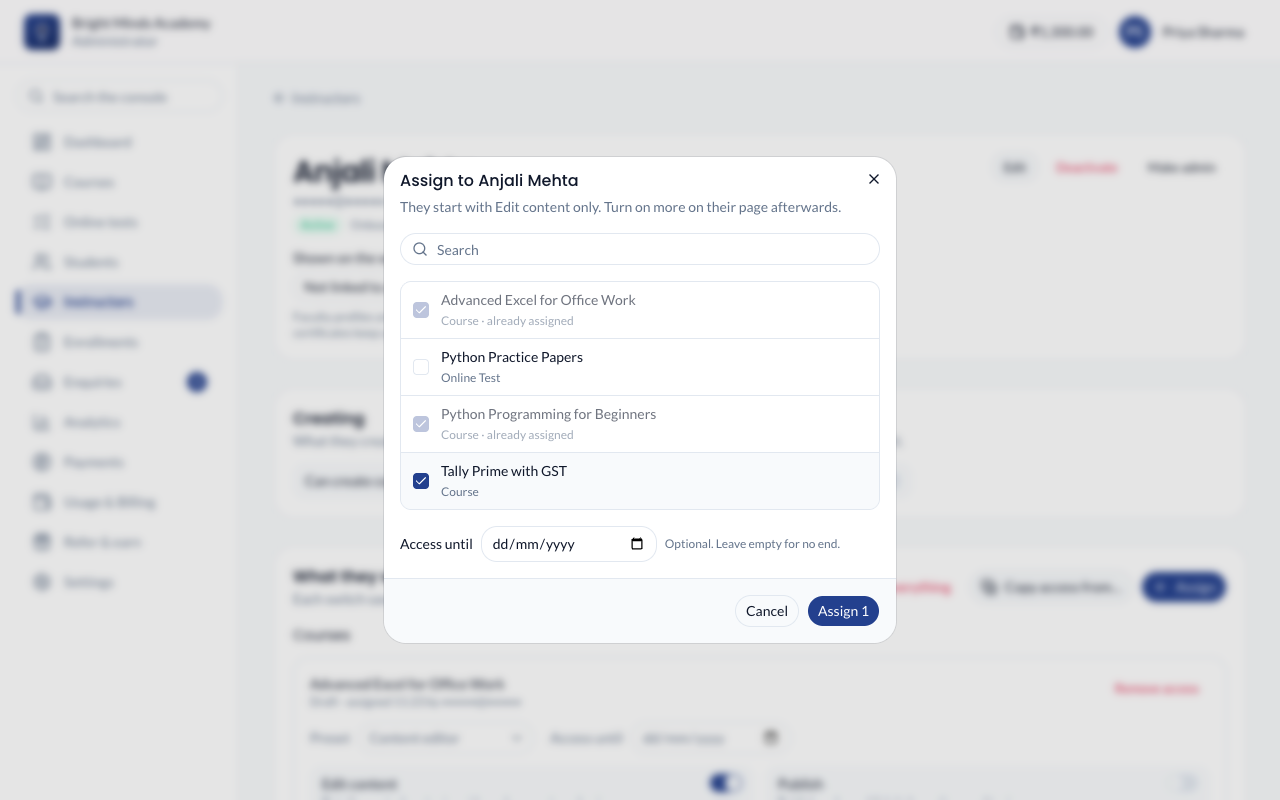
Each one starts with Edit content on and everything else off.
Assign from a course, online test or batch
- Open the course, online test or batch.
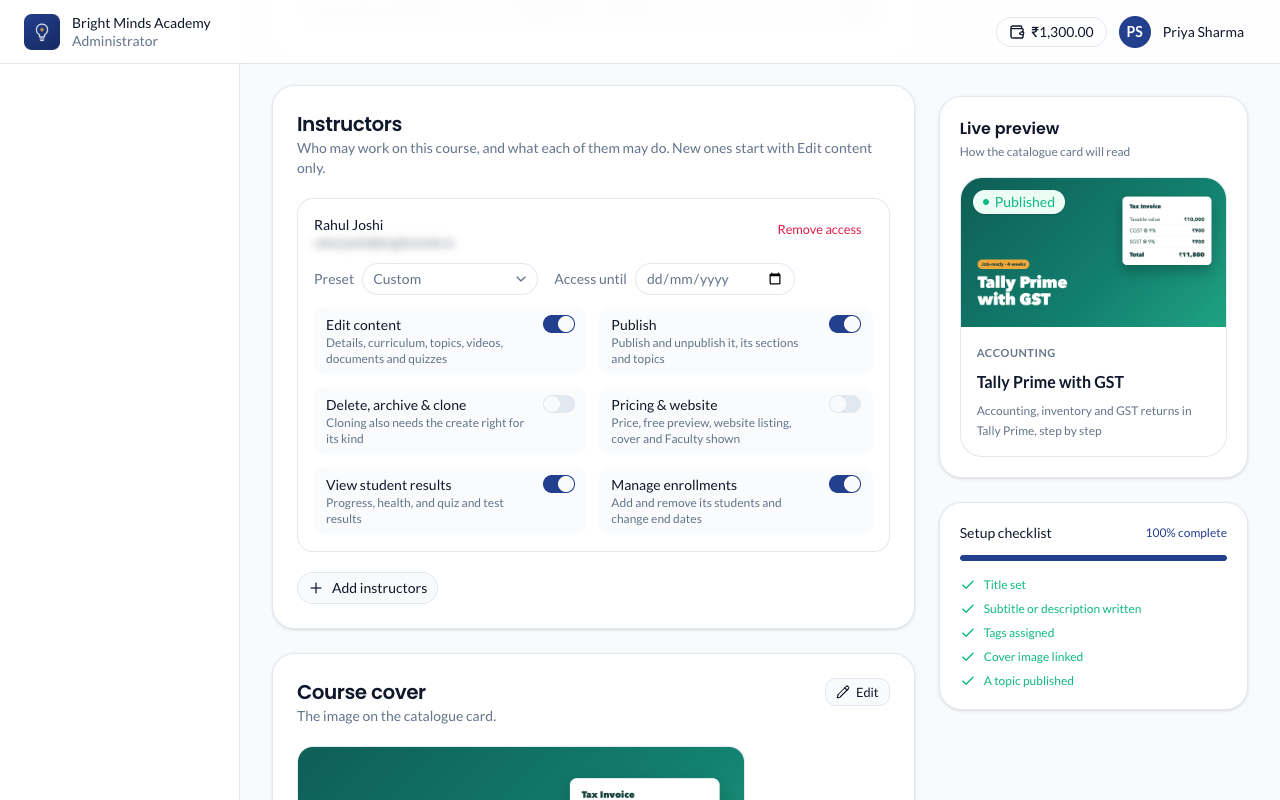
- On its Details page, find the Instructors card.
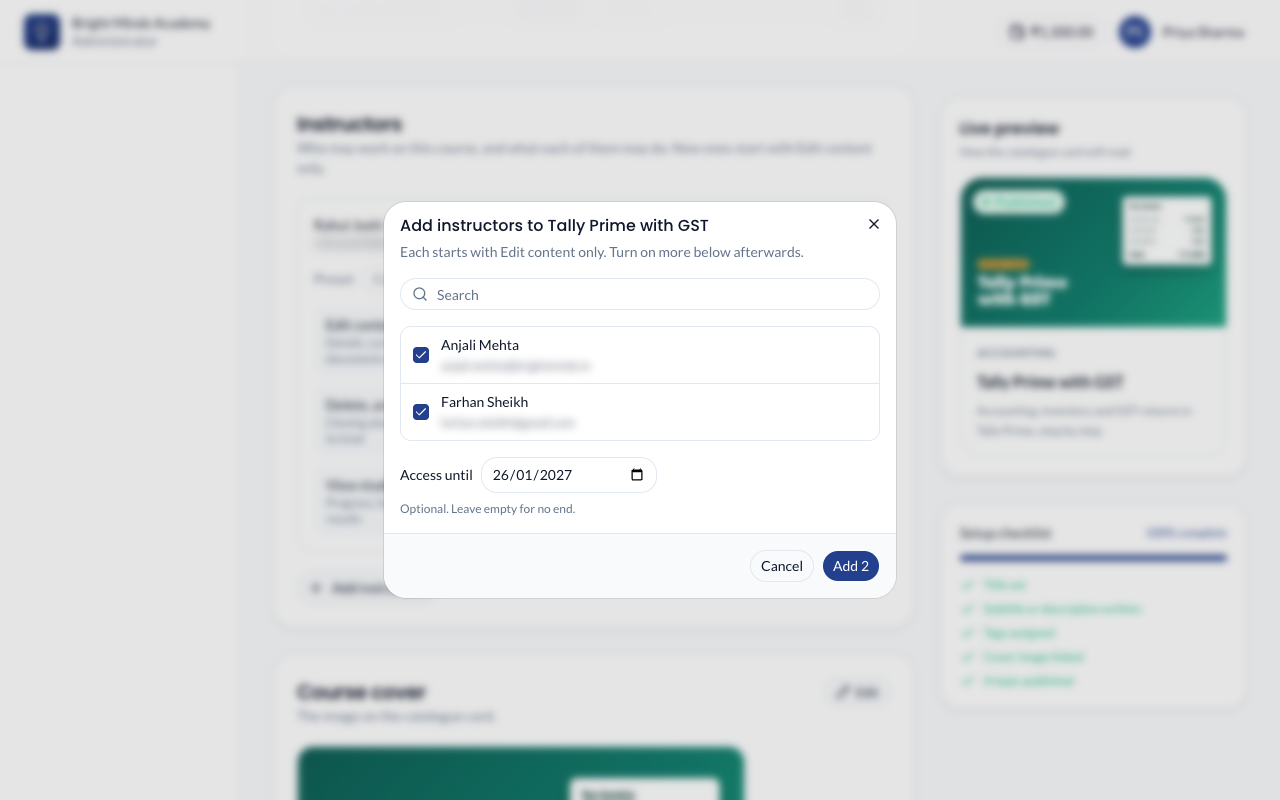
- Click Add instructors.
- Tick one or more instructors, and fill in Access until if their access should end. For a batch, Until the batch ends fills in its last day.
- Click Add.
Change what they may do
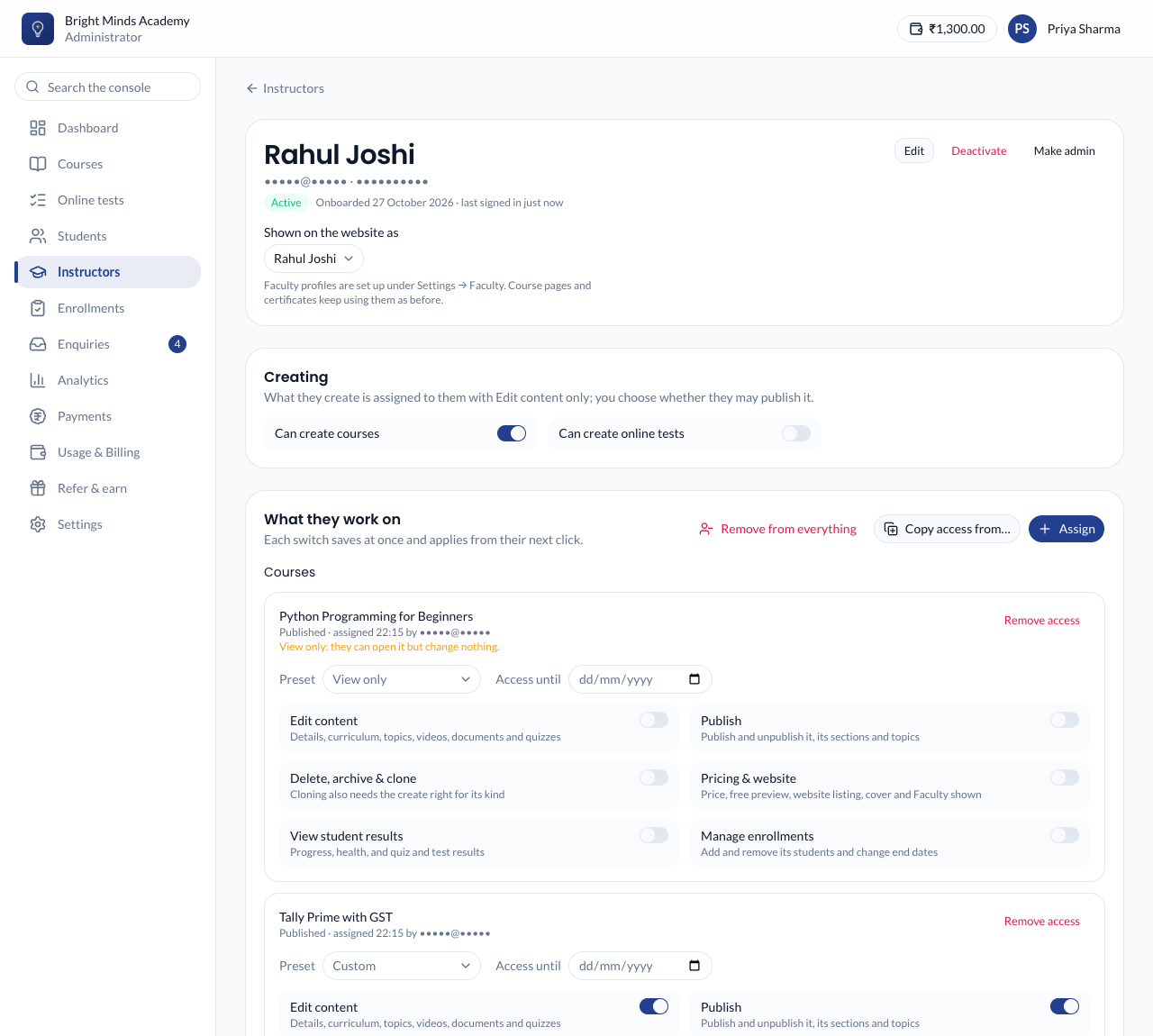
Under each assignment, pick a Preset, or switch the six switches one by one:
| Preset | Switches on |
|---|---|
| View only | None: they can open and preview it |
| Content editor | Edit content |
| Batch teacher | Edit content, View student results, Manage enrollments |
| Full control | All six |
When the switches don't match a preset, it says Custom.
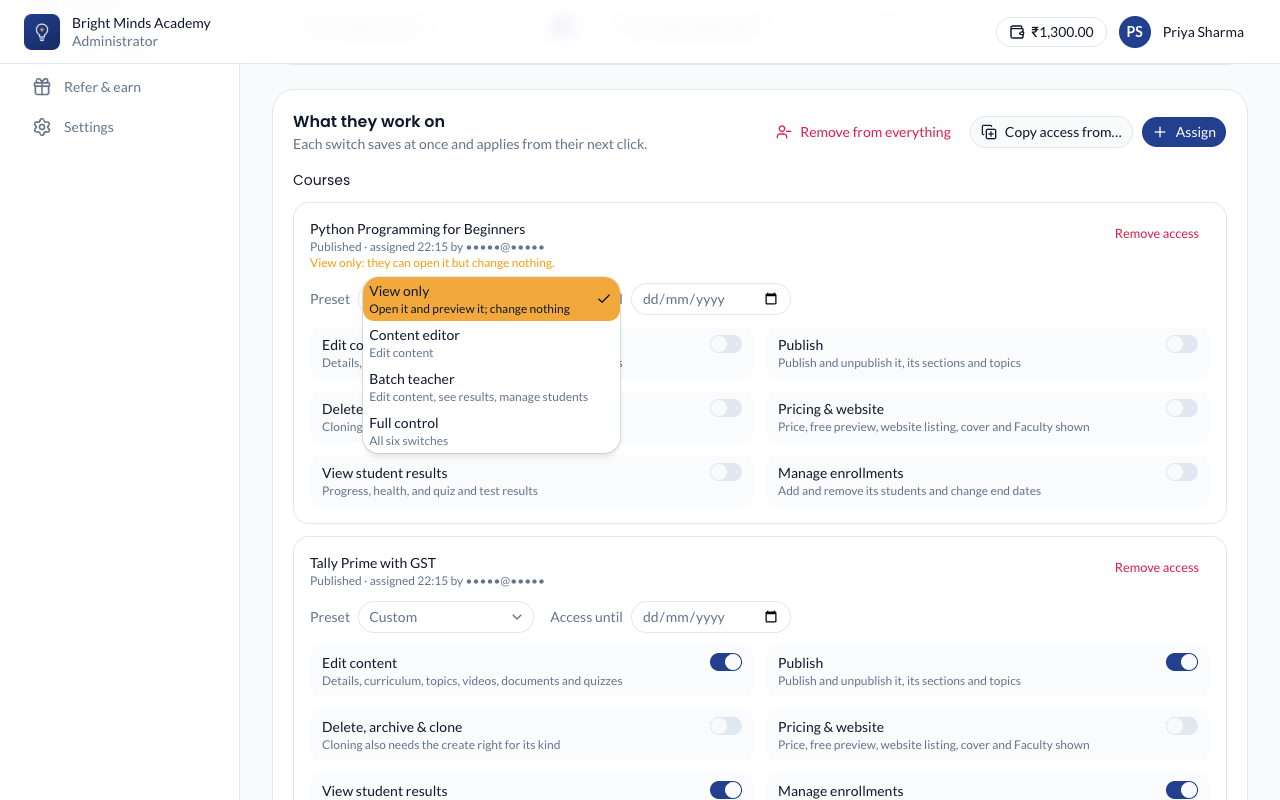
Switch the switches on or off one at a time if you need something in between. Each switch saves straight away and applies from the instructor's next click. They don't need to sign in again.
With all six off, the assignment says View only: they can open it and preview it as a student, but not change anything.
Note: If another admin changed the same switches a moment ago, you see "Someone else changed this just now". The page then shows their change. Make yours again if you still want it.
Set an end date
For guest or contract teachers, fill in Access until on the assignment. After that day they can no longer open it, and it leaves their dashboard and lists. The assignment stays on their page marked Expired on …, with its switches, so you can extend it: pick a later date, or click No end date. For a batch, Until the batch ends fills in its last day.
Three days before the end, the instructor is emailed, and every admin gets one email listing whose access ends that day.
Copy another instructor's access
When someone takes over from a colleague:
- Open the new instructor's page.
- Click Copy access from… and choose the colleague.
- Check the list. Each item says Will be added, Will change or Already the same.
- Click Copy.
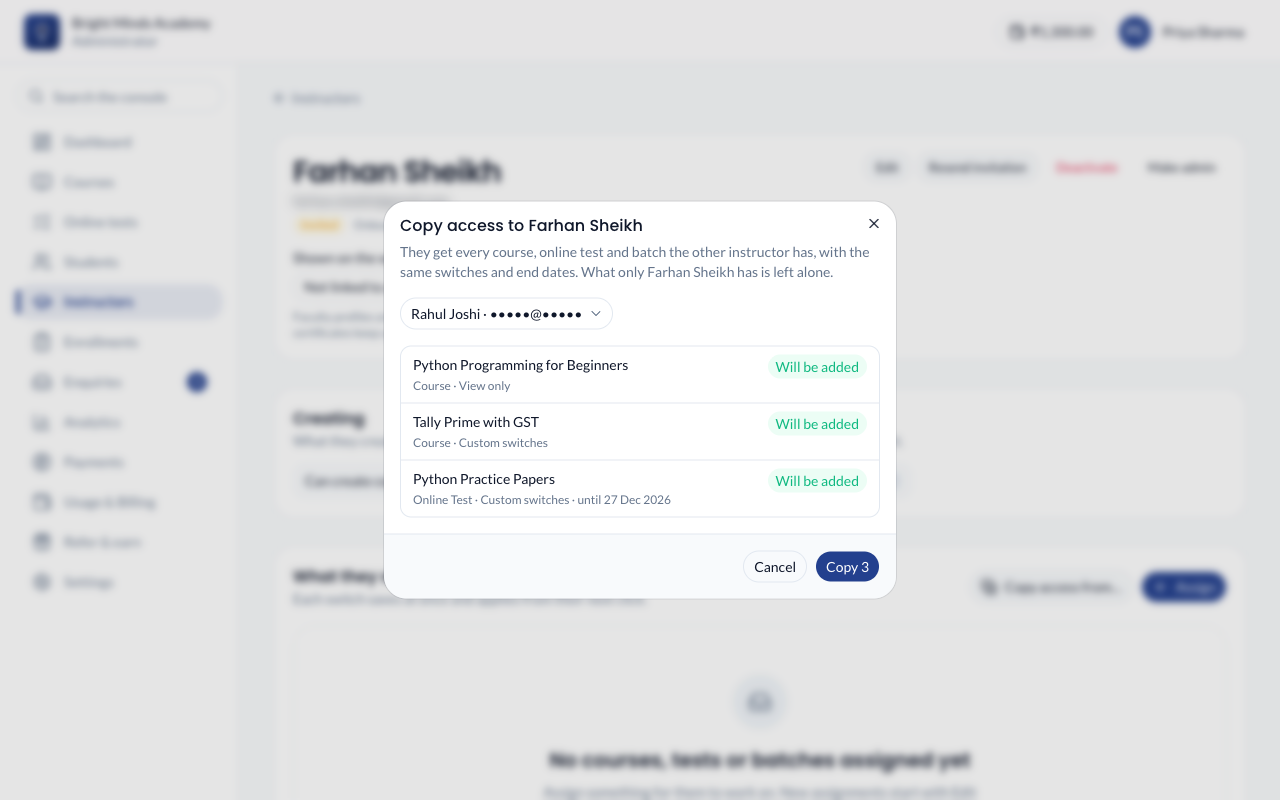
They get the same courses, online tests and batches, with the same switches and end dates. Anything only the new instructor had is left alone.
Let an instructor create
Under Creating, switch on Can create courses, Can create online tests or Can create batches. What they create is theirs to work on with Edit content only. Switch on Publish for it when you're happy for them to publish.
Switching a right off later stops them creating more. It doesn't take away what they already made.
Take a course away
Click Remove access on the assignment, and confirm. They lose it straight away, even if they have it open. Nothing they made is removed.
To take everything away at once, for someone who has left, click Remove from everything on their page and confirm. Their account stays active; deactivate it too if they shouldn't sign in. They get one email listing what was removed.
Deleting a course removes it from every instructor. If Paatya switches off a module for your academy, such as Batches, instructors stop seeing those assignments until it's switched back on.
What instructors are emailed
- When you invite them: an invitation to teach at your academy, with the link to choose a password.
- When you give them courses, online tests or batches: "You can now work on …"
- When you take one away: "Your access to … was removed". With Remove from everything, one email lists them all.
- Three days before an end date: "Your access to … ends on …"
- When you change their switches: "Your permissions on … changed", with what they had before and what they have now. It waits until you have left that assignment's switches alone for 3 minutes, so several clicks are one email; if you put the switches back as they were, nothing is sent.
- Once a day, if they want it: the students who joined their courses, for courses where they may see students.
You can change the wording of these emails under Settings → Emails.