Ready for review
Instructors say a draft is ready; admins publish it or send it back.
An instructor who may edit a draft but not publish it can tell your admins it's ready. You then publish it in one click, or send it back with what needs changing.
For instructors: say it's ready
- Open the draft course, online test or batch.
- Click Ready for review at the top.
- Add a note for the admin if you like, such as what changed since last time.
- Click Send for review.
Every admin is emailed. The page now says Waiting for review. Click Withdraw if you want to change something first.
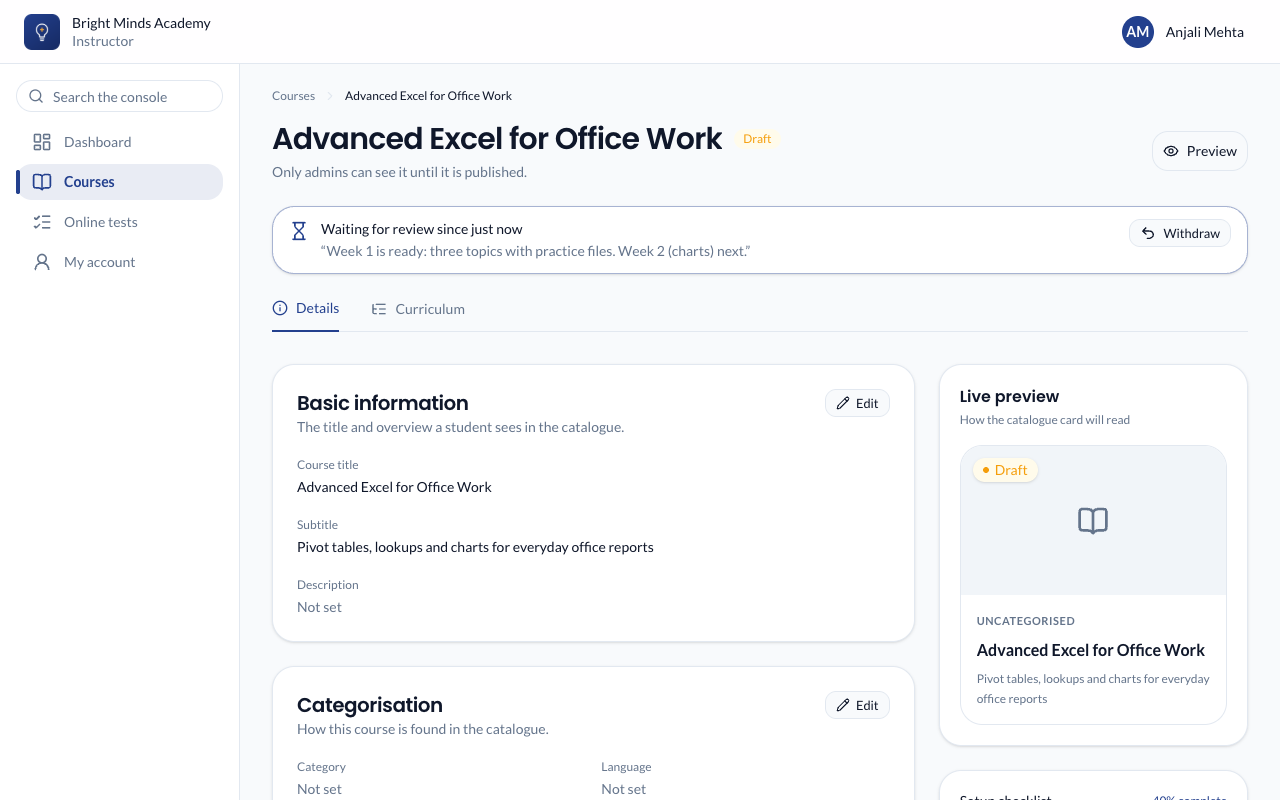
The button only shows when you may edit it but not publish it, and only on a draft.
For admins: publish or send back
Your Dashboard lists everything Waiting for review, oldest first, with who asked and their note.

- Click Publish to publish it straight away. The usual rules apply: a course needs at least one published topic, and a batch needs its dates. If it can't be published yet, you see why and it stays in the list.
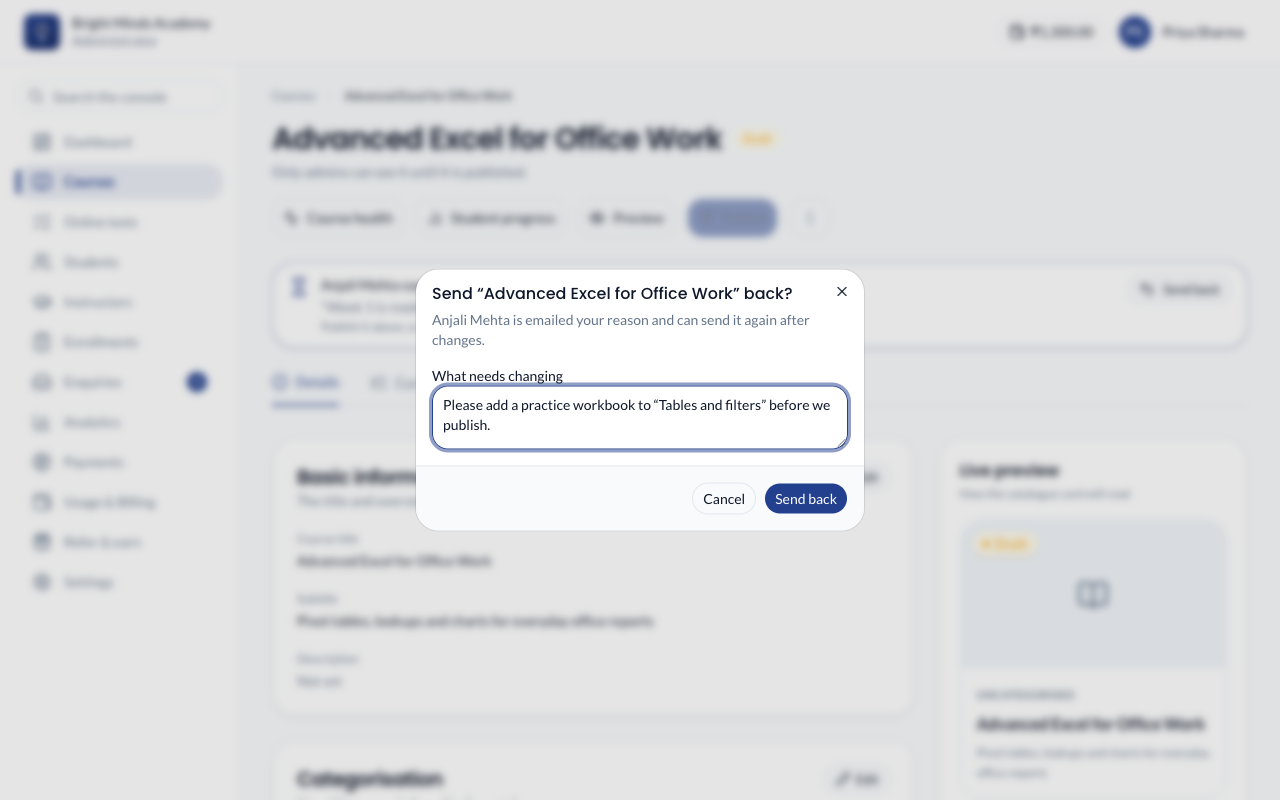
- Click Send back, write what needs changing, and click Send back. The instructor is emailed your reason, and sees it at the top of the page until they send it again.
- Click Open to look at it first. The same Send back button is at the top of its page, under the title.
Publishing it any other way, such as with Publish on its own page, also takes it off the list. Whoever asked is emailed "… is published".
Emails
- To every admin: "… is ready for review", with the note and a link.
- To the instructor: "… is published", or "… needs more work" with your reason.
You can change their wording under Settings → Emails. Requests, withdrawals and send-backs are in the activity log and Instructor activity.