Activity log
Who changed what, and every sign-in.
The activity log shows what has happened in your academy: who changed what, and every attempt to sign in. Use it to answer "who published this course?" or "was that sign-in me?". Nothing in it can be edited or deleted.
Open the activity log
- In the left menu, click Settings.
- In the settings menu, under Academy, click Activity.
The page has two lists: Changes and Sign-ins. The newest entries are at the top. Use Newer and Older at the bottom of each list to move between pages.
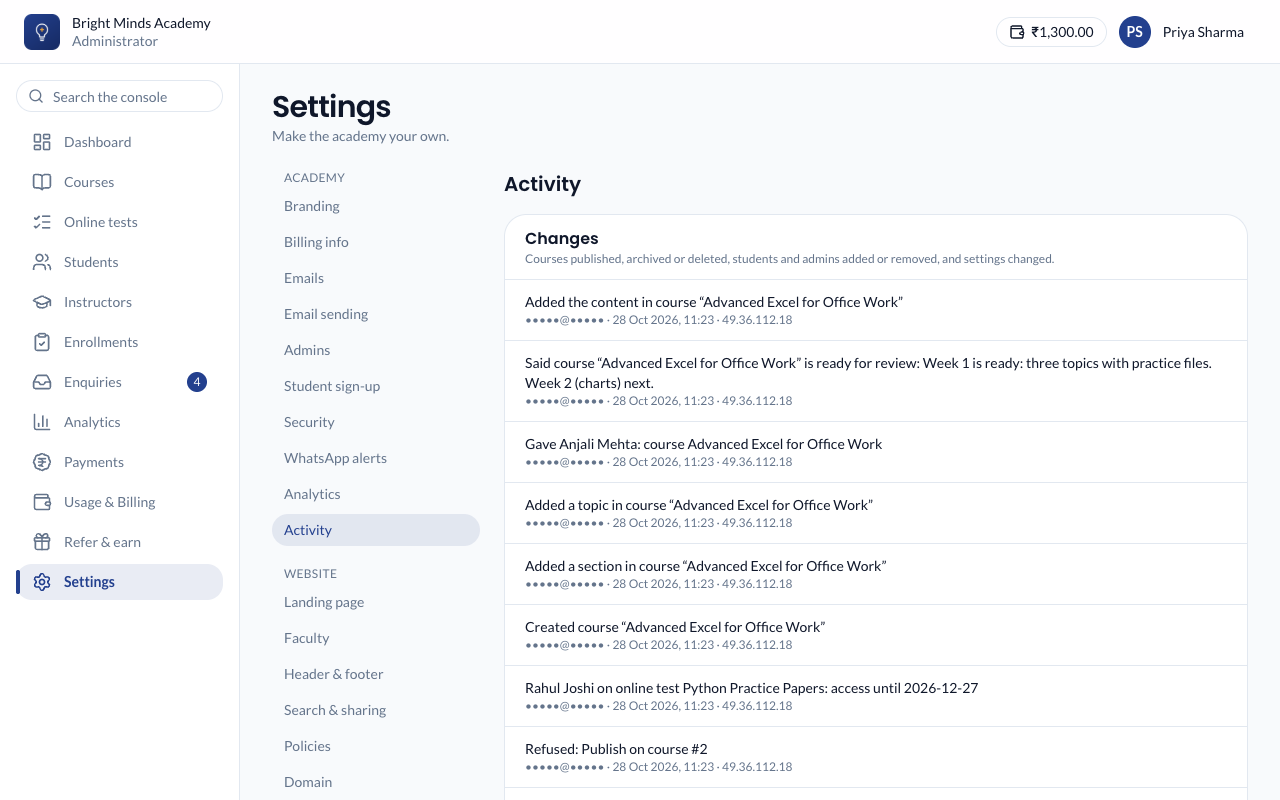
Changes
Important changes made by admins and instructors, such as:
- courses published, archived or deleted;
- students and admins added, deactivated or restored;
- a temporary password set for a student;
- students enrolled on courses, and enrollment end dates set or changed;
- settings changed, such as branding;
- content added, changed or removed in a course, online test or batch, such as "Added a topic in course …". Repeated saves of the same thing within a few minutes show as one entry.
Each entry says what happened, followed by the email of whoever did it, the date and time, and the IP address it came from.
Sign-ins
Every attempt to sign in to your academy, by admins, instructors and students. Each entry shows the email address used, the result, the date and time, the IP address and the device, such as "Chrome on Windows".
| Result | What it means |
|---|---|
| Signed in | The sign-in worked. |
| Wrong password | The account exists, but the password was wrong. |
| No such account | Nobody in your academy has that email address. |
| Not activated | The person was added but has not set a password yet. |
| Deactivated | The account has been deactivated. |
Switch on Failures only to hide the successful sign-ins.
Tip: When a student says "I can't sign in", look them up here. The result tells you why. For example, Not activated means they haven't used their welcome email yet. See Find and manage students.
If something goes wrong
- A sign-in you don't recognise. Check the device and IP address. If it wasn't you, change your password straight away. See One device at a time.
- Many failed sign-ins for one account. Someone may be guessing the password. Ask the person to choose a stronger password with Forgot password?.
Related
Tip: To see only your instructors' work, including what they tried and weren't allowed to do, use Instructor activity.