A student's progress
Courses, activity and quiz results for one student.
Each student has their own page that shows their courses, what they have been doing, and how their quizzes went. Use it to answer questions like "How far has Priya got?" or "Why hasn't she passed Quiz 3?".
Open a student's page
- In the left menu, click Students.
- Click the student's name, or open the ⋮ menu on their row and click View details.
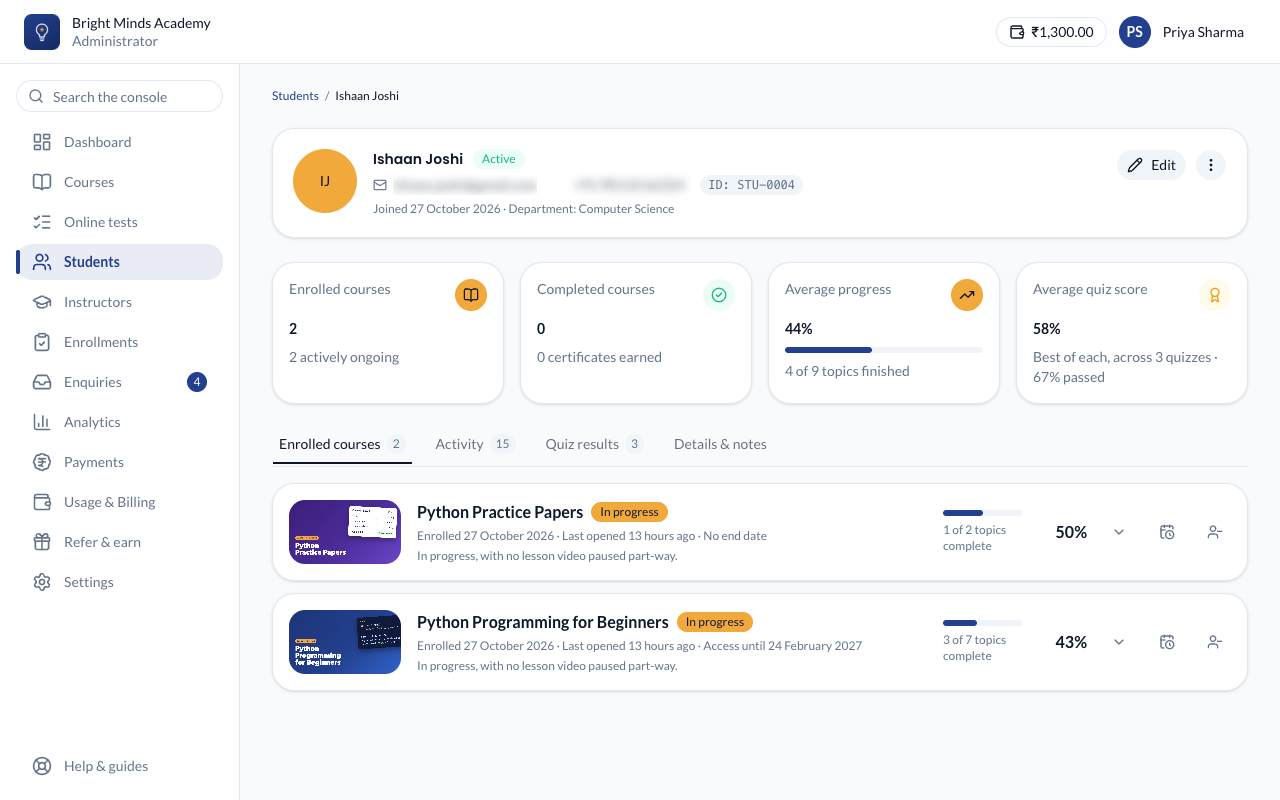
The top of the page
The header shows the student's name, status, email, phone, ID, when they joined, and their batch and department. If they have not set a password yet, you'll see "They have not set a password yet — their invitation is still outstanding."
From here you can click Edit, or open the ⋮ menu to Deactivate, Restore access, Set temporary password or, for a student who hasn't activated yet, Resend invitation.
Below the header are four figures:
- Enrolled courses: how many courses they are on.
- Completed courses: how many they have finished.
- Average progress: across all their courses.
- Average quiz score: of their best score on each quiz.
The tabs
Enrolled courses
One card for each course, with the percentage complete. Under the course's name it says until when the student can open the course (Access until a date), or No end date. Once that day has passed, the card shows Access ended.
- Click the arrow on a card to see the course topic by topic: which topics they finished and which they haven't started.
- If they earned a certificate, its credential ID is shown.
- The calendar button on a card changes how long they keep that course. See Change how long a student keeps a course.
- The remove button on a card takes them off that course. See Track and remove enrollments.
Activity
The student's recent history: when they were enrolled, started or finished a topic, submitted a quiz, or earned a certificate.
Quiz results
For each quiz: the number of Attempts, their Best and Latest score, the Result (Passed or Not passed), and when they last tried.
Details & notes
Everything recorded about the student, including the Notes only admins can see, and whether their account is Activated.
See every quiz answer
- On the Quiz results tab, click Every attempt, with the answers they gave.
- Use the course and result filters to narrow the list: Passed, Not passed or Not attempted.
- Open a quiz to see each attempt, then click View answers to see what they chose on every question.
The page also shows Quizzes attempted, Average best score, Pass rate and a Video progress list.
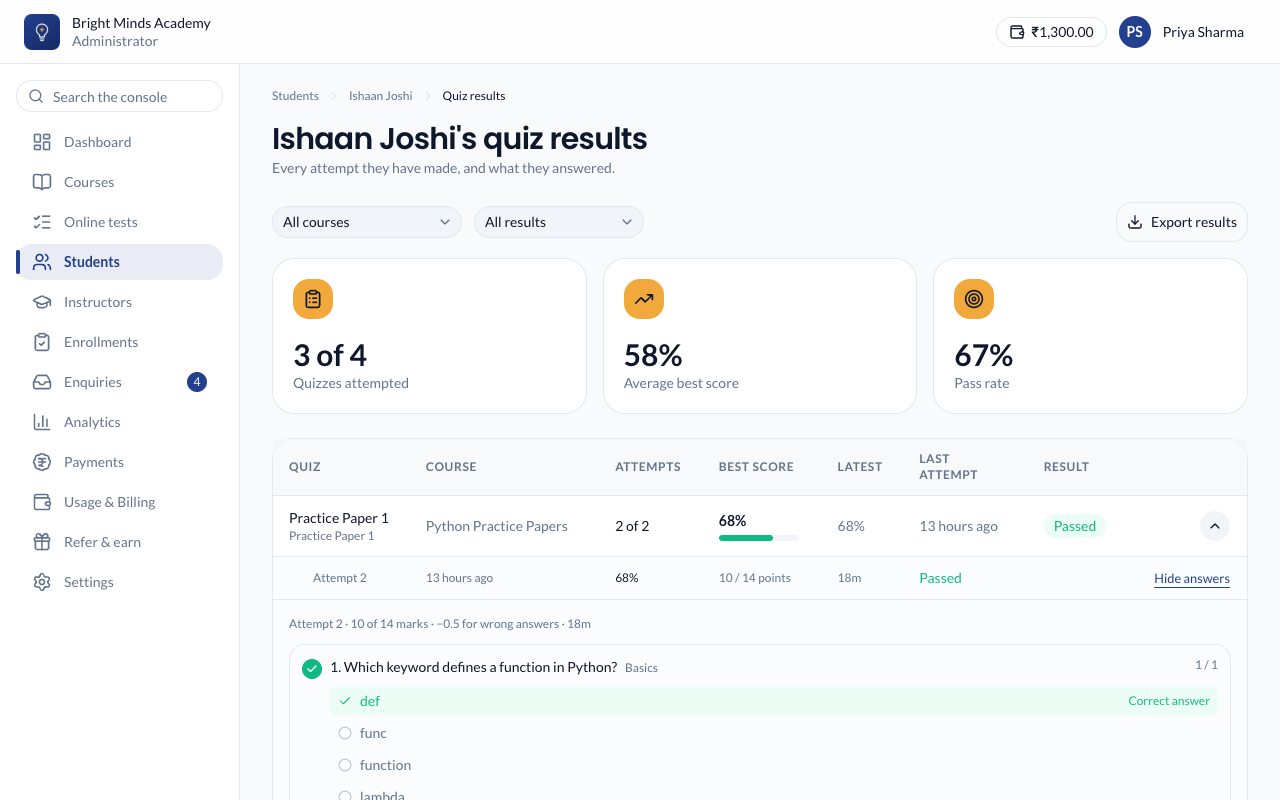
Download quiz results
On the quiz results page, click Export results. You get a CSV file you can open in Excel or Google Sheets. It follows the filters you have chosen.
Related
- Find and manage students
- Course health: the same story, one course at a time.