Course health
See where students stop and how quizzes go.
Course health shows how everyone on a course is doing: how many are learning, how many have finished, where students stop, and how they do in the quizzes. Use it to find the lesson that needs work.
Open Course health
- Click Courses, then click the course's card.
- Click the Curriculum tab.
- Click Course health at the top right.
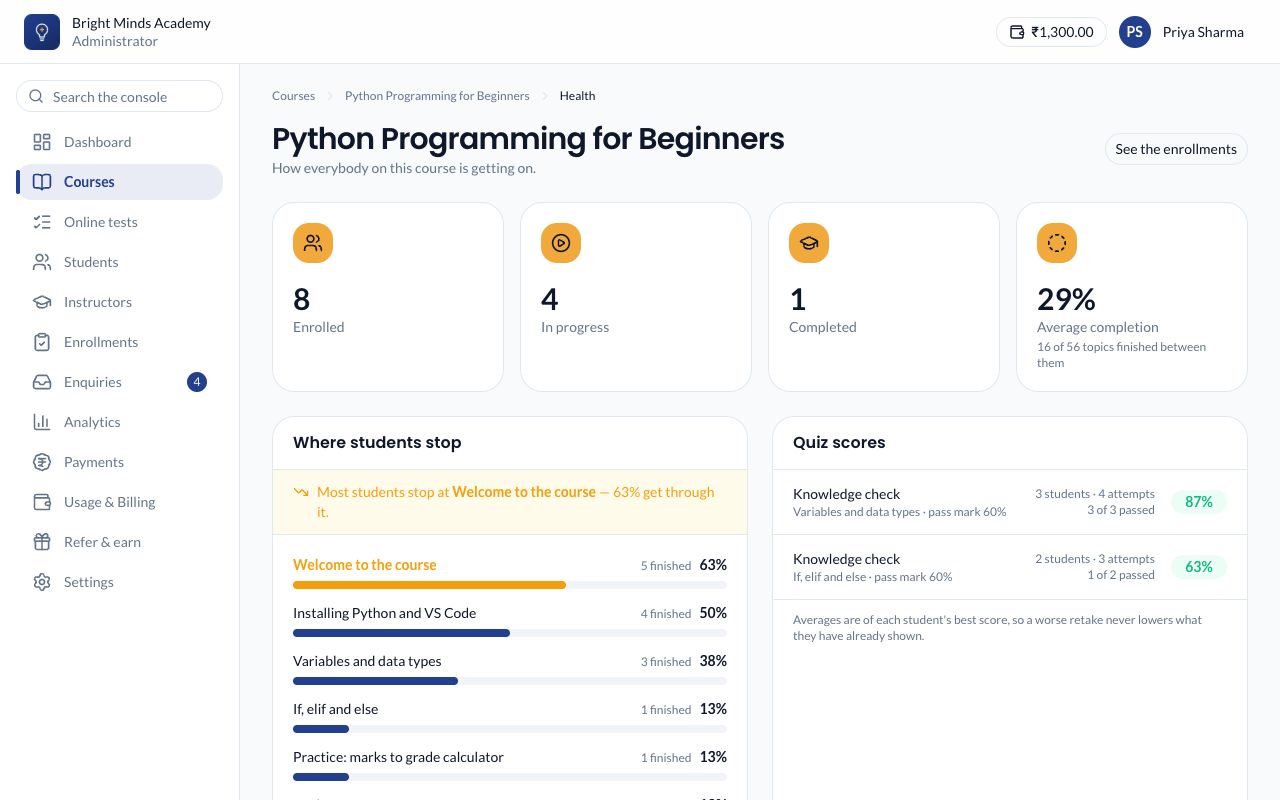
The summary numbers
| Number | What it means |
|---|---|
| Enrolled | Students enrolled on the course. |
| In progress | Students who have started but not finished. |
| Completed | Students who have finished the course. |
| Average completion | How far through the course students are, on average. |
To see each student's enrollment on this course, click See the enrollments.
Where students stop
This panel lists every published topic in order, with a bar showing the share of students who have finished it. Under each topic you see how many finished it and how many are still on it.
The topic where the most students drop off is highlighted, with a line such as "Most students stop at Greeting people — 40% get through it."
Tip: A big drop at one topic usually means the video is too long, the quiz is too hard, or something is unclear. Try splitting the topic, adding an explanation to the quiz, or lowering the passing score.
Click a topic's name to open it in the editor.
Quiz scores
For every quiz on the course, you see:
- the topic's name and its pass mark
- how many students have taken it, and how many attempts they have made
- how many passed, such as "8 of 10 passed"
- the average best score, in green if it's at or above the pass mark and amber if it's below
Averages use each student's best score, so a worse retake never lowers a student's result. A quiz nobody has taken yet shows "Not attempted yet".
If something goes wrong
- "This course has nothing published in it yet". Publish at least one topic. See Build the curriculum.
- "Nobody is on this course". Enroll some students first. See Enroll students.
- "There are no quizzes on this course". Add a quiz to a topic if you want scores here. See Add a quiz.
Related
- Learning analytics: figures for your whole academy.
- A student's progress: one student's courses and quiz results.