Track and remove enrollments
Follow progress, and take a student off a course.
The Enrollments page shows who is on which course and how each of them is doing. You can also take a student off a course from here.
See all enrollments
- In the left menu, click Enrollments.
- At the top, three cards count every enrollment in your academy: Active, Completed and Not started. Click a card to show only those enrollments. Click it again to show everything.
- Use the search box to find a student, email, student ID or course.
- If your academy has more than one of batches, courses and online tests, choose Batches, Courses, Online tests or All (the default) above the filters. Then narrow the list with the Batch, Course, Online test, Status and Access filters, and with the date filter for when they enrolled: Any time, Last 7 days, Last 30 days, Last 90 days or Last year. Access: Ended shows enrollments whose end date has passed.
- Sort by Recently enrolled, Student, Course or Progress.
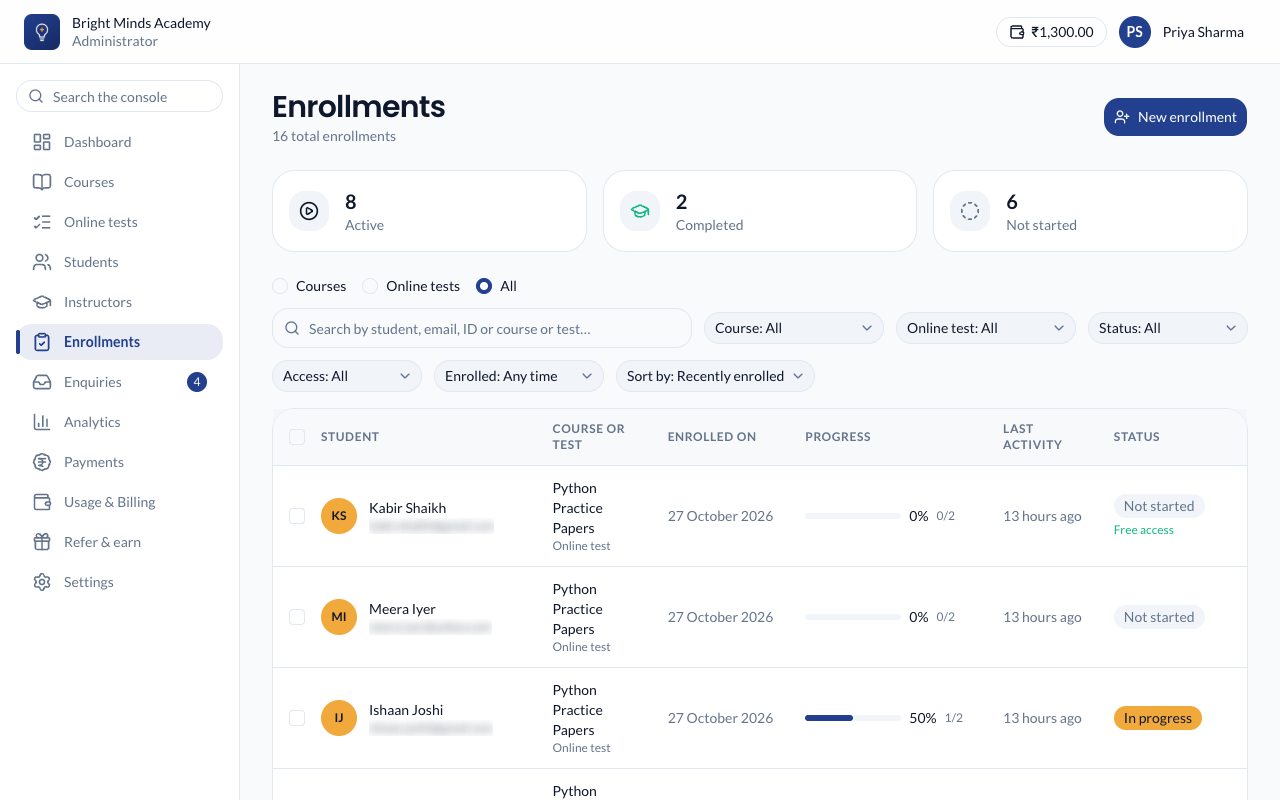
Each row shows the Student, the Course, the date they Enrolled on, their Progress, their Last activity and the Status. If the enrollment has an end date, it's shown under the status: Until the last day the student can open the course, or Ended and the date once that day has passed. A row with nothing there has no end date. On a phone, each card has an Access until line instead.
Tip: Sort by Progress and filter by Status: In progress to find students who have stalled part-way through.
Open a student from an enrollment
Click the ⋮ menu on a row and click View student. The student's page shows this course topic by topic. See A student's progress.
Change how long a student keeps a course
- Find the enrollment and click the ⋮ menu on its row.
- Click Change end date. For an enrollment that has ended, it reads Extend access.
- Pick the last day they can open the course, or click +30 days, +90 days, +180 days or +365 days.
- Click Save. To let them keep the course with no end, click Remove end date instead.
A later date gives an ended course back straight away, with the student's progress where they left it. A date in the past ends their access now, without deleting anything.
Change several at once
- Tick the enrollments in the list. The box at the top of the list ticks every row on the page.
- Click Set end date in the bar above the list.
- Pick the date and click Save.
You can also change the end date from the calendar button on a course in the student's Enrolled courses tab. See How enrollment works for what an end date does.
Remove a student from a course
Warning: Removing an enrollment permanently deletes the student's progress, the point they had reached, and every quiz attempt on that course. There is no undo. If you enroll them again, they start from the beginning.
- Find the enrollment and click the ⋮ menu on its row.
- Click Remove from course.
- Read the message. It tells you how many topics the student had finished.
- Click Remove and lose the progress, or Keep them on it to cancel.
You can also remove a course from the Enrolled courses tab on the student's own page.
When a course can't be removed
If the student has earned a certificate for the course, the message says the course "cannot be taken away" and shows the certificate's ID. The enrollment is the record behind the certificate, so it has to stay.
If you only want to stop their access
To stop a student opening one course while keeping their work, give that enrollment an end date in the past (see above). To stop them getting in at all, deactivate the student instead.