Other admins
Invite people to help run your academy.
You don't have to run your academy alone. You can invite other people, such as a co-founder, a trainer or an office manager, as admins. Admins are free: you are not charged for them.
What an admin can do
There is one kind of admin. Every admin can manage courses, students, enrollments, course payments and refunds, billing and settings, including inviting and deactivating other admins. Only invite people you trust with all of it.
Tip: For a teacher who only needs some of your courses, invite them as an instructor instead. You choose what they work on and what they may do with it.
Tip: Give each person their own admin account. Don't share one login: an account can only be signed in on one device at a time, so people sharing a login keep signing each other out. See One device at a time.
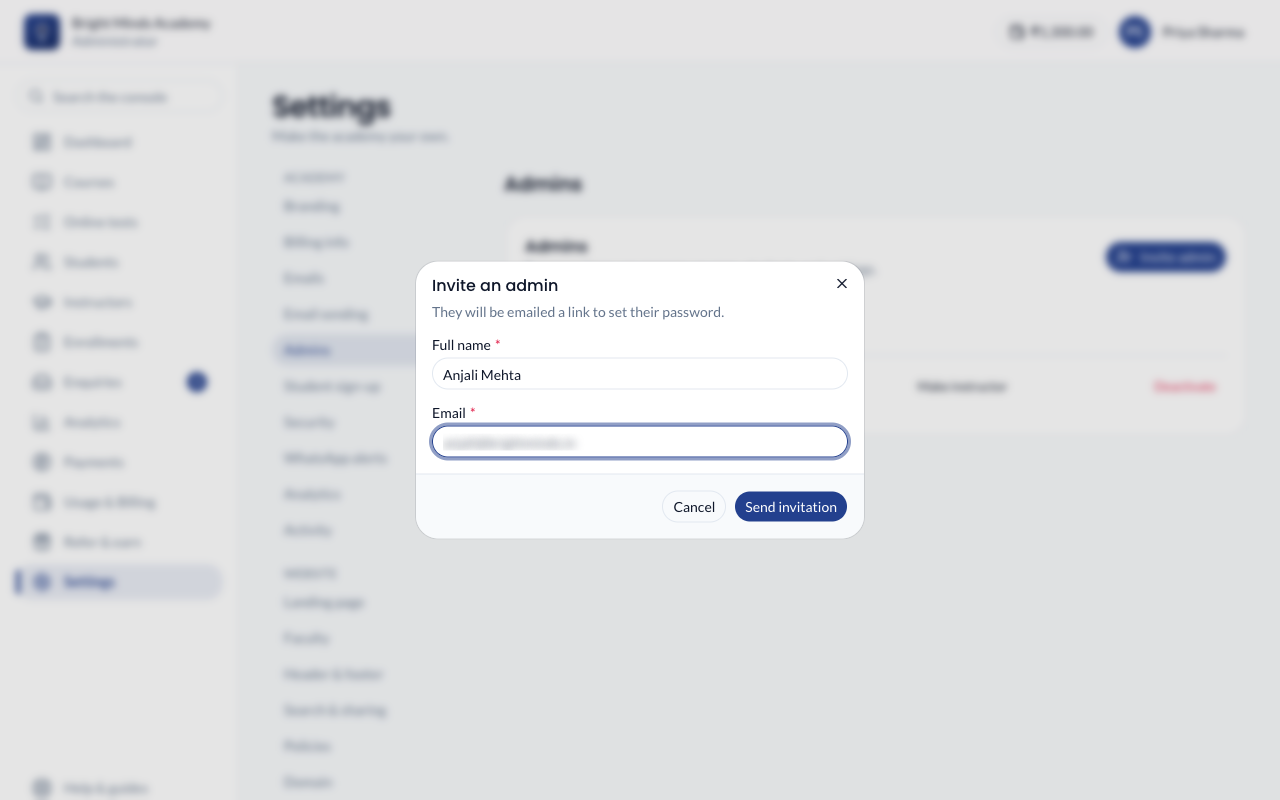
Invite an admin
- In the left menu, click Settings.
- In the settings menu, under Academy, click Admins.
- Click Invite admin.
- Enter their Full name and Email.
- Click Send invitation.
What you'll see
"Invitation sent to …", and the new admin in the list marked Invited — has not set a password.
The new admin gets an email with a link. They click it, choose a password on the Set your password page and click Activate Account. The link works for 7 days; if it expires, they can click Forgot password? on the sign-in page for a new one. Once they've signed in, they set up two-step sign-in, which every admin needs, and the list shows when they last signed in.
Deactivate an admin
When somebody leaves, deactivate them.
- Go to Settings → Admins.
- Click Deactivate next to their name.
- Confirm by clicking Deactivate again.
They are signed out straight away and cannot sign in until reactivated. Nothing they made is removed: their courses, changes and history stay.
You cannot deactivate yourself, and your academy must always keep at least one active admin.
To keep somebody but give them less, click Make instructor next to their name instead. See Change an admin into an instructor.
The admin your academy was created for is its owner, marked Owner in the list. Other admins can't deactivate the owner. If the owner needs to change, contact Paatya support.
Reactivate an admin
Go to Settings → Admins and click Reactivate next to their name. They can sign in again with their old password.
If something goes wrong
- The invitation email didn't arrive. Ask them to check their spam folder. Check the email address in the list is right.
- The invitation link has expired. The link lasts 7 days. Ask them to click Forgot password? on the sign-in page and enter their email address. Because they have never activated their account, they receive a fresh invitation link.
- An admin is shown as "Blocked after 3 incorrect passwords". Sign-in to their account is blocked for 30 minutes and lifts by itself. Other admins can't unblock an admin; to get in sooner, they can email Paatya support.
- "That did not work". Refresh the page and try again. If you are deactivating, check you are not deactivating yourself or the last active admin.
Related
- Activity log: see what each admin has changed.
- How instructors work