Email wording
Change the emails your students receive.
Paatya sends emails to your students for you: when you add them, enroll them, when they finish a quiz or earn a certificate. Each email already has sensible wording. Under Settings → Emails you can change the wording to sound like your academy.
The emails you can change
| When it is sent | |
|---|---|
| Account activation | When you add a student or invite an admin. It carries the link to choose a password. |
| Password reset | When somebody asks to reset a forgotten password. |
| Sign-up code | When a student signs themselves up. It carries the 6-digit code. |
| Sign-up for an existing account | Instead of a sign-up code, when somebody signs up with an email that already has an account. It links to sign-in and to choosing a new password. |
| Enrolled on a course | When you enroll a student on a course and choose to notify them. |
| Quiz marked | When a student's quiz has been marked. |
| Certificate issued | When a student finishes a course and earns a certificate. |
| Access ending | 7 days and 1 day before a student's access to a course ends. Only for enrollments with an end date. |
| Weekly summary | A Monday note for students who asked for one. |
| Daily digest | One morning email for students on a daily digest. |
| Sign-off | The footer at the bottom of every course email and digest. |
Emails about billing, and your own welcome email, come from Paatya and cannot be changed.
Change an email
- In the left menu, click Settings. Then, in the settings menu under Academy, click Emails.
- Click the email you want to change.
- Edit the Subject and the Body. The body is plain text; line breaks are kept.
- To add a detail that changes for each person, such as their first name, click it next to You can use:. It is added to the end of the body, for example ``. Move it where you want it.
- Click Preview to see the email with sample values.
- Click Save.
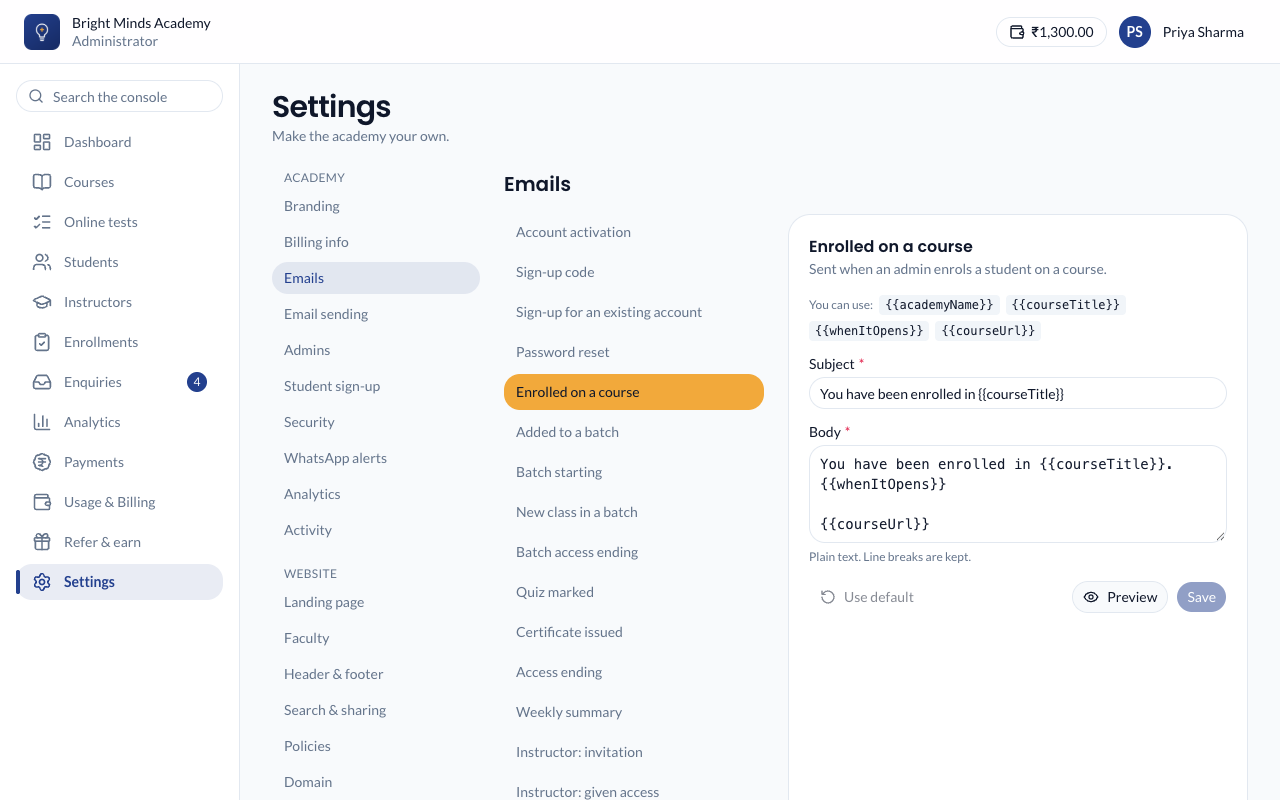
What you'll see
The email shows an Edited badge in the list. From now on, that email goes out with your wording.
Go back to the original wording
Open the email and click Use default. You'll see "Back to the default wording".
If something goes wrong
- "… is not available in this email". You typed a
{{ }}word that this email doesn't have, or spelled it differently. Only the words listed next to You can use: work. Click them rather than typing them. - "Write a subject for this email". The Subject box is empty. Every email except Sign-off needs a subject.
- The Sign-off link is missing. Keep the link in Sign-off. It lets students change which emails they receive.
Tip: Keep emails short, and keep the link in activation and reset emails. Without it, your students cannot set their password.
Related
- Branding: set the support email that replies go to.
- Add a student