Let students sign up
Turn on student sign-up, and what happens when someone uses it.
You can let students create their own account from your academy's sign-in page and the Paatya app, instead of waiting for you to add them. This is off until you turn it on. While it is off, only you can add students. See Add a student.
A student who signs up can start your free courses straight away. For a paid course, you enroll them once they have paid you, or, if your academy sells courses online, they buy it themselves.
Before you start
- Your academy needs balance. While adding students is paused, sign-up is closed too. See Add balance.
- Publish your Terms and Privacy policy. Students agree to them when they choose their password.
- A student who signs up counts as an active learner in a month only once they watch a course video, take a quiz or an online test, or download a file, like any student you add. Signing up and signing in alone cost nothing. See How billing works.
Turn on student sign-up
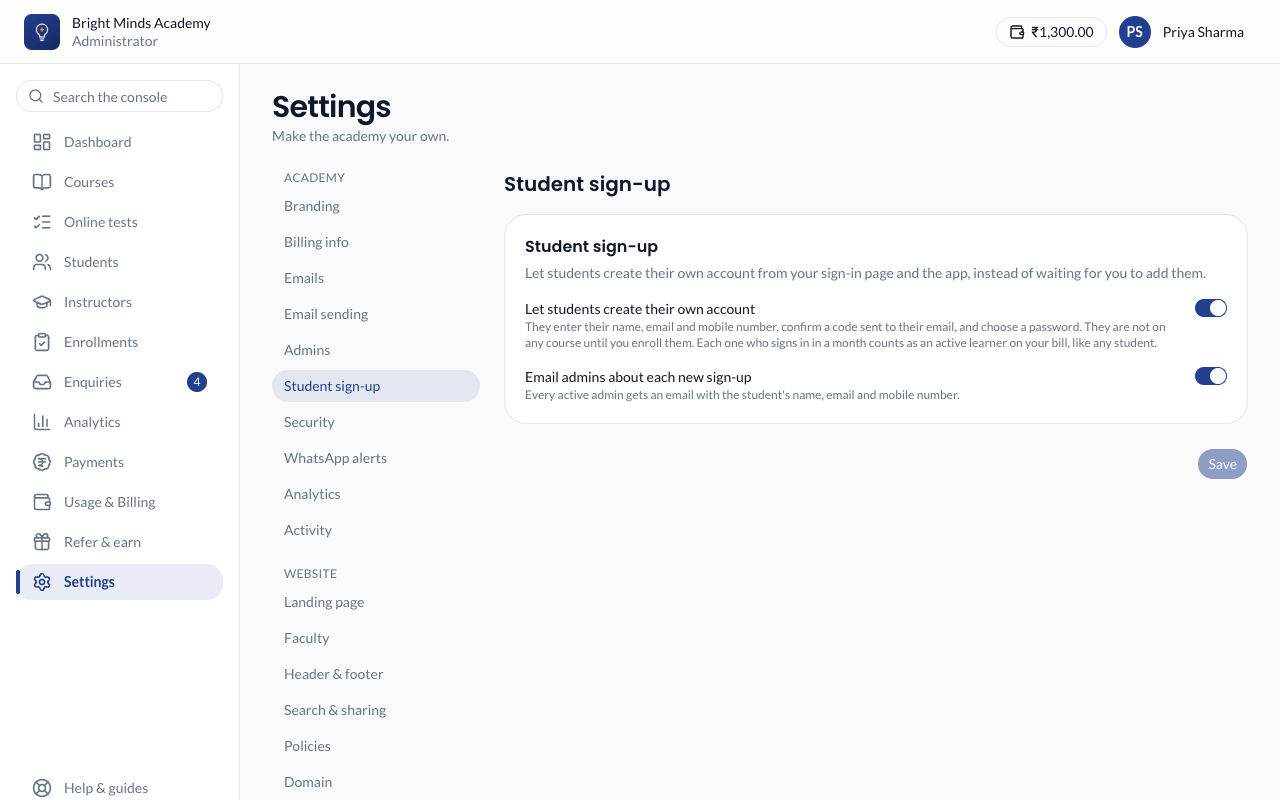
- In the left menu, click Settings. Then, in the settings menu under Academy, click Student sign-up.
- Turn on Let students create their own account.
- Leave Email admins about each new sign-up on if you want an email every time somebody signs up. Turn it off if you'd rather check the Students list.
- Click Save. You'll see "Students can now sign themselves up".
To stop new sign-ups, turn the first switch off and click Save. Students who already signed up keep their accounts.
What a student does
- On your sign-in page they click Create an account. The link appears only while sign-up is on.
- They give their first name, last name, email and mobile number, complete the security check if one is shown, and click Send code.
- They type the 6-digit code from the email. It works for 10 minutes; Resend code sends another.
- They choose a password and agree to your Terms and Privacy policy.
- They are signed in, on My Courses. If you have free courses, Browse free courses takes them there.
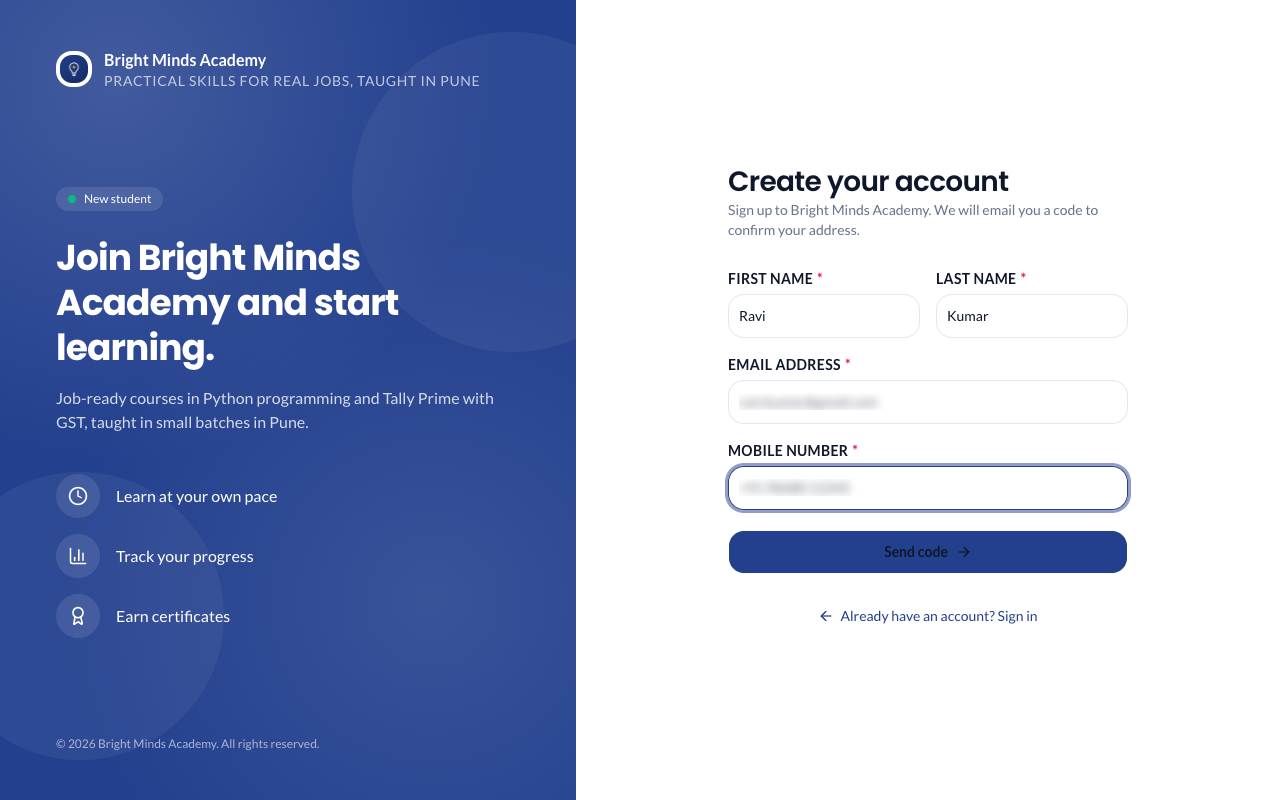
The account is active straight away. There is no approval step. In the Paatya app, students tap Create an account on the sign-in screen and go through the same steps.
If the email already has an account in your academy, the page answers exactly the same, so it never tells anyone who your students are. Instead of a code, that inbox gets an email saying they already have an account, with links to sign in and to choose a new password.
You can change the wording of both emails under Email wording: they are called Sign-up code and Sign-up for an existing account.
Find the students who signed up
In Students, a student who signed up shows Self-registered under their name. To see only them, change the Added by: Anyone filter at the top of the list to Self-registered.
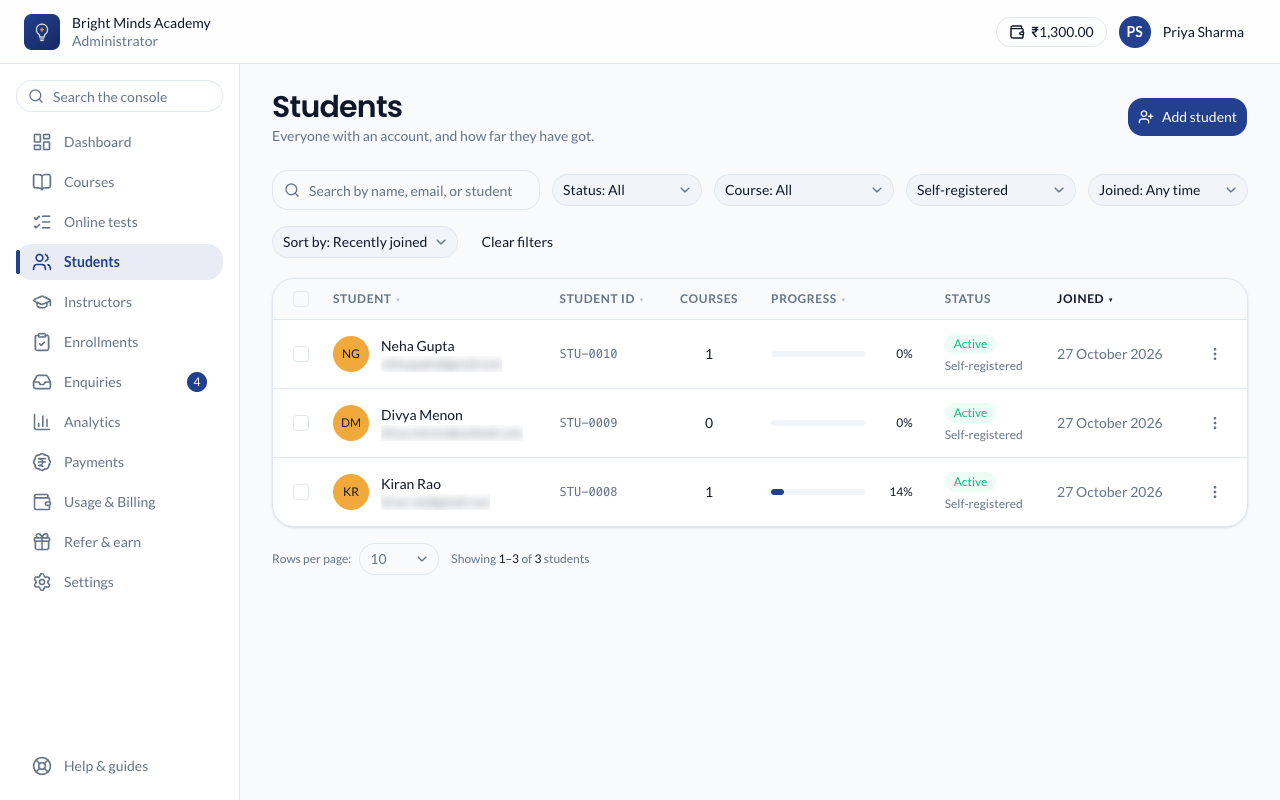
They are students like any other: you can edit, enroll and deactivate them in the same way. See Find and manage students.
If something goes wrong
- "This academy is not accepting new sign-ups right now." Sign-up is off, or adding students is paused because your balance has run out.
- A student says the code never came, but they already have an account. They got a "You already have an account" email instead. They should sign in, or use Forgot password?.
- "Please confirm you are not a robot". The security check wasn't completed or expired. Ask them to tick it again and click Send code.
- The code email didn't arrive. Ask them to check their spam folder, then click Resend code. Codes go by email only.
- Somebody signed up who shouldn't have. Deactivate them. They are signed out and cannot sign in again.