Search and sharing
How your website looks on Google and WhatsApp.
When someone finds your academy on Google, or you share your address on WhatsApp, Facebook or LinkedIn, they see a title, a line of description and often a picture. Under Settings → Search & sharing you choose all three.
Open Search & sharing
- In the left menu, click Settings.
- In the settings menu, under Website, click Search & sharing.
On the right, you'll see how your homepage looks In a search result and In a WhatsApp message, updating as you type.
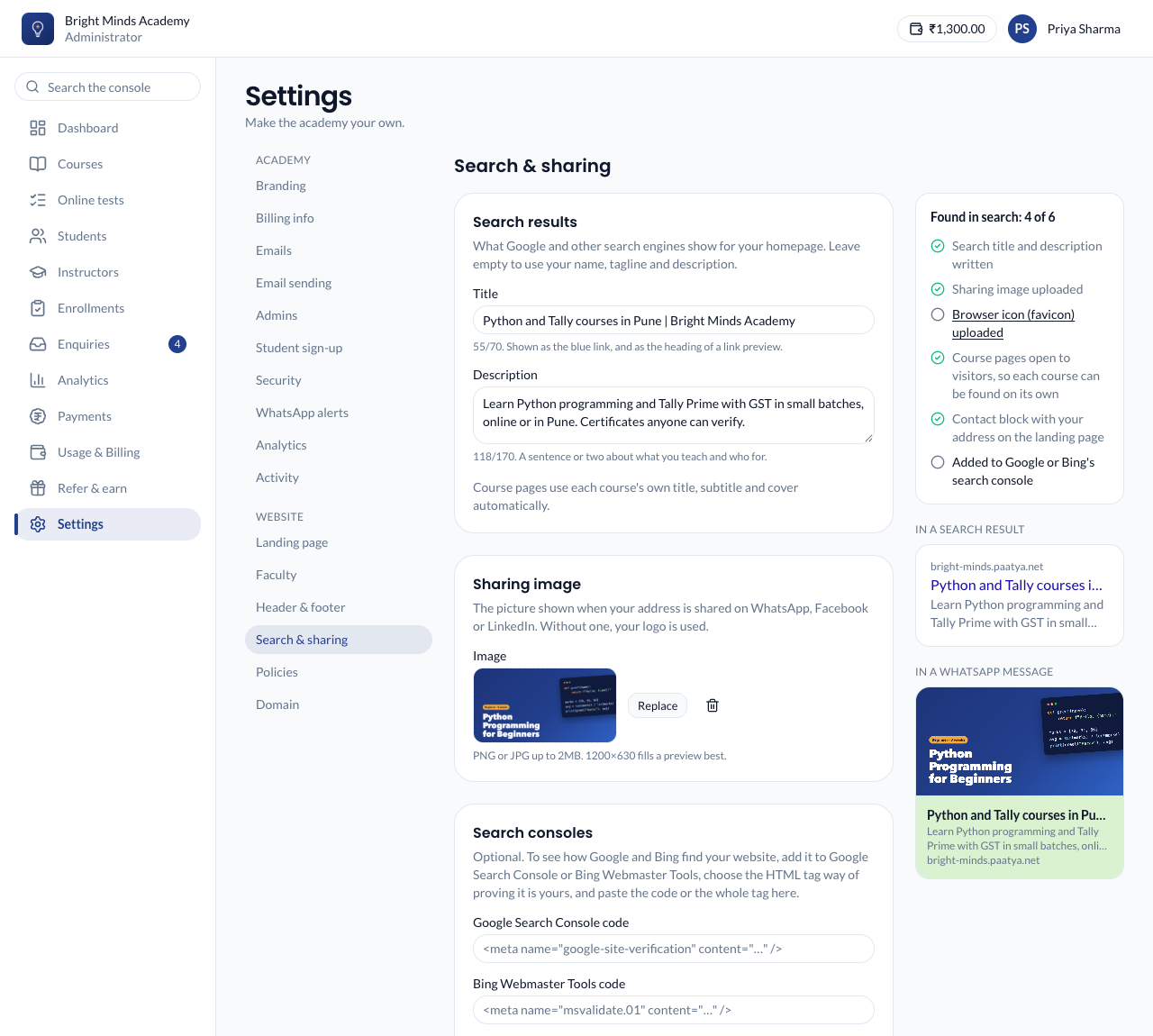
Search results
- Title: the blue link in a search result, and the heading of a link preview. Up to 70 characters, for example "Python and Tally courses in Pune | Bright Minds Academy". Leave it empty to use your academy's name and tagline.
- Description: the line under the title. Up to 170 characters. Say what you teach and who for. Leave it empty to use the description from your setup wizard.
Click Save.
Sharing image
The picture shown when your address is shared.
- Under Sharing image, click Upload and choose a PNG or JPG, up to 2 MB. It is saved straight away.
- A picture of 1200×630 pixels fills a preview best.
Without a sharing image, your logo is used. Click Replace to change the picture, or the bin to remove it.
Search consoles
Optional. Google Search Console and Bing Webmaster Tools show which searches find your website and warn you about problems. To add your website to one:
- In the search console, add your academy's address as a property, and choose the HTML tag way of proving it is yours.
- Copy the code it gives you. You can copy the whole
<meta …>tag; Paatya keeps only the code. - Paste it under Search consoles in Google Search Console code or Bing Webmaster Tools code, and click Save.
- Back in the search console, click Verify. Then submit your sitemap, which is your address followed by
/sitemap.xml.
Found in search
The Found in search list on the right shows what helps your academy be found, and what is still to do: a search title and description, a sharing image, a browser icon, course pages open to visitors, an address in your landing page's contact block, and a search console. Click an item that is not done to go where it is set.
Course pages and policies
You don't need to set anything for these:
- A course's page uses the course's own title, subtitle and cover image.
- A course's address includes its title, such as
/courses/12-spoken-english-basics. If you rename the course, its old address still works and moves visitors to the new one. - Your full course list and each policy page use their own titles, followed by your academy's name.
- Search engines and AI assistants that read pages without running them get each public page's text, and a description of your academy and each course in a form they understand, with its price, language and teacher.
How long changes take
- Your website uses the new title and description as soon as you save.
- Link previews use them the next time your address is shared. WhatsApp and Facebook keep old previews for a while, so a message sent before your change keeps its old picture.
- Google picks up changes the next time it visits your site, which can take days or weeks. Paatya lists your public pages for search engines automatically, including each course page when Show course details is on.
Pages behind sign-in, such as your admin screens and your students' courses, are never listed.
If something goes wrong
- "Keep the title under 70 characters". Search results cut longer titles off. Shorten it.
- A preview still shows the old title or picture. The app has kept an old copy. Share the address in a new message.