Set up course payments
Your payout account, and switching on online payments.
Sell your courses online and have each student's payment reach your bank account. Students pay through Razorpay at checkout. Razorpay keeps only its own charges and sends the rest of every sale to your payout account. On pay-as-you-go Paatya takes no fee from your sales. (On a fixed plan Paatya collects instead: see Sales & payouts.)
Before you start
- Only an academy admin can set this up.
- You need your PAN, your bank account number and IFSC, and the account holder's name exactly as your bank has it.
- You don't need a registered business: an individual can sell courses. If you are registered for GST, add your GSTIN under Usage & Billing → Billing details first, so you can charge GST.
Choose online or offline
In the left menu, click Payments, then the Setup tab. Under 1 How do students pay for your courses?:
- Offline is where every academy starts. You collect fees your own way (cash, bank transfer, UPI to you) and enroll students from Enrollments. Courses show no price, and nothing below applies.
- Online, through Paatya shows prices and a Buy now button, and students pay through Razorpay.
Choose Online, through Paatya and click Save. Cards 2 to 4 below then appear. You can switch back to offline at any time; payments already made are kept.
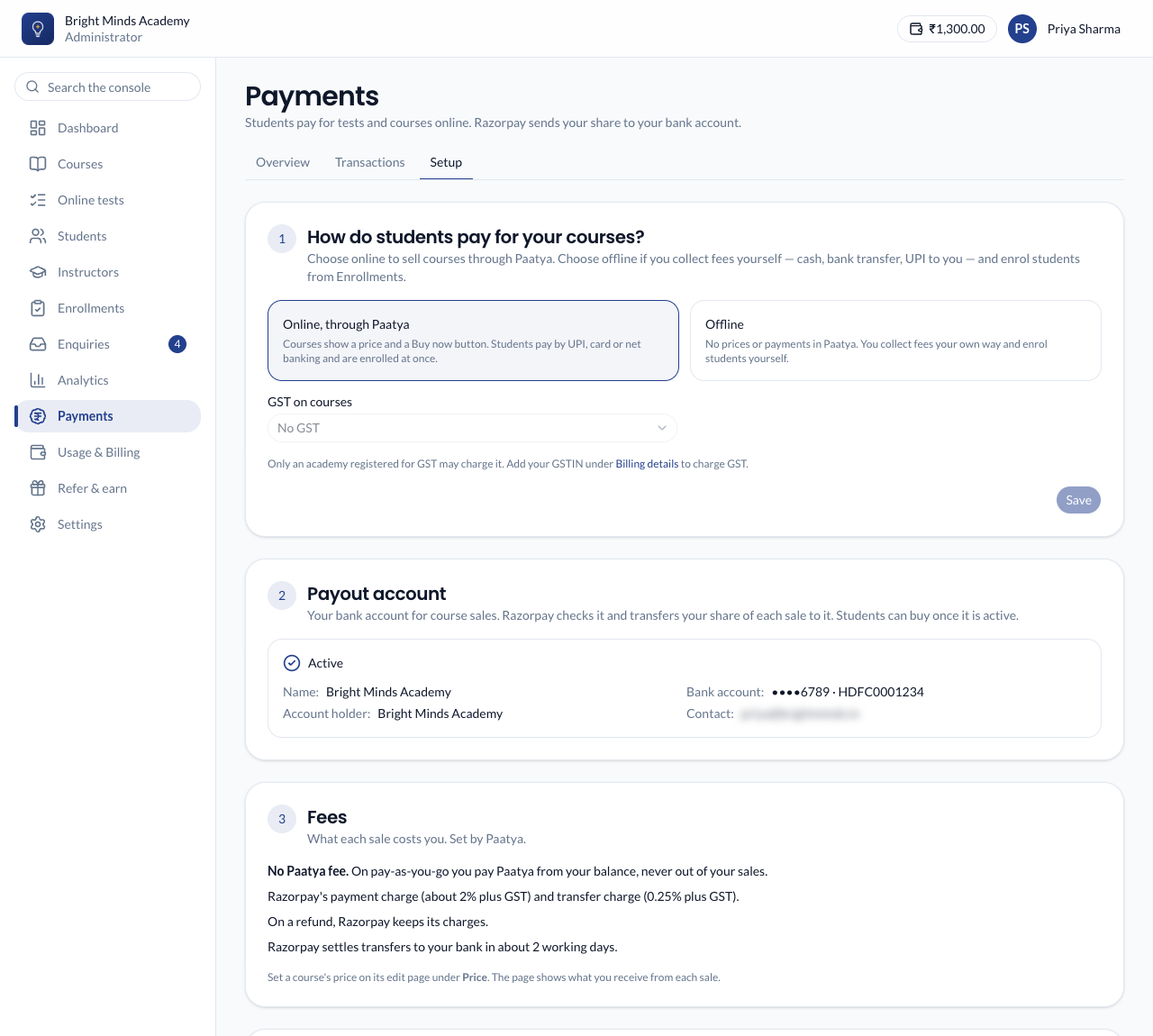
If the page says Online course payments are not open on Paatya yet, you can still choose online and set everything up now. Students can buy once Paatya opens course payments.
Set up your payout account
- Still on the Setup tab, under 2 Payout account, fill in the form:
- the type of business, your legal name as on your PAN, a contact person, and your email and mobile;
- your PAN, and your GSTIN if you have one;
- your address, city, state and PIN code;
- your bank account: the account holder's name, the IFSC and the account number.
- Type the account number twice, then click Send to Razorpay.
Paatya sends these details to Razorpay and keeps only the last four digits of your account number. Your PAN is not stored.
What you'll see
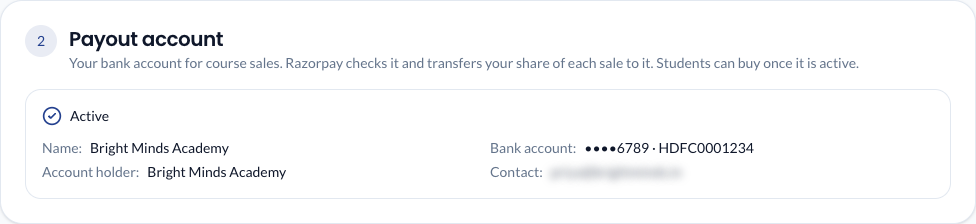
- The status shows at the top of 2 Payout account. Under review by Razorpay means Razorpay is checking your details. Click Check status to refresh it.
- If Razorpay needs more, the status reads Razorpay needs more details and lists what it needs. Contact Paatya support to answer it.
- Once the status is Active, students can buy your paid courses.
- Razorpay sends nothing to a new account in its first 24 hours. Sales in that time are transferred once the 24 hours are up.
Fees
Card 3 Fees lists what each sale costs you:
- No Paatya fee: on pay-as-you-go you pay Paatya from your balance, never out of your sales.
- Razorpay's charge on the payment (about 2% plus GST) and on the transfer to you.
You receive the rest. A course's Price card shows the exact split for that course. See Sell a course.
Charge GST
Under 1 How do students pay for your courses?, with Online chosen, pick GST on courses:
- No GST: the price is what the student pays.
- Added on top of the price: GST at your rate is added at checkout.
- Included in the price: the price already includes GST.
You can choose GST only once your GSTIN is under Billing details. Check the rate and treatment with your accountant.
Refunds
Card 4 Refunds is where you choose whether to give refunds at all. They are off until you switch them on. See Refund a student.