Enroll students
Put one student, or many at once, on a course.
There are two ways to put students on a course: one at a time from the student form, or many at once from the Enrollments page.
Before you start
- The students must already be in your academy. See Add a student.
- The course must exist. Students will only see it once it is Published.
- Your academy needs balance. A new academy has welcome credit to start with; enrolling is paused whenever your balance has run out.
Enroll many students at once
Use this when a whole batch joins a course.
- In the left menu, click Enrollments.
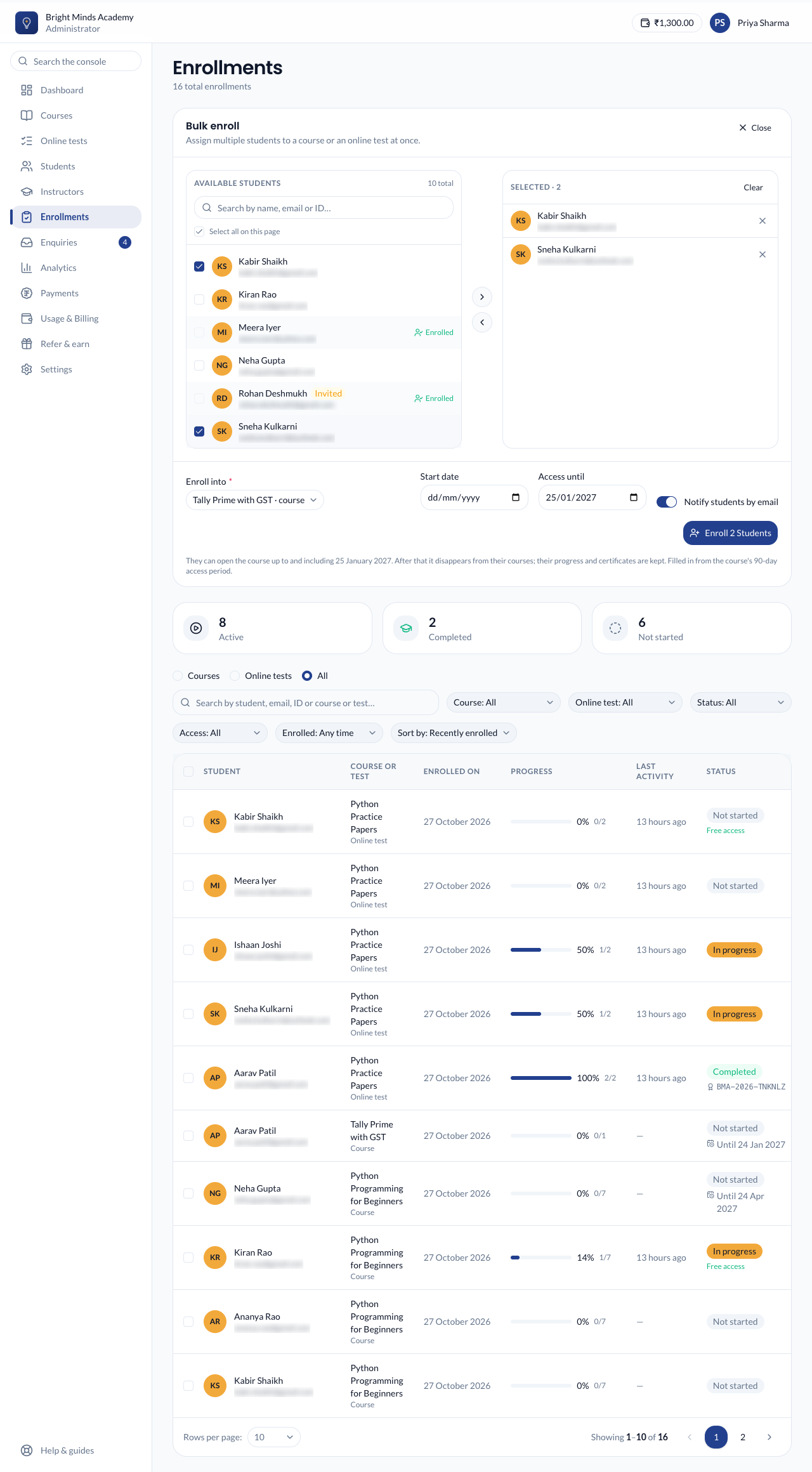
- Click New enrollment. On a phone, tap the New enrollment button at the bottom of the screen. The Bulk enroll panel opens.
- On the left, under Available students, tick the students to add. Use the search box to find people by name, email or ID.
- To pick everyone on the current page, tick Select everyone on this page, or click the → arrow between the two lists.
- The people you pick appear on the right, under Selected. Click Clear to start again.
- Under Enroll into, choose the course.
- Optional: choose a Start date. This is only a date in the email; it does not lock the course.
- Optional: choose Access until, the last day the students can open the course. If the course has a Default access period, this is filled in for you; change it or clear it as you like. See Access end dates.
- Leave Notify students by email switched on if you want each student to get an email about the course.
- Click Enroll N Students. The button shows how many students will be enrolled.
Good to know
- Students who are already on the course are marked in the list and simply skipped. You can safely submit the same group twice.
- A student who started the course for free is not skipped: they get the whole course, with their progress kept. See Free courses and free lessons.
- A student marked Invited can be enrolled, but they can't sign in until they activate their account.
- You can enroll up to 500 students at a time. For more, do it in smaller groups.
Enroll one student from the student form
- In the left menu, click Students.
- Open the ⋮ menu on the student's row and click Edit details. For a new student, click Add student.
- Under Enrolment, click each course the student should join. Picked courses are highlighted.
- Click Save changes (or Add student).
This way does not send an enrollment email.
Tip: The dashboard's Quick actions → Enroll students opens the Bulk enroll panel directly.
What you'll see
- A message such as "3 students enrolled in Tally Prime with GST". It also tells you how many were already on the course and how many were emailed.
- The new enrollments appear at the top of the Enrollments list with the status Not started.
- The course appears under My Courses for each student, as long as the course is published.
If something goes wrong
- "Please add balance to continue". Add balance, then try again.
- The course isn't in the Enroll into list. Check it exists on the Courses page. Archived courses are not listed, because students can't see them. Publish the course again first. Draft courses are listed, marked (draft). Students see them once you publish.
- The student can't see the course. Make sure the course is Published and has at least one published topic. See Troubleshooting.
- "Nobody new to enroll". Everyone you picked was already on that course.