What instructors see
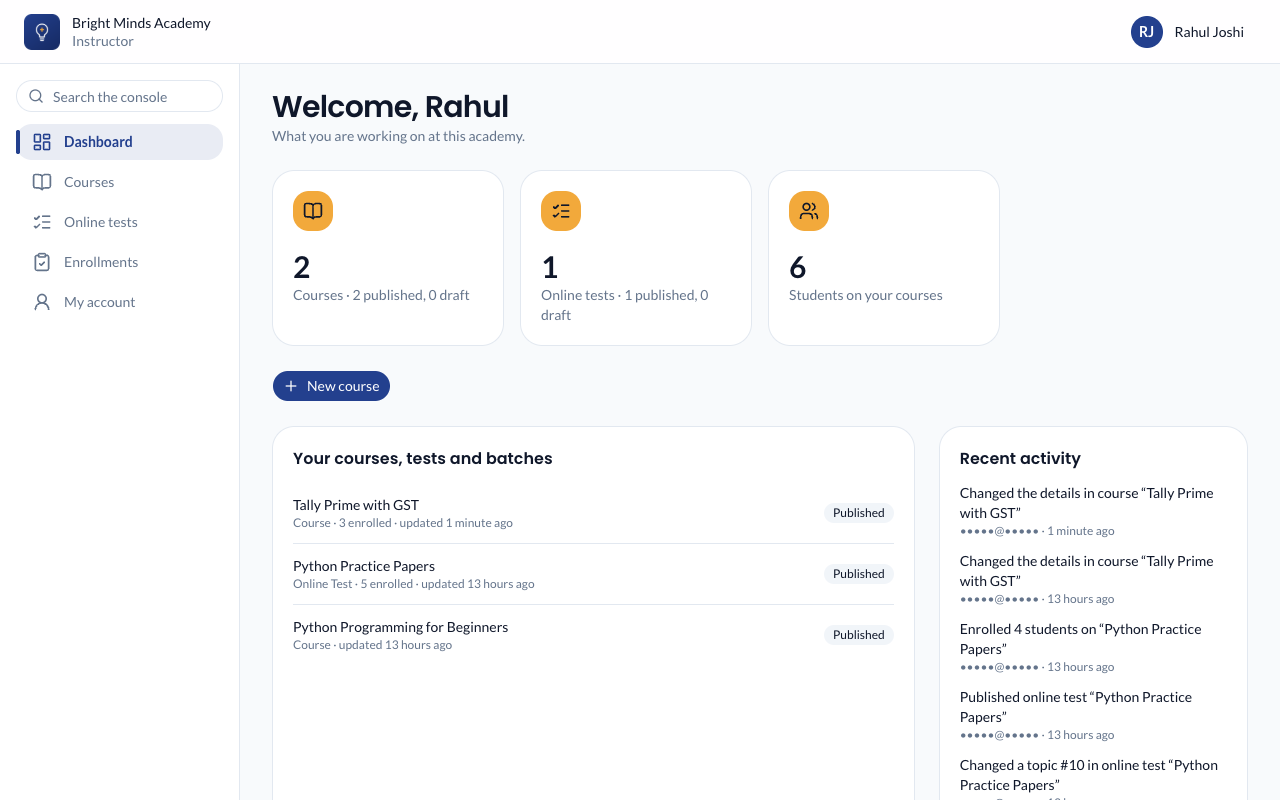
For instructors: your dashboard, your courses and your account.
This page is for instructors: what you see when you sign in, and what to do if something is missing.
Signing in
Sign in at your academy's address with the email your academy invited. You go to your Dashboard. Like admins, you use two-step sign-in, and you're signed out after 1 hour without activity.
Your menu
- Dashboard: your courses, online tests and batches, how many students are on them, and recent changes.
- Courses, Online tests, Batches: only the ones you work on.
- Enrollments: shown once you may see the students of something.
- My account: your emails and two-step sign-in.
What you can do
Each course, online test or batch has its own permissions, set by your academy's admins. Buttons you may not use are hidden. For example, without Publish there is no Publish button, and without Edit content the course opens read-only, with a note that says View only.
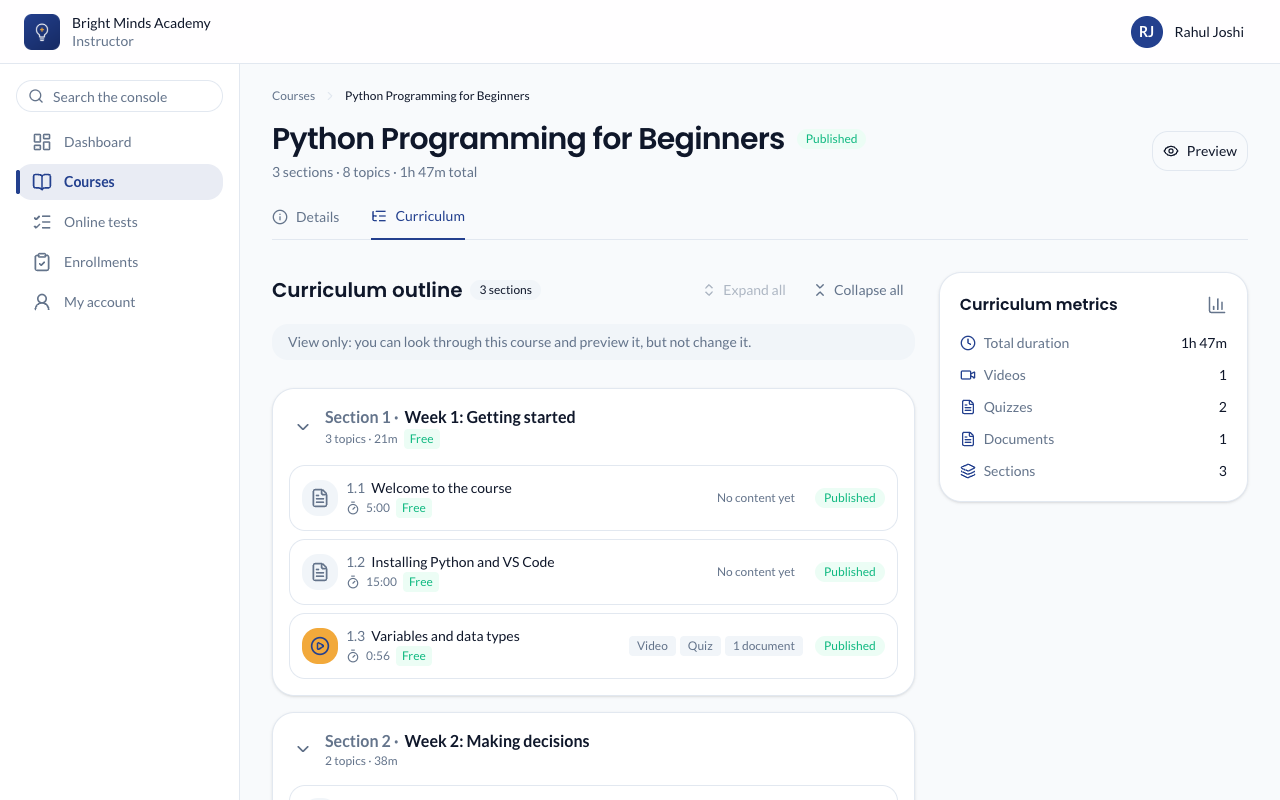
If your academy lets you, you'll see New course, New online test or New batch. What you create is yours to edit. An admin decides when you may publish it. When it's ready, click Ready for review to tell them. See Ready for review.
With View student results, Student progress at the top of a course lists each student's progress and who is falling behind. See Student progress.
Your access to a course may have an end date. Three days before it, you're emailed. After it, the course leaves your list. Ask an admin if you need longer.
When you add students, you pick them from your academy's student list. Student accounts themselves are managed by your admins.
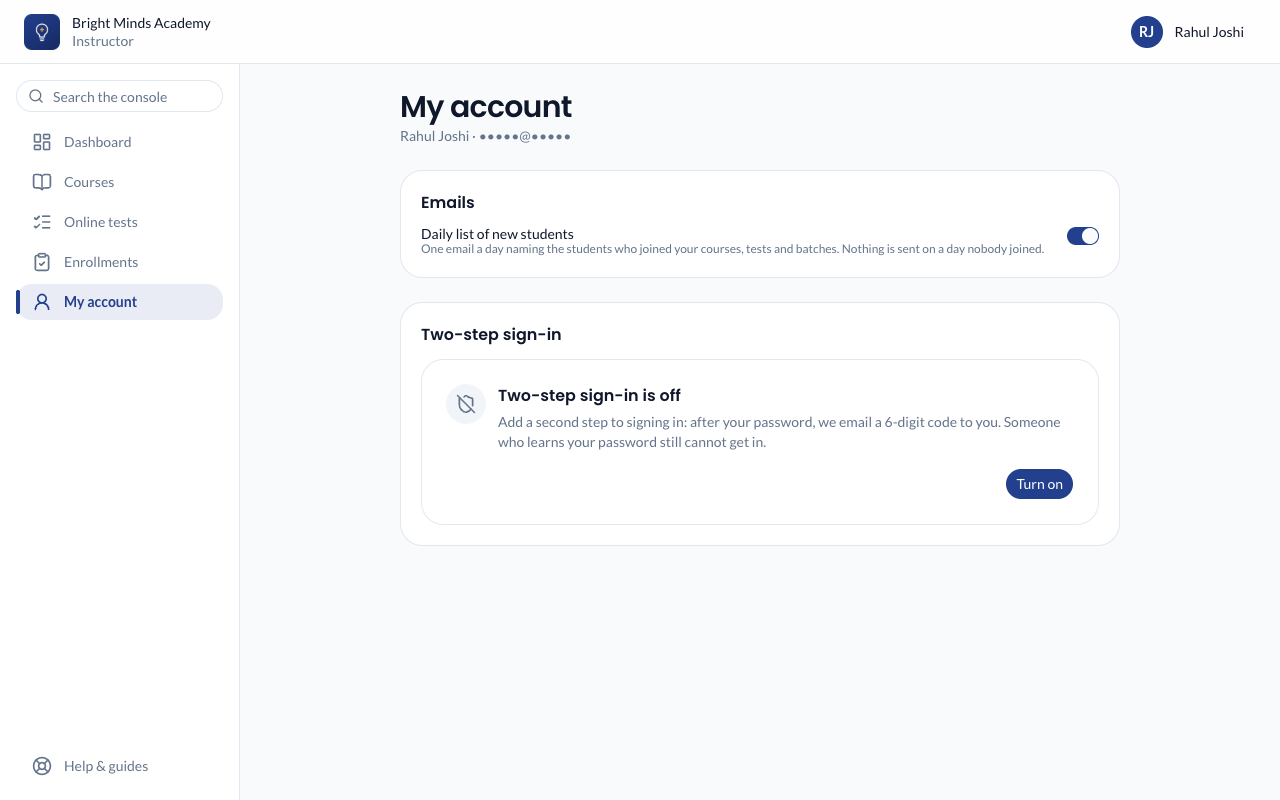
My account
- Daily list of new students: one email a day naming the students who joined your courses. Switch it off if you don't want it.
- Two-step sign-in: turn it on, or make new backup codes.
- Change your password from the menu under your name.
If something goes wrong
- "You cannot open this". That course isn't assigned to you, or it was taken away. Ask an admin.
- A button you need is missing. You don't have that permission for this course. Ask an admin to switch it on.
- Sign-in is blocked for 30 minutes. After 3 wrong passwords, sign-in is blocked. Ask an admin to unblock you.
- "Your academy has deactivated your account". Ask an admin to reactivate you. Your courses come back with it.