Enquiries
Questions sent from your public page.
Visitors to your public page can send you a question through an enquiry form. Every question lands on the Enquiries page of your academy, and your admins get an email about it. This page shows you how to turn the form on and keep track of replies.
Turn on the enquiry form
The starter page already has the enquiry form, under Get in touch. There is nothing to set up.
On your own page, the form is part of a Contact and enquiries block:
- Go to Settings → Landing page.
- Click Add block and choose Contact and enquiries. Skip this if the block is already on your page.
- Fill in any contact details you want to show: address, phone, email, opening hours, WhatsApp number and Google Maps link.
- Make sure Show the enquiry form is on.
- Click Save draft, then Publish.
For more about building your page, see Your landing page.
What visitors fill in
The form asks for:
- Your name
- Phone (optional)
- What would you like to know? (optional)
When they click Send message, they see "Thank you!" and a note that you'll get back to them.
Questions about a course
Ask about this course, on a course's page or on a course card, takes visitors to the same form with that course already chosen. The form then starts with "Asking about" and the course's name. The visitor can click Change to ask about something else instead.
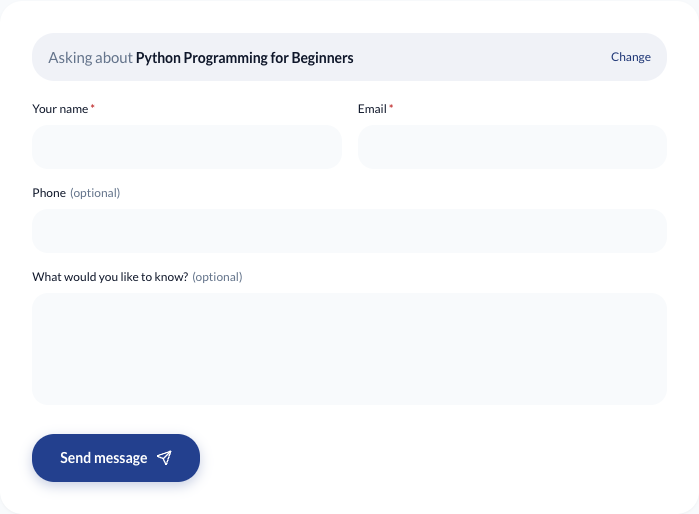
The enquiry keeps the course it was sent about, even if you rename or delete the course later.
When a question arrives
- It appears on the Enquiries page with the status New.
- Every active admin gets an email with the visitor's details, the course they asked about if any, and their message. Reply to that email to answer the visitor directly.
Work through your enquiries
- In the menu on the left, click Enquiries.
- Each enquiry shows the visitor's name, email, phone, message and when they sent it, and About with the course's name if they asked about one. Click the email address or phone number to contact them.
- After you reply, click Mark contacted.
- When the matter is done, click Close.
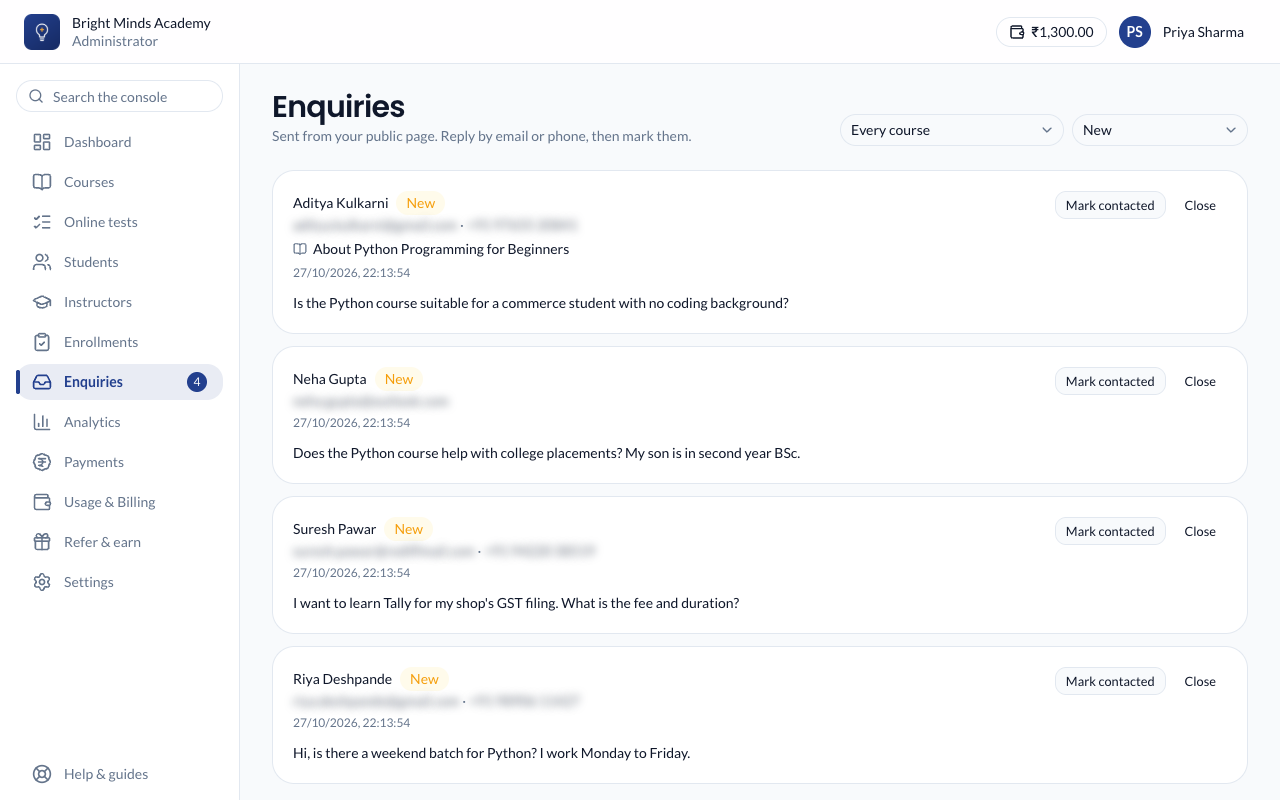
Use the two filters at the top:
- Every course, or one course, to see only the enquiries about it.
- New, Contacted, Closed or All. It starts on New, so you see what still needs a reply.
To bring back a closed enquiry, click Reopen. It goes back to New.
Tip: When an enquirer decides to join, add them as a student and enroll them on their course.
If something goes wrong
- No enquiries arrive. Check your public page has a contact form. On your own page, the Contact and enquiries block must be there, not hidden, with Show the enquiry form on, and the page must be published.
- An enquiry has no course, though the visitor came from a course page. The course was taken off your website, or unpublished, before they sent it. Enquiries only remember courses visitors can see.
- Admins get no email. Check the enquiry is on the Enquiries page. If it is, look in your spam folder.