Certificates
How certificates are issued and checked.
When a student finishes a course, Paatya gives them a certificate automatically. Anyone can check it is real online. This page explains how certificates are issued, what you can change on them, and how to check one.
How a student earns a certificate
A student earns a certificate when they finish every required, published topic on a course. That includes passing any quizzes on those topics. See How courses work.
- The certificate is issued the moment they finish. Nobody has to approve it.
- A student on free access earns one only if the whole course is free. On a course with just a free preview, they earn it once you enroll them and they finish.
- Each student gets one certificate per course. If you add a topic later, a student who has already finished keeps their certificate.
- The student also gets a "Certificate issued" email. You can change its wording in Email wording.
There is nothing to switch on. Every course gives certificates.
What's on a certificate
- The student's name
- The course title
- Your academy's name and logo
- The date it was issued
- The name, title and signature of whoever signs it
- A credential ID, such as
AA-2026-7Q4M2X. It is unique to that certificate.
Change who signs it
- Go to Settings → Branding.
- Scroll to Certificates.
- Fill in:
- Signed by: the person's name. If you leave it empty, each certificate is signed by the course's instructor, or just "Instructor" when the course names no instructor.
- Their title, such as "Director".
- Credential prefix: up to 6 letters or numbers at the start of each credential ID, such as
AA. - Signature: upload an image of the signature. A PNG with a transparent background looks best.
- Click Save branding.
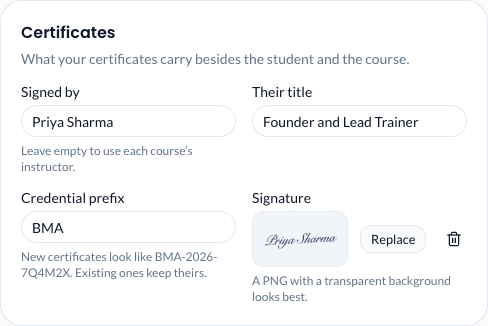
Note: Changes apply to new certificates. A certificate already issued keeps its credential ID.
For the rest of the branding settings, see Branding.
What your students can do with a certificate
Students find their certificates on the Certificates page of their account. From there they can:
- Download PDF
- Share on LinkedIn
- Copy verification link, to send to an employer
See Your students' experience.
Check that a certificate is real
Every certificate has a public verification page. Anyone can open it without an account. It is at your academy's address followed by /verify/ and the credential ID, for example:
https://yourname.paatya.net/verify/AA-2026-7Q4M2X
The page shows who it was Awarded to, the Course, the date Issued and the Credential ID. If the ID is wrong, it says "No certificate with that reference".
See who has a certificate
Open a student's page from Students. On the Enrolled courses tab, a finished course shows "Certificate issued" with the date and credential ID. See A student's progress.
Note: You can't remove a student from a course they hold a certificate for. The enrollment is the record behind the certificate.
A certificate stays with the student even after their access to the course ends. It remains on their Certificates page, and they can still download and share it.